This feature allows you to copy the design of one section and apply it to another section of the same type, so you do not have to recreate the design from scratch.
The full design settings are copied, including fonts, colors, templates, display options, default thumbnail, and other design elements.
This feature is only available for sections of the same type. For example, you cannot copy the design of a Map section to an Article section. The option is visible in the section design settings only if you have at least two sections of the same type in your app.
The full design settings are copied, including fonts, colors, templates, display options, default thumbnail, and other design elements.
This feature is only available for sections of the same type. For example, you cannot copy the design of a Map section to an Article section. The option is visible in the section design settings only if you have at least two sections of the same type in your app.
1. Copy the design of a section
1. Go to the menu My App > Structure
2. From the sections list, select the section that will receive the design.
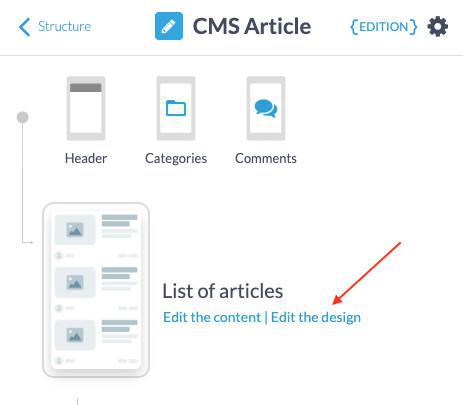
3. Click Edit the design for the page you want to configure
In the example below, we select the List of articles page.
2. From the sections list, select the section that will receive the design.
3. Click Edit the design for the page you want to configure
In the example below, we select the List of articles page.
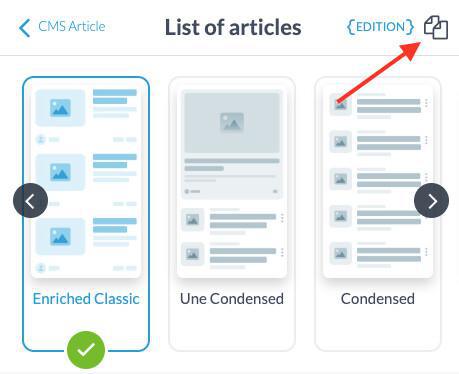
4. Click the duplication icon at the top right of the column
5. Select the section you want to copy the design from (only sections of the same type are displayed).
5. Select the section you want to copy the design from (only sections of the same type are displayed).
6. Click Continue to apply the copied design to your section.
2. Warning
- The copied design will replace the current design and cannot be undone.
- The design is applied only to the selected page of the section.
- A section can contain one or more pages (for example, a list page and a detail page), and the design must be copied for each page individually.
- The design is applied only to the selected page of the section.
- A section can contain one or more pages (for example, a list page and a detail page), and the design must be copied for each page individually.