Depending on the type of content you have on your app, you can add categories to your CMS content section or filter your external content when using an external source (Youtube, WordPress etc.).
Please refer to this online help for more details: Category / Filter in your sections
Please refer to this online help for more details: Category / Filter in your sections
1. Set the design for your categories in your content sections
1. Filter or add categories to your section.
2. Go to the menu My App > Structure .
3. From the sections list, click the section you want to set the design for.
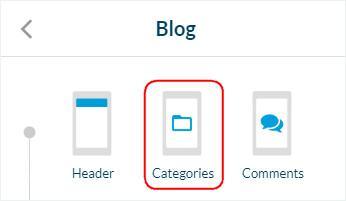
4. Click "Categories".
2. Go to the menu My App > Structure .
3. From the sections list, click the section you want to set the design for.
4. Click "Categories".
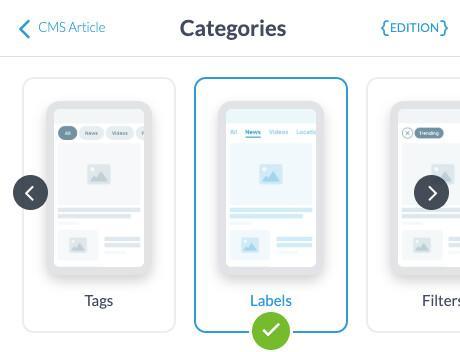
5. Your template is clearly identified with a green icon, use the arrows to select a new template.
6. Set the colors, fonts, background, and options.
6. Set the colors, fonts, background, and options.
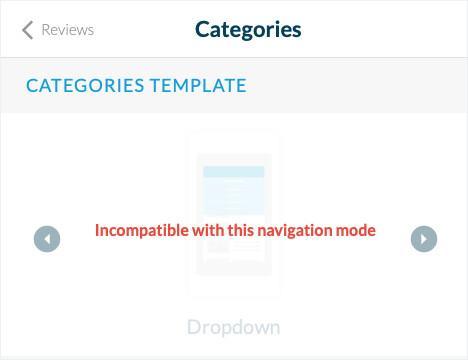
Note: A template may be unavailable with your current configuration.
Some category templates are only available with certain Navigation Menus .
If the category template is unavailable, you can either choose another one or switch to a different Navigation Menu .
Some category templates are only available with certain Navigation Menus .
If the category template is unavailable, you can either choose another one or switch to a different Navigation Menu .
2. Header settings when categories are set for a content section
Depending on the header height set , you have different options available to display your categories with the category templates Drop down you can choose different options for your categories design.
CASE 1
You set your header to display the "Section title & description" (Big template) or "Section title" (Small and Medium template).
Refer to this online help for more details.
Your header title is updated depending on the page of your app that is displayed, to use automatically the title of the section/category involved.
Small & Medium template header
NavBar Title options available:
- Section & Category title: the title of the section will be shown in the header on the first category page, then the title of the category page will be shown.
- Section title only: the title of the section only will be shown in the header for all pages of the section.
- Categories only: the title of the category only will be shown in the header for all pages of the section.
Big template header
NavBar Title options available:
- Section & Category title: the title of the section will be shown in the header on the first category page, then the title of the category page will be shown.
- Section title only: the title of the section only will be shown in the header for all pages of the section.
CASE 2
You set your header to display the "Logo only".
Refer to this online help for more details.
Small & Medium template header
NavBar Title options available:
- Logo & Categories: the logo of the section will be shown in the header on the first category page, then the title of the category page will be shown.
- Logo only: the logo only will be shown in the header for all pages of the section.
- Categories only: the title of the category only will be shown in the header for all pages of the section.
Big template header
NavBar Title options available:
- Logo & Categories: the logo of the section will be shown in the header on the first category page, then the title of the category page will be shown.
- Logo only: the logo only will be shown in the header for all pages of the section.
CASE 1
You set your header to display the "Section title & description" (Big template) or "Section title" (Small and Medium template).
Refer to this online help for more details.
Your header title is updated depending on the page of your app that is displayed, to use automatically the title of the section/category involved.
Small & Medium template header
NavBar Title options available:
- Section & Category title: the title of the section will be shown in the header on the first category page, then the title of the category page will be shown.
- Section title only: the title of the section only will be shown in the header for all pages of the section.
- Categories only: the title of the category only will be shown in the header for all pages of the section.
Big template header
NavBar Title options available:
- Section & Category title: the title of the section will be shown in the header on the first category page, then the title of the category page will be shown.
- Section title only: the title of the section only will be shown in the header for all pages of the section.
CASE 2
You set your header to display the "Logo only".
Refer to this online help for more details.
Small & Medium template header
NavBar Title options available:
- Logo & Categories: the logo of the section will be shown in the header on the first category page, then the title of the category page will be shown.
- Logo only: the logo only will be shown in the header for all pages of the section.
- Categories only: the title of the category only will be shown in the header for all pages of the section.
Big template header
NavBar Title options available:
- Logo & Categories: the logo of the section will be shown in the header on the first category page, then the title of the category page will be shown.
- Logo only: the logo only will be shown in the header for all pages of the section.