The process below describes the Solo mode, meaning you are in charge of submitting your Android app to the Google Play Store.
This online help explains how to submit your Android build (AAB file) to the Google Play Store after testing it on your Android device.
If you prefer not to handle the publication process yourself, you can subscribe to the GoodBarber Takes Care Service (GBTC), and our team will take care of it for you.
This online help explains how to submit your Android build (AAB file) to the Google Play Store after testing it on your Android device.
If you prefer not to handle the publication process yourself, you can subscribe to the GoodBarber Takes Care Service (GBTC), and our team will take care of it for you.
1. Test your Android app and prepare it for submission
Once you have generated the native Android application and tested the AdHoc version on your Android device.
Go to the menu Sales Channel > Android App > Update
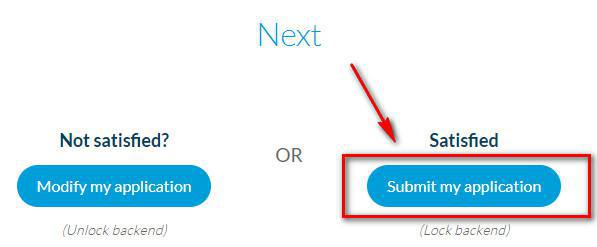
- To continue and submit your app to Google Play, click on Submit my app.
Note: At this point, if you haven't subscribed to GoodBarber yet, you will be asked to select a subscription plan before being able to move forward.
WARNING: You won't be able to update the settings in the Update section (Sales Channel > Android App > Update ) until your back office marks the app as published in the store.
Go to the menu Sales Channel > Android App > Update
- To edit your app, click on Modify my application.
When your changes are done, go back to this page to recompile your app. Wait until it's Ready again.
When your changes are done, go back to this page to recompile your app. Wait until it's Ready again.
- To continue and submit your app to Google Play, click on Submit my app.
Note: At this point, if you haven't subscribed to GoodBarber yet, you will be asked to select a subscription plan before being able to move forward.
In the meantime, you can still work in the back office normally, and you will be able to update the Settings when both versions of the app are unlocked
2. Download the AAB file
After clicking on Submit my app, you will land on the page "Submission to Google Play".
1. Click "Retrieve my .aab file" to download the binary file of your Android app.
2. Save the file where you can easily find it later.
1. Click "Retrieve my .aab file" to download the binary file of your Android app.
2. Save the file where you can easily find it later.
3. Select your app in your Google Play console
4. Set up your Store presence
Your app's store listing is displayed on Google Play and includes details that help users learn more about your app.
Note: Only the mandatory information will be mentioned in this online help, the rest is optional.
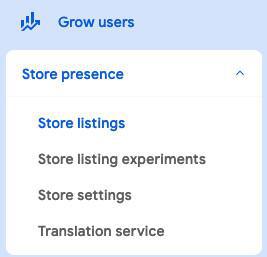
A. Go to Menu Grow users > Store Presence > Store listing
Note: Only the mandatory information will be mentioned in this online help, the rest is optional.
A. Go to Menu Grow users > Store Presence > Store listing
1. Click "Create default store listing"
2. Fill in the App details (App name, Short description and Full description)
More details on Google's documentation .
3. Upload your Graphics:
- App icon: your app icon is shown on Google Play. This doesn’t replace your app’s launcher icon.
512 px by 512 px
- Feature graphic: Shown at the top of your store listing. May also be used to promote your app in other places on Google Play.
1,024 px by 500 px
- Phone screenshots: Upload between 2 and 8 phone screenshots
Between 320 px and 3,840 px
- 7-inch tablet screenshots: Upload up to 8 7-inch tablet screenshots
Between 320 px and 3,840 px
-10-inch tablet screenshots: Upload up to 8 10-inch tablet screenshots
Between 320 px and 3,840 px
More details on Google's documentation .
4. Click "Save"
2. Fill in the App details (App name, Short description and Full description)
More details on Google's documentation .
3. Upload your Graphics:
- App icon: your app icon is shown on Google Play. This doesn’t replace your app’s launcher icon.
512 px by 512 px
- Feature graphic: Shown at the top of your store listing. May also be used to promote your app in other places on Google Play.
1,024 px by 500 px
- Phone screenshots: Upload between 2 and 8 phone screenshots
Between 320 px and 3,840 px
- 7-inch tablet screenshots: Upload up to 8 7-inch tablet screenshots
Between 320 px and 3,840 px
-10-inch tablet screenshots: Upload up to 8 10-inch tablet screenshots
Between 320 px and 3,840 px
More details on Google's documentation .
4. Click "Save"
B. Go to Menu Grow users > Store Presence > Store settings
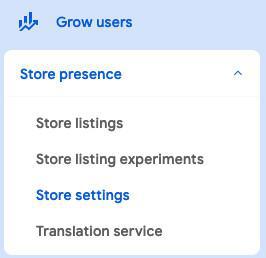
Manage how your app is organized on Google Play, and how users can contact you.
1. App Category > Click "Edit"
App or Game: Select "App"
Category: select the category of your app, its main topic (News, Lifestyle, Entertainment,...).
2. Store listing contact details > Click "Edit"
This information is shown to users on Google Play (Email address is mandatory, phone number and website are optional).
3. Click "Save"
1. App Category > Click "Edit"
App or Game: Select "App"
Category: select the category of your app, its main topic (News, Lifestyle, Entertainment,...).
2. Store listing contact details > Click "Edit"
This information is shown to users on Google Play (Email address is mandatory, phone number and website are optional).
3. Click "Save"
5. Set up your App content
Provide and manage the information Google needs to ensure that your app is safe for its intended users, is compliant with Google Play Developer Program Policies , and satisfies legal requirements.
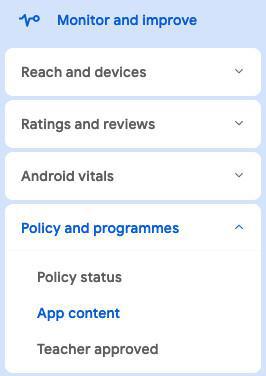
1. Open Play Console and go to the App content page (Monitor and improve > Policy and programmes > App content)
2. Follow carefully instructions of this online help
1. Open Play Console and go to the App content page (Monitor and improve > Policy and programmes > App content)
2. Follow carefully instructions of this online help
6. Upload your .aab file to Google Play console
1. Go the menu Test and Release > Production :: Tab "Releases"
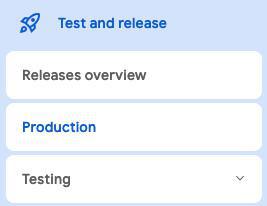
2. Click "Create new release"
3. Click "Upload" to upload your .aab file downloaded previously from your GoodBarber back office.
4. Click "Save" at the bottom of the page
3. Click "Upload" to upload your .aab file downloaded previously from your GoodBarber back office.
4. Click "Save" at the bottom of the page
7. Manage the countries and regions where your app will be available
This is the country or region where the user's Google account is registered, not their location.
1. Go to the menu Test and Release > Production
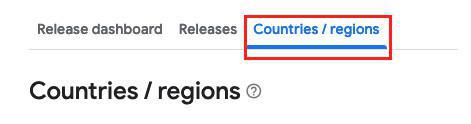
2. Select the tab "Country / regions"
3. Click "Add countries / regions"
4. Select all of them or just the countries / regions where you want your app to be available.
5. Click "Add countries / regions" and confirm in the pop up by clicking "Add"
1. Go to the menu Test and Release > Production
2. Select the tab "Country / regions"
3. Click "Add countries / regions"
4. Select all of them or just the countries / regions where you want your app to be available.
5. Click "Add countries / regions" and confirm in the pop up by clicking "Add"
8. Submit your app on Google Play
Publish your app to real users on Google Play by releasing it to your production track.
1. Go to the menu Test and Release > Production
2. Select the tab "Releases"
3. Click "Edit release"
1. Go to the menu Test and Release > Production
2. Select the tab "Releases"
3. Click "Edit release"
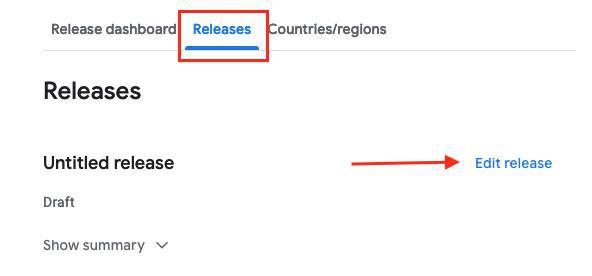
4. Cliquez sur « Suivant » et « Enregistrer » votre version de production
5. Cliquez sur « Accéder à l'aperçu »
5. Cliquez sur « Accéder à l'aperçu »
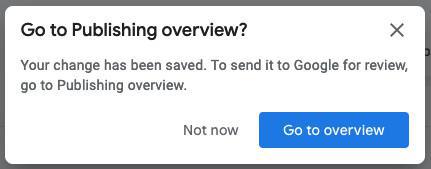
6. Envoyez toutes vos modifications pour examen.

Your app will be reviewed by Google, due to adjusted work schedules at this time, you may experience longer than usual review times for your app.
It can take to Google up to more than 7 days to review new apps.
Check your emails as Google might contact you regarding the publication of your Android app on their store.
It can take to Google up to more than 7 days to review new apps.
Check your emails as Google might contact you regarding the publication of your Android app on their store.