When setting your navigation menu , you can choose to display icons.
Those icons can be displayed in your shortcuts, or in the main navigation depending on the template you chose.
To set your navigation menu:
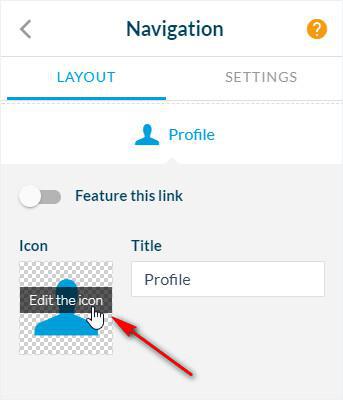
1. Click My App > Structure > Menu
2. Click the icon you wish to change, the block will unfold
3. Click "Edit the icon"
Those icons can be displayed in your shortcuts, or in the main navigation depending on the template you chose.
To set your navigation menu:
1. Click My App > Structure > Menu
2. Click the icon you wish to change, the block will unfold
3. Click "Edit the icon"
You have multiple choices at this point:
- Choose from the default icons provided by GoodBarber in the Collections tab.
or
- Import your own icon/image in the back office from the Personal icons tab.
- Choose from the default icons provided by GoodBarber in the Collections tab.
or
- Import your own icon/image in the back office from the Personal icons tab.
1. Default icons collections
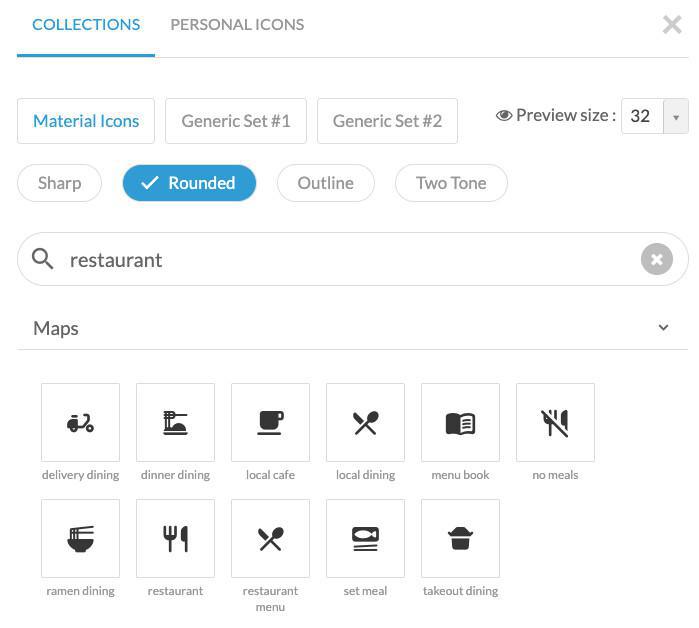
Different icon sets are available in the collection tabs, along with several icon styles.
A search bar is also available in the Material Icons collection to help you find icons more easily.
1. Set the preview size* (16, 32 or 64) to adjust how icons are displayed.
2. Select the icon of your choice, it will automatically replace the current one.
*The preview size only affects how icons are displayed in the back office. It does not impact their actual size in the app.
A search bar is also available in the Material Icons collection to help you find icons more easily.
1. Set the preview size* (16, 32 or 64) to adjust how icons are displayed.
2. Select the icon of your choice, it will automatically replace the current one.
*The preview size only affects how icons are displayed in the back office. It does not impact their actual size in the app.
2. Personal icons
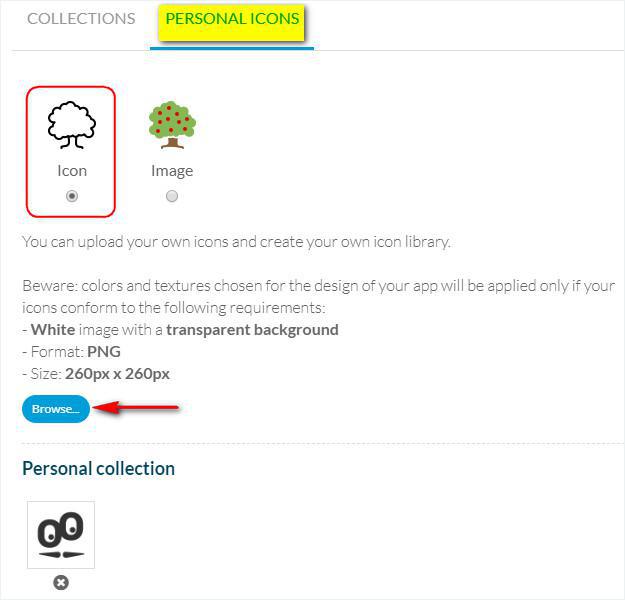
1. Click the Personal Icons tab
2. Select Icon
3. Click Browse to upload your icon
⚠️ To ensure your icon correctly adapts to your app design (colors and textures), it must strictly meet the following requirements:
- Format: .png
- Size: 260 × 260 px
- Color:100% white (#FFFFFF) only
(no other colors, shades, or transparency variations, even for a single pixel)
- Background: transparent If these requirements are not respected, the icon will not adapt to the colors defined in your app design.
Once uploaded, your icons will appear below in the Personal collection section.
2. Select Icon
3. Click Browse to upload your icon
⚠️ To ensure your icon correctly adapts to your app design (colors and textures), it must strictly meet the following requirements:
- Format: .png
- Size: 260 × 260 px
- Color:100% white (#FFFFFF) only
(no other colors, shades, or transparency variations, even for a single pixel)
- Background: transparent If these requirements are not respected, the icon will not adapt to the colors defined in your app design.
Once uploaded, your icons will appear below in the Personal collection section.
3. Personal images
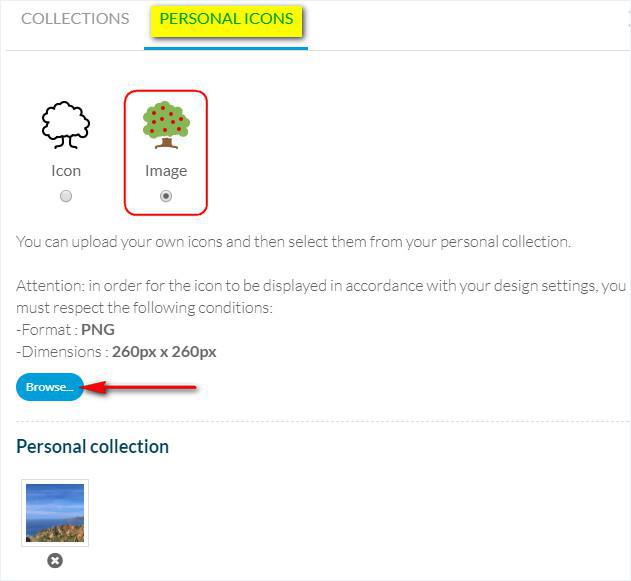
The Image option allows to upload colorful images.
1. Click the Personal Icons tab
2. Select Image
3. Click Browse to upload your icon
⚠️ To ensure your icon correctly adapts to your app design (colors and textures), it must strictly meet the following requirements:
- Format: .png
- Size: 260 × 260 px
Once uploaded, your icons will appear below in the Personal collection section.
1. Click the Personal Icons tab
2. Select Image
3. Click Browse to upload your icon
⚠️ To ensure your icon correctly adapts to your app design (colors and textures), it must strictly meet the following requirements:
- Format: .png
- Size: 260 × 260 px
Once uploaded, your icons will appear below in the Personal collection section.