1. Set a password restriction to access your PWA
1 - Go to the menu Sales Channel > PWA > Publish
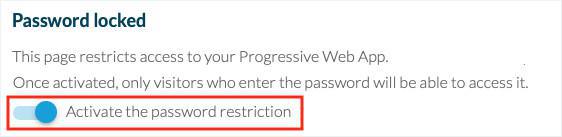
2 - Activate the password restriction
Note: If the PWA isn't activated yet, activate it first to see the option for the password restriction.
2 - Activate the password restriction
Note: If the PWA isn't activated yet, activate it first to see the option for the password restriction.
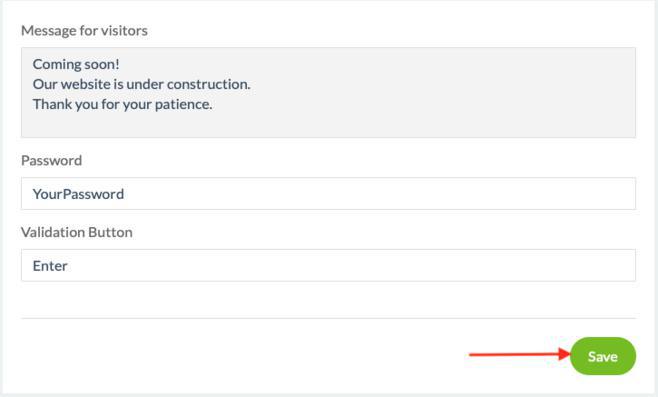
3 - Fill in an explanatory message your visitor will see when reaching your PWA
4 - Fill in the password that will be needed to access your PWA
5 - Fill in the text displayed inside the validation button
6 - Click "Save"
4 - Fill in the password that will be needed to access your PWA
5 - Fill in the text displayed inside the validation button
6 - Click "Save"
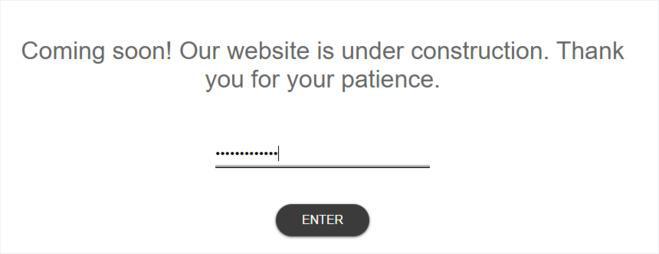
Your visitors will then have to use the password in order to access your PWA, as shown in the example below:
Important:
- The password is unique and is the same for all visitors.
- A cookie is installed on the browser once the password had been filled in once.
It won't be asked again, unless you edit the password from your back office.
- The fonts and validation button's design can not be customized.
- Google bot cannot access your PWA when it is restricted.
- This feature is applied automatically, no need to rebuild your PWA or update its settings.
- The password is unique and is the same for all visitors.
- A cookie is installed on the browser once the password had been filled in once.
It won't be asked again, unless you edit the password from your back office.
- The fonts and validation button's design can not be customized.
- Google bot cannot access your PWA when it is restricted.
- This feature is applied automatically, no need to rebuild your PWA or update its settings.