1. Add a Live Video section
The Live Video section is designed specifically to stream video.
To add one, in the left menu, go to My App > Structure and click the green button "Add a section".
To add one, in the left menu, go to My App > Structure and click the green button "Add a section".
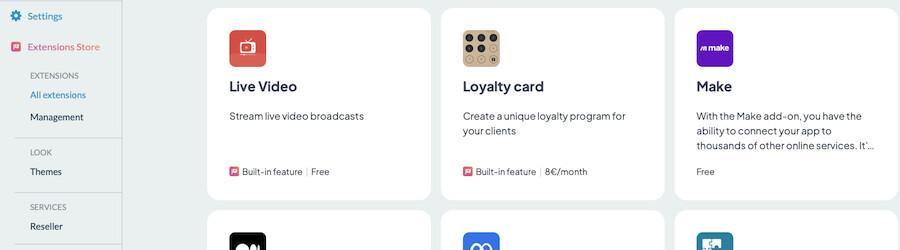
In the window "What do you want to add?", type "video" in the search field, then click "Add" on the "Live Video" card.

Two other cards are similar: "Live +", a paid extension, and "Live Audio", for a live audio stream.
2. Configure the source
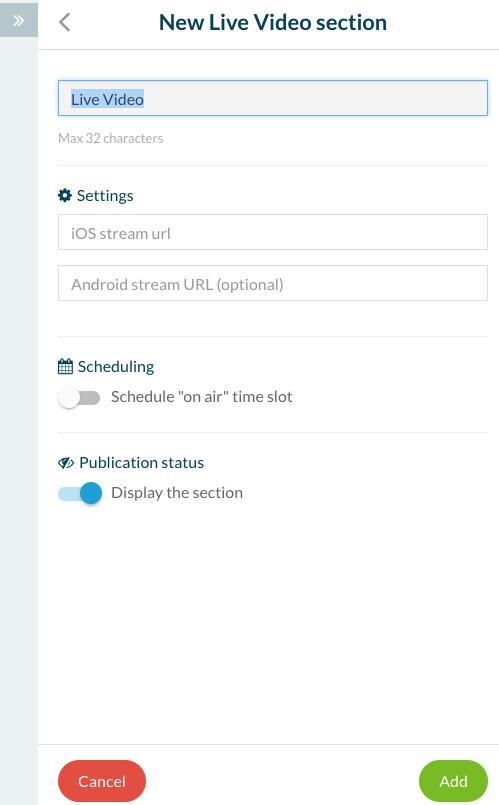
Insert the URL of your live video feed and click on the "Add" button. You must use a video feed streaming format in the Live Video section.
We recommend the following formats http live streaming for iOS and for Android mp4:
- Feed M3U8 for iOS (HTTP Live Streaming)
- Feed RTSP for Android.
The compatible feed must respect these guidelines: https://developer.apple.com/streaming/
*** Feeds such as Youtube, Ustream, etc. are incompatible with this type of section. ***
Note: We remind you that if you are using the live video feature, you directly use the streaming provided by your provider. We do not recommend providers or services, you choose one at your discretion. If you search online, you can find several live video providers.
3. Scheduling
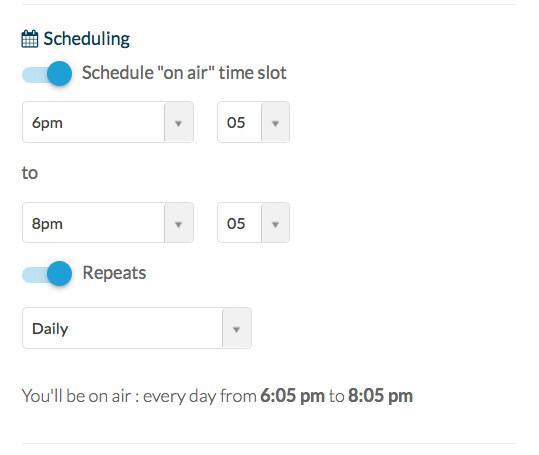
To schedule your stream, activate the Scheduling button, and enter the time when you want to go on air.
You can repeat this schedule, depending on how often you want to go on air.
You can repeat this schedule, depending on how often you want to go on air.