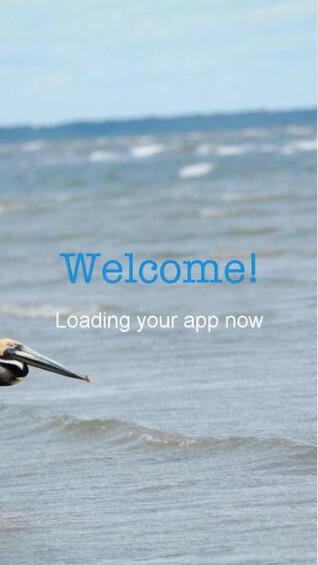
Splash screens are the images that appear at the launch of the native iOS and Android app while the content is loading.
To set up your Launch Screen:
1. Go to the left menu My App > Launch Screen
To set up your Launch Screen:
1. Go to the left menu My App > Launch Screen
1. Custom splash screen
To adapt the image to different sizes of different devices, you need different formats.
Note: Depending on the plan you are subscribed to, only images for the platforms available will be asked for in your back office.
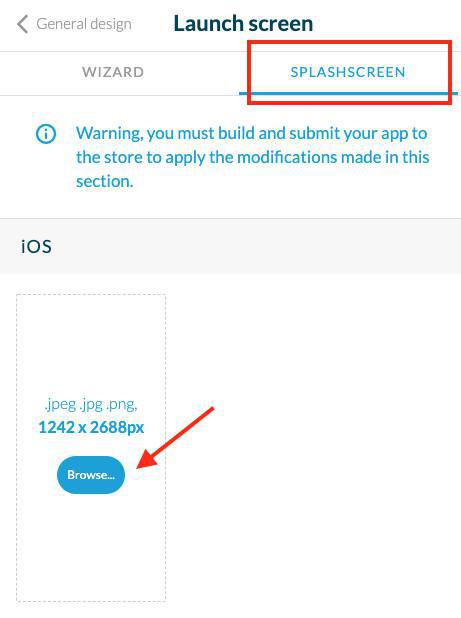
1. Click "Splashscreen" tab
2. Create your splash screen files with the following sizes*:
- iOS : 1242 x 2688 pixels
- Android : 1440 x 2560 pixels
- Tablette : 2048 X 1536 px
*- Those sizes are the minimum required. If you upload bigger pictures, you will be able to crop them.
- If you upload a smaller picture, a black background is added to fill in the void ( your image is kept at original size + black background)
- The recommended resolution is 72 dpi.
- Although these pictures are fairly large, always try to optimize them, specifically their weight, remember that the quality of mobile networks is not constant.
- At the bottom of the image, avoid small text, which is often unreadable on a smartphone screen.
Note: Depending on the plan you are subscribed to, only images for the platforms available will be asked for in your back office.
1. Click "Splashscreen" tab
2. Create your splash screen files with the following sizes*:
- iOS : 1242 x 2688 pixels
- Android : 1440 x 2560 pixels
- Tablette : 2048 X 1536 px
*- Those sizes are the minimum required. If you upload bigger pictures, you will be able to crop them.
- If you upload a smaller picture, a black background is added to fill in the void ( your image is kept at original size + black background)
- The recommended resolution is 72 dpi.
- Although these pictures are fairly large, always try to optimize them, specifically their weight, remember that the quality of mobile networks is not constant.
- At the bottom of the image, avoid small text, which is often unreadable on a smartphone screen.
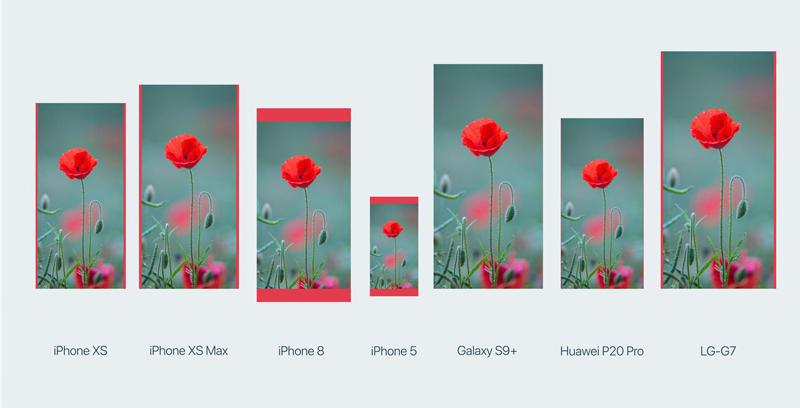
In order to adapt to all the different models, the mobile splash-screens will be cropped if necessary to perfectly match the user's screen without distorting the image.
The demo below shows the same image on all the different mockups.
The red bands indicate where the image has been cropped.
The demo below shows the same image on all the different mockups.
The red bands indicate where the image has been cropped.
2. The Wizard
Use to wizard to create your splash screens directly from the back office.
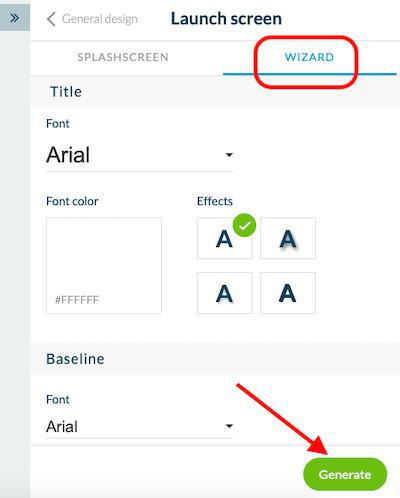
1. Click the Wizard Tab
2. Create your icons directly from the back office:
- Add a text or a picture
1. Click the Wizard Tab
2. Create your icons directly from the back office:
- Add a text or a picture
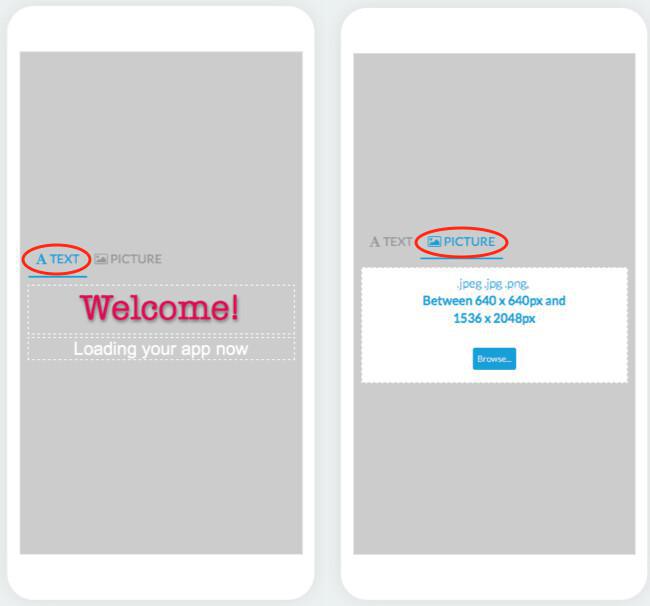
- Set the font, color, effects of your title, and baseline (in the example above, title is Welcome, the baseline is Loading your app now)
- Select a color for the background or add a background image
3. Click "Generate"
- Select a color for the background or add a background image
3. Click "Generate"
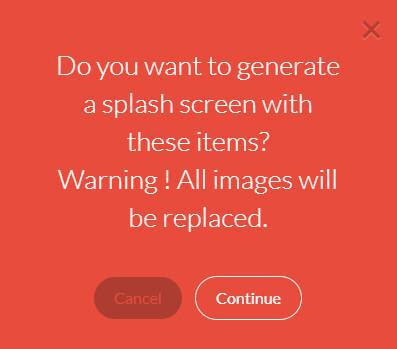
If you already have launch screens set:
- Click "Continue" in the red warning to generate automatically all the formats needed for your app.
- Click "Continue" in the red warning to generate automatically all the formats needed for your app.
That's it, your new splash screen is created!