To display maps in your Progressive Web App (PWA) with Mapbox, you need a Mapbox account and a public access token. If you have not chosen your map service yet, read Enable maps on your PWA first.
Your PWA displays maps with Mapbox GL JS. Each time a map is displayed counts as one map load, for up to 12 hours of use of that map. Mapbox requires a browser that supports WebGL 2.
Your PWA displays maps with Mapbox GL JS. Each time a map is displayed counts as one map load, for up to 12 hours of use of that map. Mapbox requires a browser that supports WebGL 2.
1. Create your Mapbox account
1. Sign up to Mapbox and confirm your email address with the link Mapbox sends you (it expires after 24 hours).
2. In your Mapbox account, open Billing and add a payment method. Without it, you cannot create a token and your account stays limited to 5,000 map loads per month.
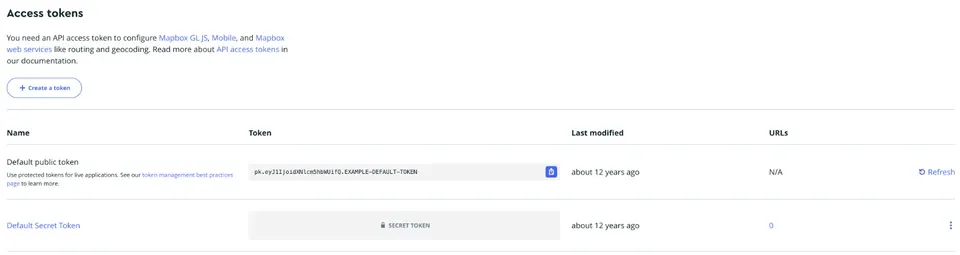
Do not use the Default public token. Your account comes with a Default public token, but it cannot be restricted to your domain: the URLs column of the Tokens page shows N/A. A map token is readable in the code of any web page, so anyone could copy it and display maps billed to your Mapbox account. A token restricted to your domain only works on your PWA.
If Mapbox offers to rotate the default token when you add a payment method, that token stops working: update it in your back office too if you used it.
2. In your Mapbox account, open Billing and add a payment method. Without it, you cannot create a token and your account stays limited to 5,000 map loads per month.
Do not use the Default public token. Your account comes with a Default public token, but it cannot be restricted to your domain: the URLs column of the Tokens page shows N/A. A map token is readable in the code of any web page, so anyone could copy it and display maps billed to your Mapbox account. A token restricted to your domain only works on your PWA.
If Mapbox offers to rotate the default token when you add a payment method, that token stops working: update it in your back office too if you used it.
2. Create a token restricted to your PWA
3. Open the Tokens page and click "Create a token".
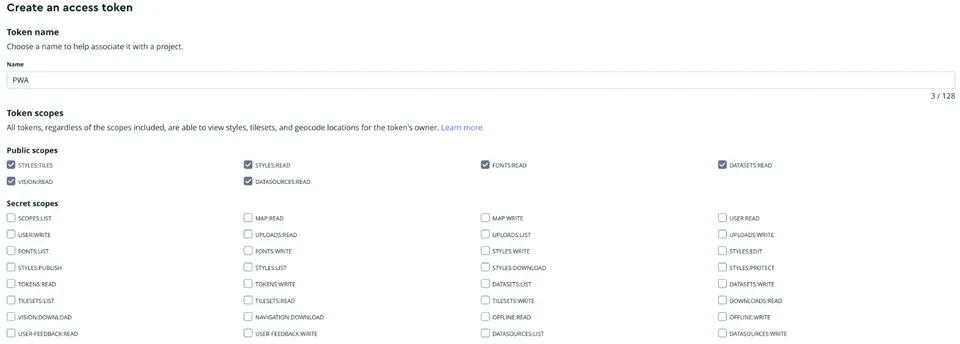
4. Name it, for example "PWA". Keep the Public scopes checked by default (your PWA needs styles:read, fonts:read and styles:tiles) and do not check any Secret scope.
4. Name it, for example "PWA". Keep the Public scopes checked by default (your PWA needs styles:read, fonts:read and styles:tiles) and do not check any Secret scope.
5. Under Token restrictions > URLs, add every address your PWA is served from, then click "Add URL":
- your domain, for example mydomain.com. It also allows its subdomains (www.mydomain.com, app.mydomain.com), so do not add any *;
- your GoodBarber address, for example myapp.goodbarber.app, as long as your PWA uses it.
6. Click "Create token" and copy the new token. It starts with pk.
Warning: when you install a new domain on your PWA, add it to the URLs of this token (Tokens page, then edit the token), otherwise the maps stop loading on that address. Never paste a secret token (starting with sk.) in your back office. You can follow your map loads on the Statistics page of your Mapbox account.
- your domain, for example mydomain.com. It also allows its subdomains (www.mydomain.com, app.mydomain.com), so do not add any *;
- your GoodBarber address, for example myapp.goodbarber.app, as long as your PWA uses it.
6. Click "Create token" and copy the new token. It starts with pk.
Warning: when you install a new domain on your PWA, add it to the URLs of this token (Tokens page, then edit the token), otherwise the maps stop loading on that address. Never paste a secret token (starting with sk.) in your back office. You can follow your map loads on the Statistics page of your Mapbox account.

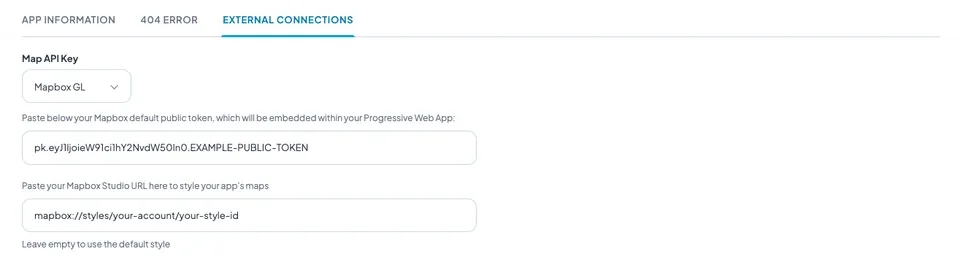
7. In your back office, go to the menu Settings > Other settings > External connections
8. Under Map API Key, select Mapbox GL
9. Paste your public token
10. Optional: paste the URL of a style created in Mapbox Studio to style all the maps of your app (see below). Leave it empty to use the default Mapbox street map.
11. Click "Save"
8. Under Map API Key, select Mapbox GL
9. Paste your public token
10. Optional: paste the URL of a style created in Mapbox Studio to style all the maps of your app (see below). Leave it empty to use the default Mapbox street map.
11. Click "Save"
12. Update the settings of your app to integrate your token to your PWA.
3. Style your maps with Mapbox Studio (optional)
1. Create or open a style in Mapbox Studio and publish it.
2. On the Studio styles page, click the Share icon of your style.
3. Under Developer resources, copy the Style URL. It looks like mapbox://styles/username/style-id.
2. On the Studio styles page, click the Share icon of your style.
3. Under Developer resources, copy the Style URL. It looks like mapbox://styles/username/style-id.
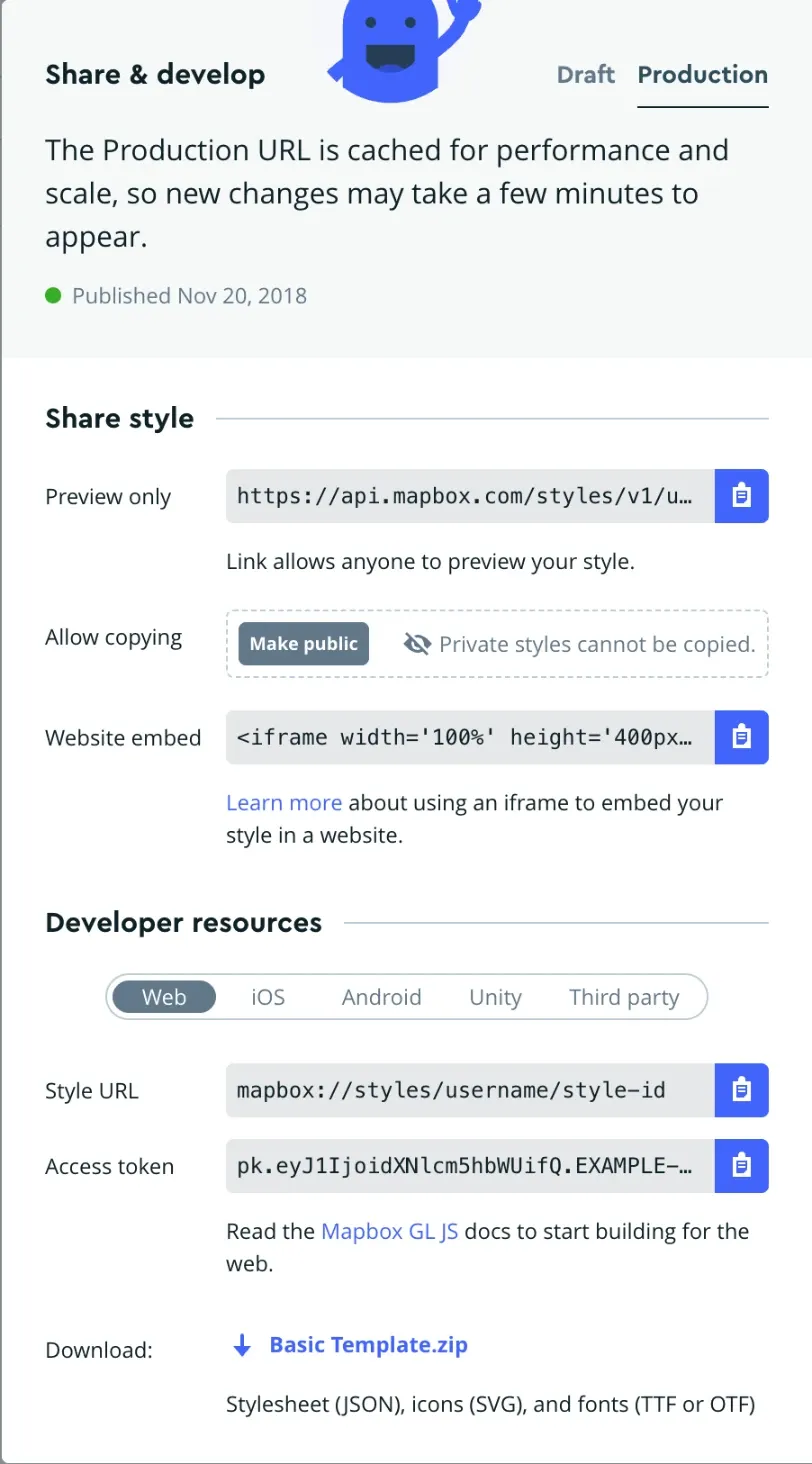
4. Paste it in Settings > Other settings > External connections to style every map of your app.
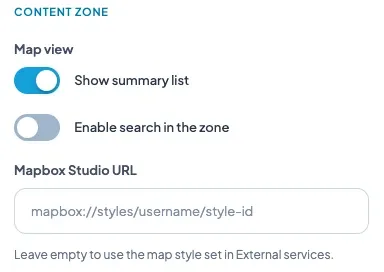
5. To give a Maps section, an Agenda section or a Map widget its own style, paste a style URL in the map settings of its design. Leave that field empty to keep the style of the app.
6. Update the settings of your PWA.
5. To give a Maps section, an Agenda section or a Map widget its own style, paste a style URL in the map settings of its design. Leave that field empty to keep the style of the app.
6. Update the settings of your PWA.