1. From an Custom section
In your HTML code, at the end of the URL you wish to open in an external browser, add ?gbOpenExternal=1
The links must be in the following format: <a href="https://www.yoururl.com?gbOpenExternal=1">Your text</a>
Note: The extension "?gbOpenExternal=1" can’t be added with the “URL” template.
The links must be in the following format: <a href="https://www.yoururl.com?gbOpenExternal=1">Your text</a>
Note: The extension "?gbOpenExternal=1" can’t be added with the “URL” template.
2. From a CMS section
In the drop-down menu to create a link, select the option "External link" and fill in the URL you need to open externally.
Add to the URL this property "?gbOpenExternal=1", so for example, your URL will look like this: https://www.yoururl.com?gbOpenExternal=1.
Add to the URL this property "?gbOpenExternal=1", so for example, your URL will look like this: https://www.yoururl.com?gbOpenExternal=1.
3. From a Click-to section
There are different ways to open a Click-to link in an external browser from your app, in all cases the process is the same:
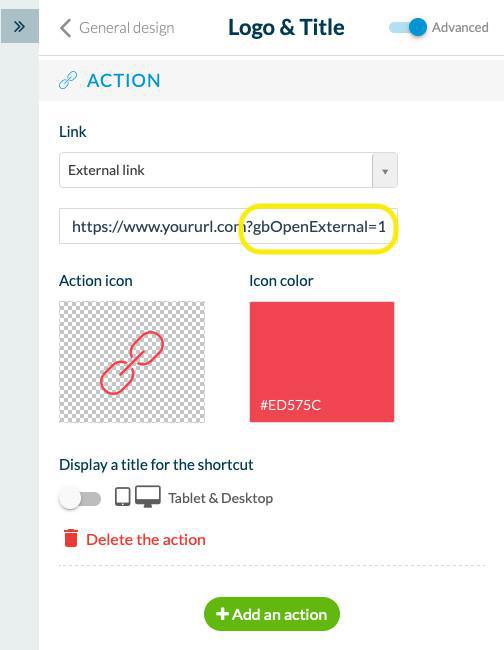
In the Link field, select the option "External link" and fill in the URL you need to open externally.
Add to the URL this property "?gbOpenExternal=1", the URL must be in the following format: https://www.yoururl.com?gbOpenExternal=1.
You can use this in the following examples:
- In My App > structure > Menu , you can add a shortcut in the Footer depending on the templates, by clicking on the "Add an element" button
- In the General Header or sections' header, you can add a link next to the title by clicking on the "+ Add an action" button
- In a widget link on the Home page
In the Link field, select the option "External link" and fill in the URL you need to open externally.
Add to the URL this property "?gbOpenExternal=1", the URL must be in the following format: https://www.yoururl.com?gbOpenExternal=1.
You can use this in the following examples:
- In My App > structure > Menu , you can add a shortcut in the Footer depending on the templates, by clicking on the "Add an element" button
- In the General Header or sections' header, you can add a link next to the title by clicking on the "+ Add an action" button
- In a widget link on the Home page
4. Update your modifications
Remember to publish your changes in the menu Sales Channels > PWA / Android / iOS > Update , to apply them to your app.