GBTC: Publish your app with easeDiscover GoodBarber Takes Care and simplify the app publication process for both the App Store and Google Play. Let us handle the technical details for you.Learn more about GBTC
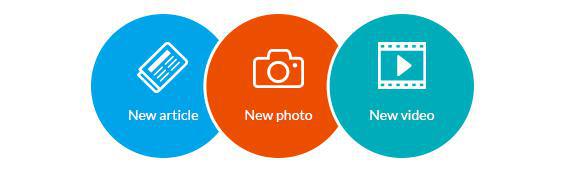
No need to plug an external source to add content to your app! With the built-in CMS, you can create articles, post videos and add photos to your app, right from your GoodBarber backend.
The built-in CMS is perfect for those who don’t have a blog or any third party solution to publish content, but need to have their own app. For the others, it’s also a good way to offer original content to their app users only.
How to use the CMS?
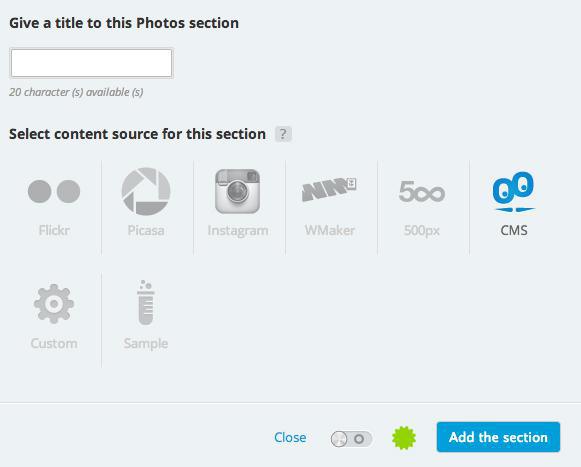
Go to your backend >> Menu Content >> Add section >> Select photo, video or article section >> When it's done, select the logo GoodBarber with CMS >> Give a title to your section >> Click to the button "Add the section"
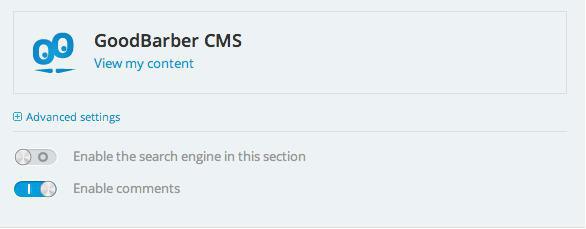
Then, come back to your section and spot the new section "GoodBarber CMS", click to the button "View my content"
⚠ You can here, check the "Advanced settings" and activate the search engine in this section and comments.
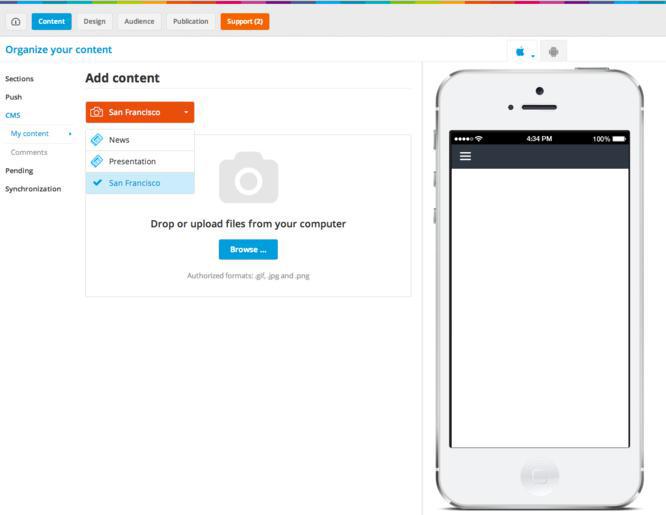
You will be redirected to the menu CMS. You can add photos, videos or articles right from your backend, no need to be connected with an external source! You also will have access to all your CMS sections.
If you have already created a CMS section, go directly in your backend to the menu Content >> CMS
How to integrate content with the CMS?
Select your section and add your element.
For articles:
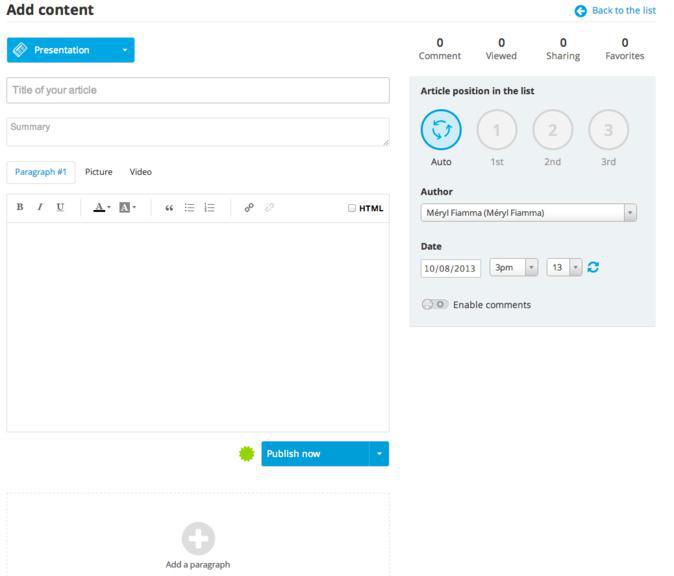
1 - Click to the button "Create an article"
2- Enter all the information : . Title . Summary (if you have one) . Text in the paragraph . Picture (if needed) . Video (if needed) . An other paragraph (if you want)
You have also the possibility of positioning your article in the 1st, 2nd and 3rd place or let GoodBarber does it automatically.
3- When it's done, select if you want to: . Publish directly this article . Save the draft . Stock the article
And it's done for articles! Fast and easy, right?
For pictures:
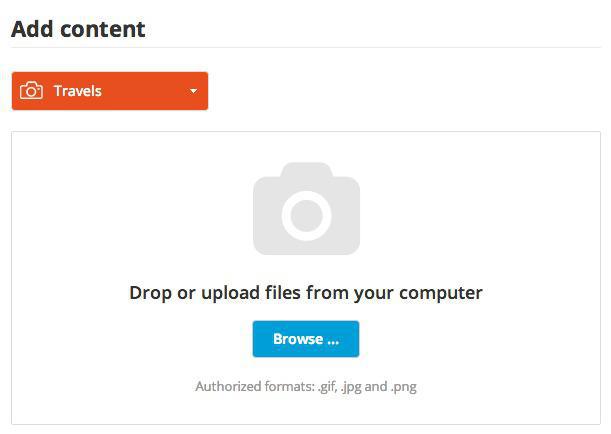
1- Click to the button "Browse" 2- Download your pictures from your laptop
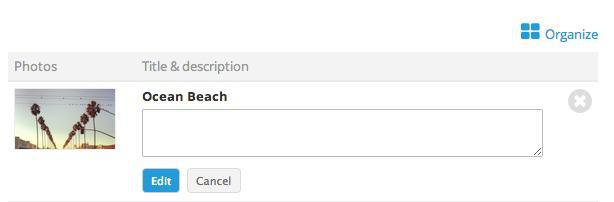
3- When your pictures are downloaded, you can: . crop them if needed - click directly on the picture . change the name or add more information about the pic . class them in the order you like - click the button "Organize" for this action
And the same thing as for article, select if you want to publish now, save or stock them.
For videos:
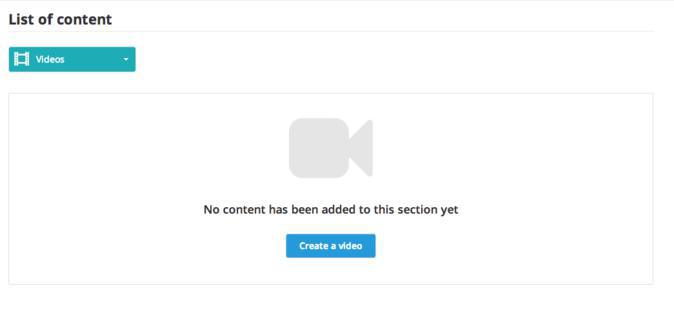
- Click the button "Create a video" - Write a title - A summary (if needed) - Add your video: . from your laptop click to the button "Choose a file" . from Internet click to the button "Embed" and past the embed code - Add a paragraph
And the same thing as for picture and article, select if you want to publish now, save or stock them
Do not forget to work on the design of your section
Go to the section Design and custom all the new sections you created. Choose the good template for your content! :)
This new feature will let you create fantastic content for your readers! Have fun!
On iPhone Duo, an app switches displays every time the phone opens or closes: the outer display, narrow and tall, then the inner display, as wide as a small tablet. Apple asks apps to treat that switch as a simple change of size, like a window being resized, and draws a rule from it: when the device opens or closes, people find what they left.A GoodBarber app follows that rule to the letter. When iPhone Duo opens or closes, it keeps its screens and lays them out again at their new size: the same screen, the same place, what's playing, what was typed into a form. The gesture changes the shape of the screen, never what you were doing.
 eCommerce
 Memberships
 Chatbot
 Online Courses
 Bookings
 Travel guide
 Events
 Content Creators
 Pickup & Delivery
 Newspaper
 Radio
 Schools
 Faith
 Organizations
 Restaurant
 Grocery
 Custom apps
 Employee Communication


 NO CODE APP BUILDER
 TECHNOLOGY
 WHY GOODBARBER?
 Design
 PRODUCT RESOURCES
 TOPICS

 MOBILE APPS RESELLERS
 DISCOVER