GBTC: Publish your app with easeDiscover GoodBarber Takes Care and simplify the app publication process for both the App Store and Google Play. Let us handle the technical details for you.Learn more about GBTC
Design remains our priority . We always strive to come up with new ideas and improvements to make your Beautiful Apps even more beautiful!
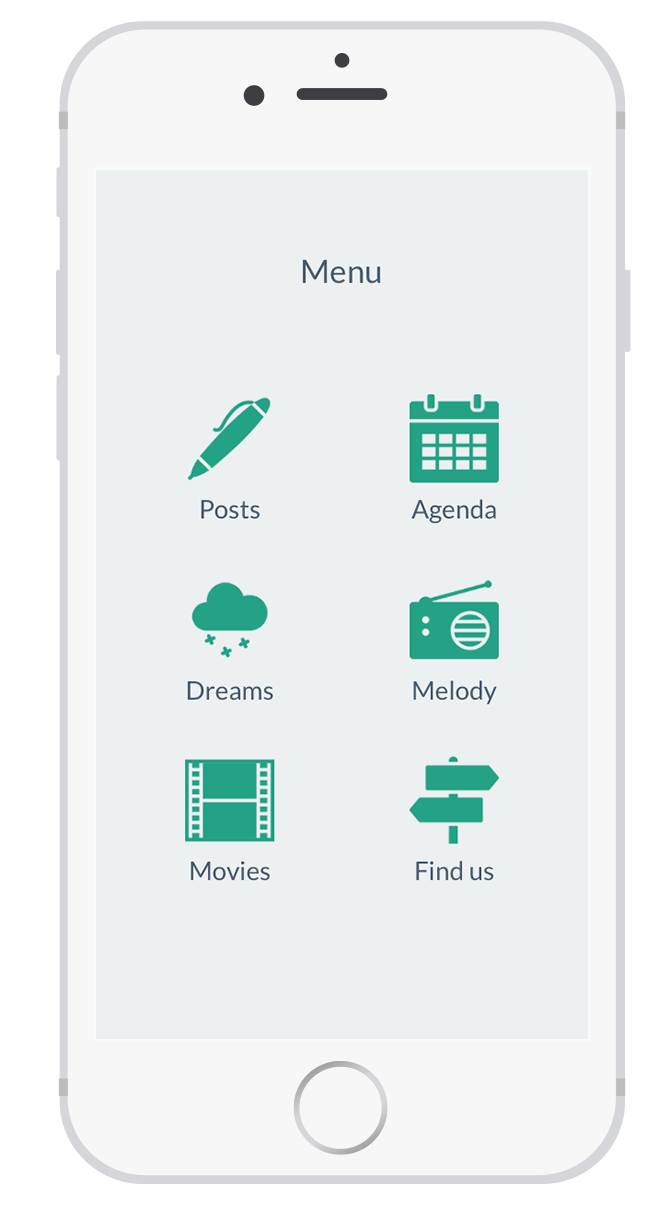
A few weeks ago we introduced an update concerning a very important detail regarding the final look of your app: the icons . You can now choose from over 1500 gorgeous icons directly in your back office. We got great feedback from our users, so we took it to the next level.
In order to satisfy the needs of the most creative, we have decided to grant one of your most recurrent wishes. It’s Christmas ahead of time with our brand new Image Icon feature.
What is it?
You already had the possibility to import your own icons in the back office , but you had to comply with one essential requirement: the image had to be white and on a transparent background.
With our new feature, you can now import any image in the back office and use it as an icon. Total freedom which makes for even more customization.
Now, you can be assured that your app will be as unique as it gets!
How does it work?
It’s super easy!
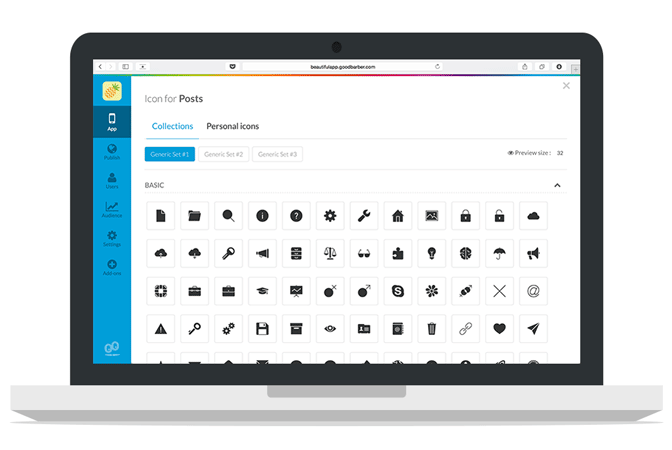
Simply go to the page where you can customize your icons. To do so, you can follow 2 different paths:
- From the General tab: Menu > Edit selected mode > Sections tab. - From the Section menu: enter into the settings tab of one of your sections, click on the icon, right next to the title editing zone.
You will land on the editing page for the icons. Then, click on the Personal icons tab. Right next to the Icon option you’ll now find an Image option.
Simply pick that option and upload the image you wish to use as an icon by clicking on Browse.
Attention, the image you upload must fit these requirements:
- Size: 260 px x 260 px - Format: PNG
The list of the images you have uploaded will show below, in the Personal Collection area.
It’s now up to you GoodBarbers to make the most of that new feature and let your creative side run wild! ;)
On iPhone Duo, an app switches displays every time the phone opens or closes: the outer display, narrow and tall, then the inner display, as wide as a small tablet. Apple asks apps to treat that switch as a simple change of size, like a window being resized, and draws a rule from it: when the device opens or closes, people find what they left.A GoodBarber app follows that rule to the letter. When iPhone Duo opens or closes, it keeps its screens and lays them out again at their new size: the same screen, the same place, what's playing, what was typed into a form. The gesture changes the shape of the screen, never what you were doing.
 eCommerce
 Memberships
 Chatbot
 Online Courses
 Bookings
 Travel guide
 Events
 Content Creators
 Pickup & Delivery
 Newspaper
 Radio
 Schools
 Faith
 Organizations
 Restaurant
 Grocery
 Custom apps
 Employee Communication


 NO CODE APP BUILDER
 TECHNOLOGY
 WHY GOODBARBER?
 Design
 PRODUCT RESOURCES
 TOPICS

 MOBILE APPS RESELLERS
 DISCOVER