 eCommerce
 Memberships
 RAG Chatbot
 Online Courses
 Bookings
 Travel guide
 Events
 Content Creators
 Pickup & Delivery
 Newspaper
 Radio
Radio Schools
 Faith
Faith Organizations
 Restaurant
 Grocery
 Custom apps
 Employee Communication

 NO CODE APP BUILDER
 TECHNOLOGY
 WHY GOODBARBER?
 Design
 PRODUCT RESOURCES
 TOPICS
 MOBILE APPS RESELLERS
 DISCOVER
PWA's and advertising displays
Written by Jerome Granados on
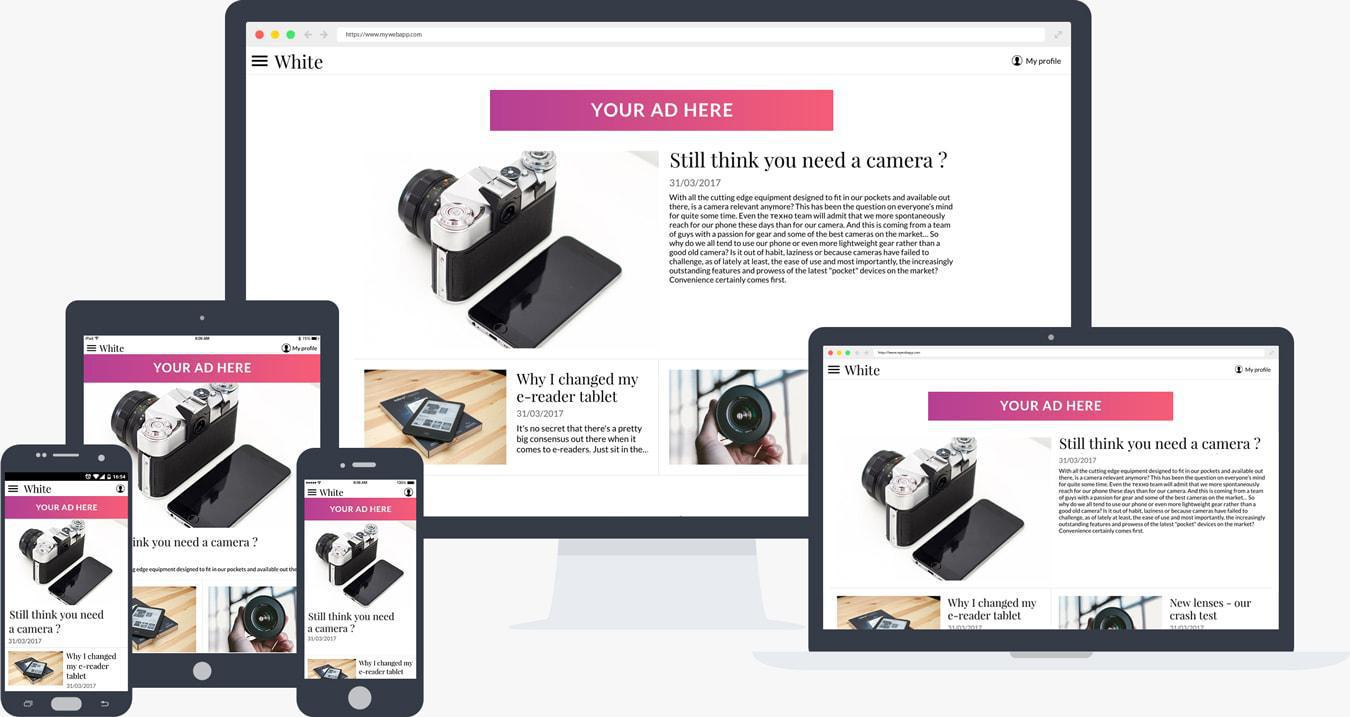
Advertising displayed in a website represents an attractive source of revenue when you have a very targeted or important audience. If you're considering monetizing your Progressive Web App's traffic through advertising displays, you have several different options available. PWA's offer multiple places to display advertising, various formats, and connections to several ad networks, including GoodBarber's internal ad server.
Advertising formats
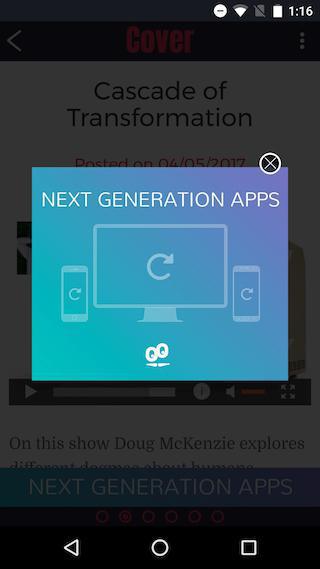
PWA's can display ads in two types of formats : banners and interstitials. In order for the display to be perfect on both retina screens and desktop, all sizes are asked for two times larger than what's actually needed.
Banner
Your advertisers can give you creatives in either banner form or rectangle form. Every 15 seconds, the system chooses a new banner in the active ad campaign and displays it when generating the page being viewed.
Interstitial
Interstitial displays respect Google's recommendations . They aren't 100% obstructive in order to avoid negatively effecting your Progressive Web App's SEO.
Interstitials are displayed when a transition between a list and detail view takes place, or between a home and detail view.
The user can manually close an interstitial. If he or she does not do this, it will automatically close after 15 seconds.
To avoid being obnoxious, at least 60 seconds must pass between 2 interstitial displays.
Banner
Your advertisers can give you creatives in either banner form or rectangle form. Every 15 seconds, the system chooses a new banner in the active ad campaign and displays it when generating the page being viewed.
Interstitial
Interstitial displays respect Google's recommendations . They aren't 100% obstructive in order to avoid negatively effecting your Progressive Web App's SEO.
Interstitials are displayed when a transition between a list and detail view takes place, or between a home and detail view.
The user can manually close an interstitial. If he or she does not do this, it will automatically close after 15 seconds.
To avoid being obnoxious, at least 60 seconds must pass between 2 interstitial displays.
Advertising placement
You can display ads on the home, the list views, and the detail views of your PWA.
Home page
Amongst the widgets that can make up the home of your web app is the "Advertising" widget, which allows you to choose the advertisement that will be displayed by selecting from the campaigns available in your back office. You can arrange several "Advertising" widgets on your home, either in banner form or rectangle form.
List
When the user displays the content of a section, the first view proposed is a list with all of the elements of that section. It is possible to display advertising in this view in banner format. The banner is displayed at the bottom or top of the list. It depends on the size of the device's screen and the list template being used. Take note that most sections, but not all, allow a banner advertisement to be displayed in the list.
Detail
In each item of a section, an advertisement banner is also displayed. The position of the banner on the page also depends on the screen size and template used here as well.
Home page
Amongst the widgets that can make up the home of your web app is the "Advertising" widget, which allows you to choose the advertisement that will be displayed by selecting from the campaigns available in your back office. You can arrange several "Advertising" widgets on your home, either in banner form or rectangle form.
List
When the user displays the content of a section, the first view proposed is a list with all of the elements of that section. It is possible to display advertising in this view in banner format. The banner is displayed at the bottom or top of the list. It depends on the size of the device's screen and the list template being used. Take note that most sections, but not all, allow a banner advertisement to be displayed in the list.
Detail
In each item of a section, an advertisement banner is also displayed. The position of the banner on the page also depends on the screen size and template used here as well.
Ad networks
External
You can display advertisements through DFP and Google AdSense .
Internal
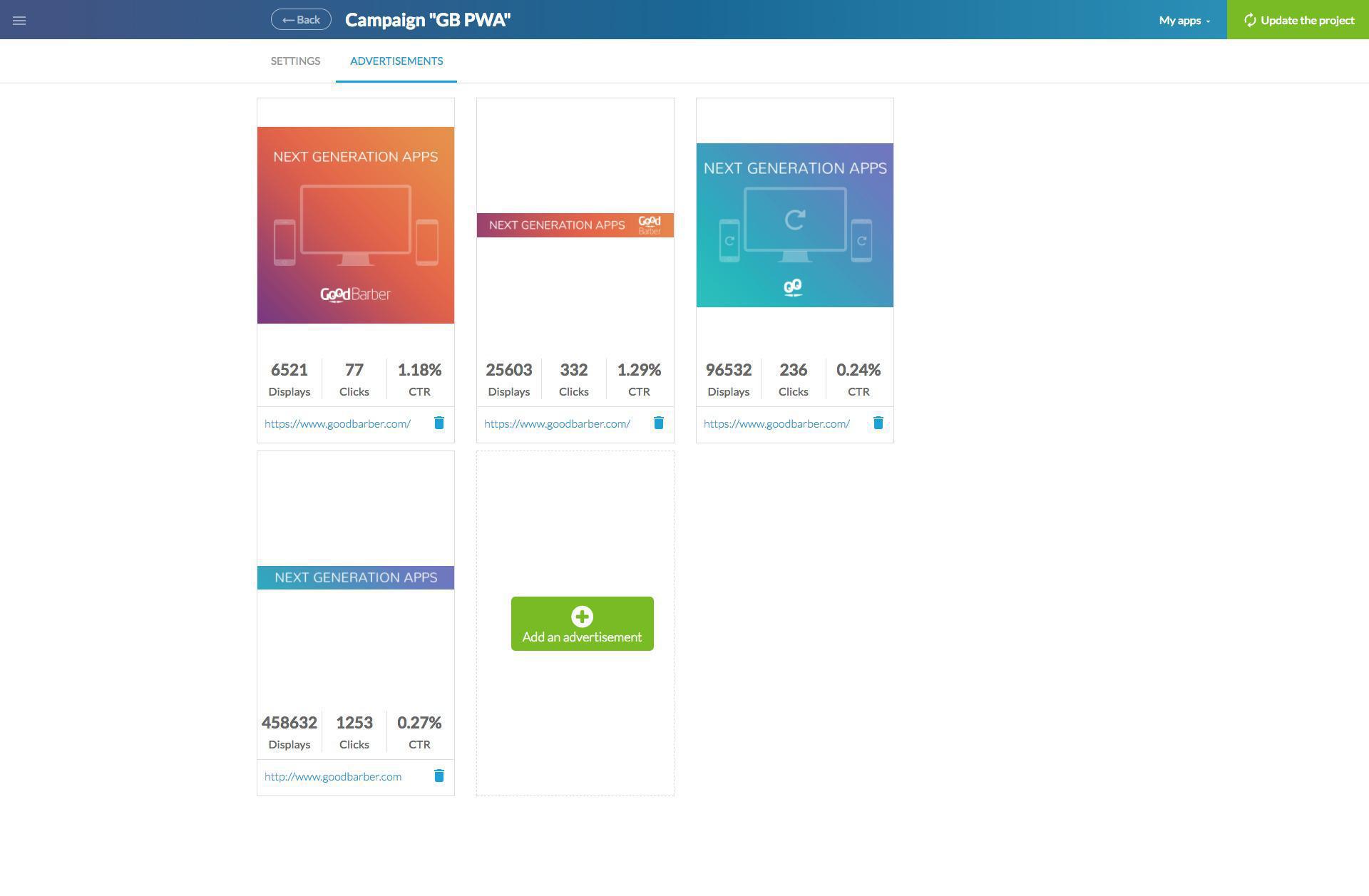
The GoodBarber internal ad server allows you to manage campaigns and advertisements directly from your back office.
Within the same campaign, you can add advertisements for the home page as well as for inside pages (list and detail).
Strategy
From the menu Monetization > Strategy, you can define the display rules for ad campaigns. As soon as the first campaign in the list cannot deliver anymore advertisements in the available spots, campaign #2 in the list will take over.
You can display advertisements through DFP and Google AdSense .
Internal
The GoodBarber internal ad server allows you to manage campaigns and advertisements directly from your back office.
Within the same campaign, you can add advertisements for the home page as well as for inside pages (list and detail).
Strategy
From the menu Monetization > Strategy, you can define the display rules for ad campaigns. As soon as the first campaign in the list cannot deliver anymore advertisements in the available spots, campaign #2 in the list will take over.
Article written: 10/20/2017
Article updated : 31/10/2020
Article updated : 31/10/2020