GBTC: Publish your app with easeDiscover GoodBarber Takes Care and simplify the app publication process for both the App Store and Google Play. Let us handle the technical details for you.Learn more about GBTC
Enable the In-App login with the new GoodBarber User Authentication feature
Arianna Testi
·Updated · 4 min read
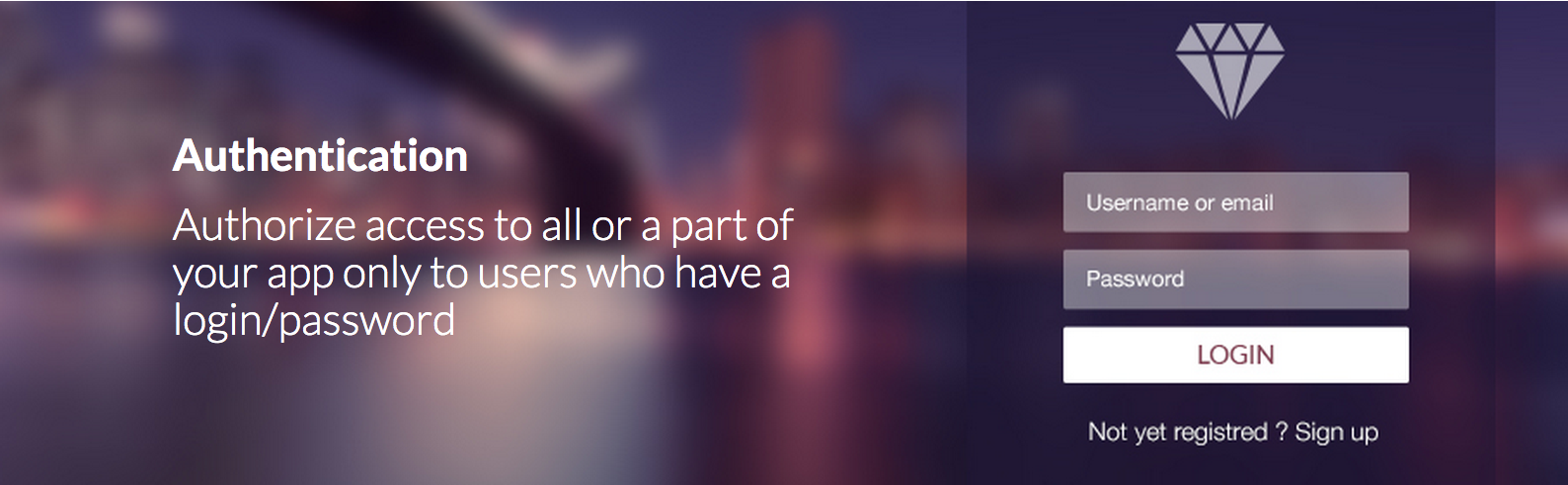
Our new User Authentication feature is the first step to make your app more social. From now on your app will represent not only your voice and ideas, but those of your users as well. In the new Add-Ons store you can see it alongside two other new social features, Community and User Groups. But today we'll focus on Authentication, with the Login and Profile page.
Where to find it?
Go to the Add-Ons store. By clicking on More Info, under the feature's display, you can enter a detailed description page which will allow you to discover everything about the section before even adding it.
Then to enable it, you will just have to click on the green [+Free] button. Please note: this feature is only included in the Advanced plan.
How does it work?
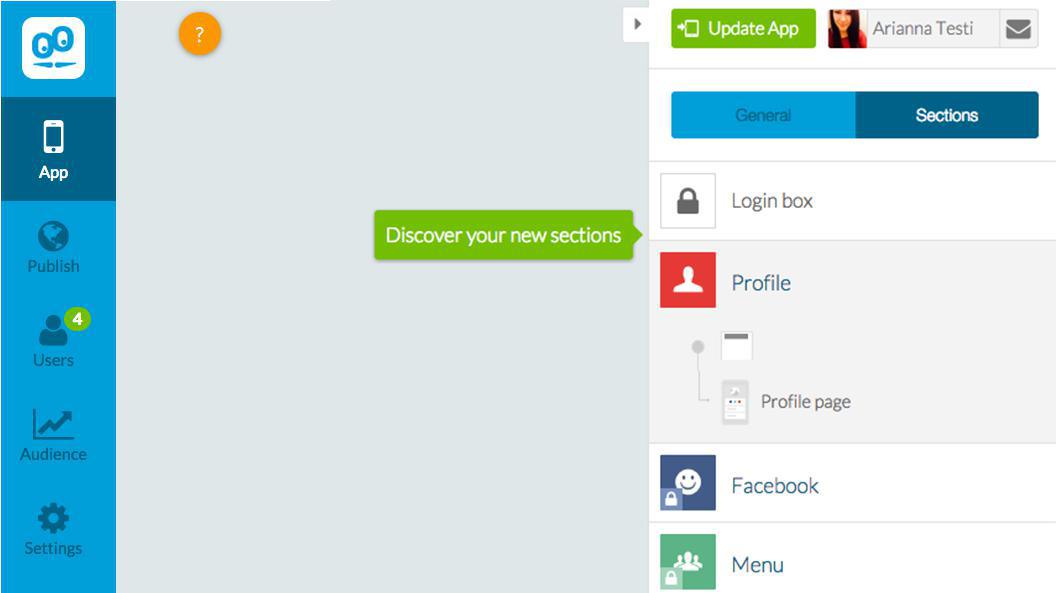
Once you have enabled the User Authentication feature add-on, you will automatically be redirected to the App menu, where a green tooltip will show you the two new sections that have been added to your sections list.
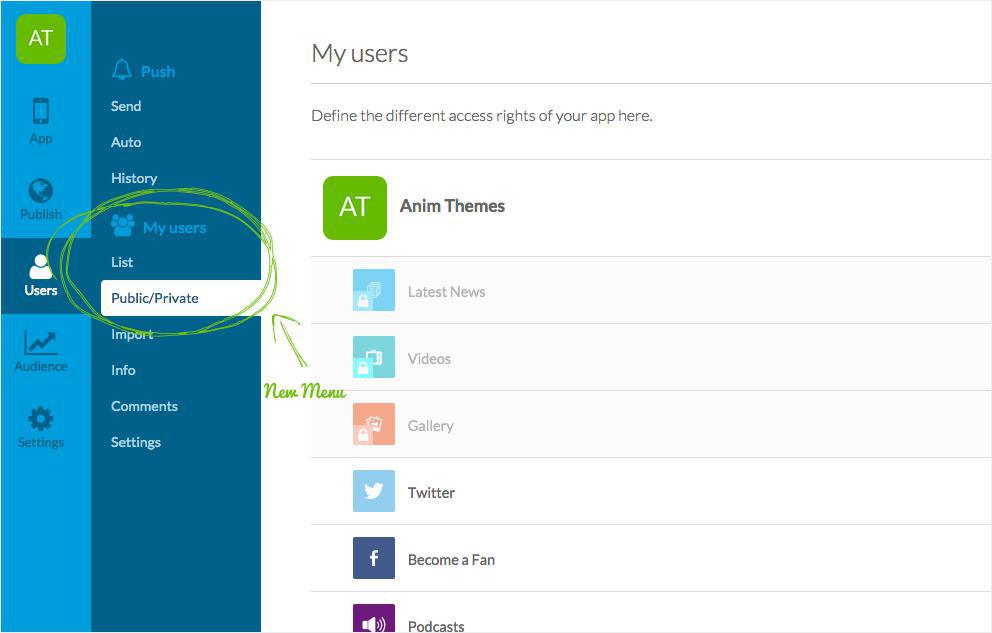
On the right menu, another tooltip will alert you of four new menus that have been added to your back office.
The new sections added are called : Login Box and Profile.
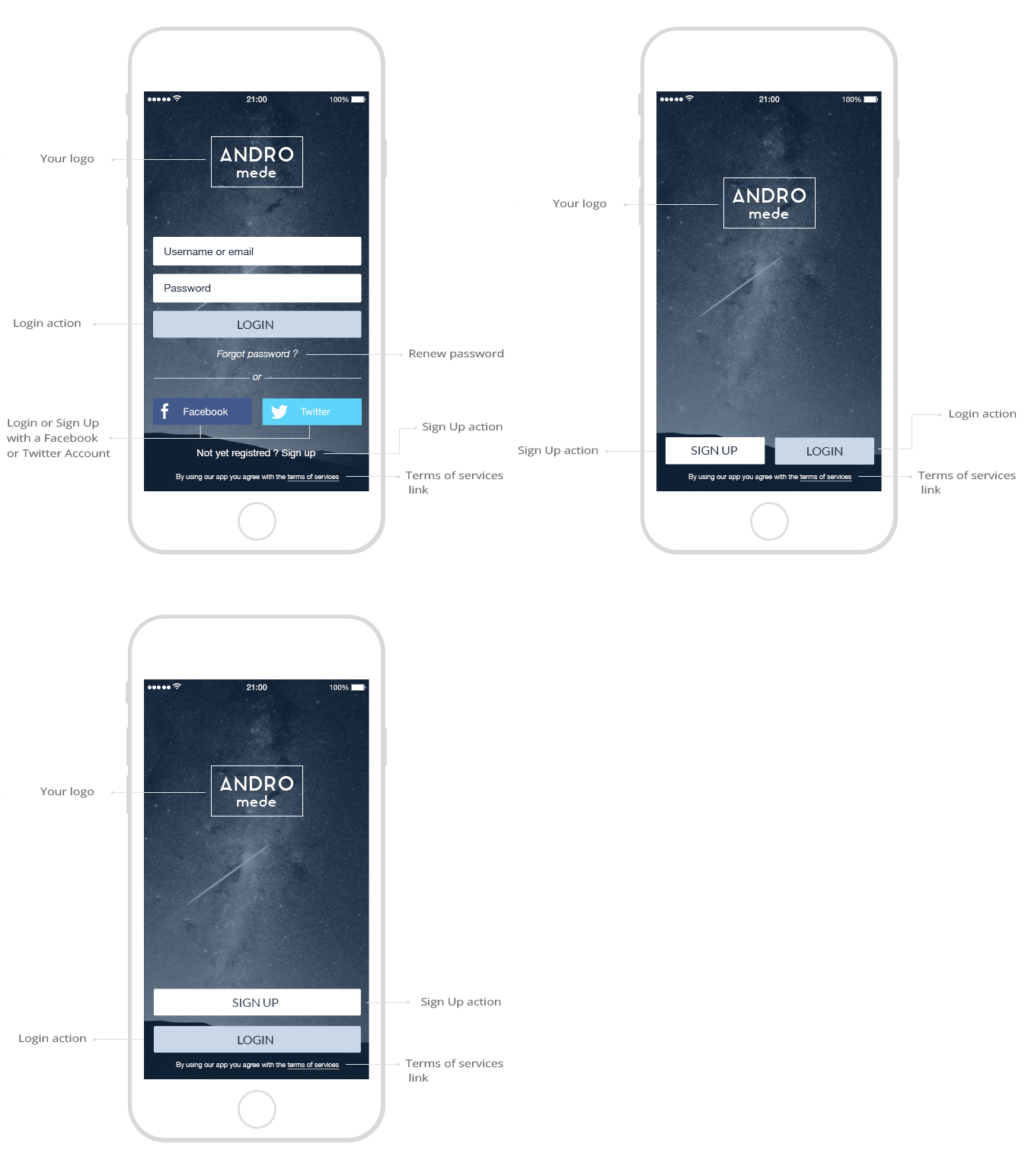
The Login Box is not actually a section, but just a layer, which is why it's not possible to drag and drop it and move it, as with the other sections. This layer offers 3 different templates, with different customization tools as always, and an alternative display of the sign-up/log in information.
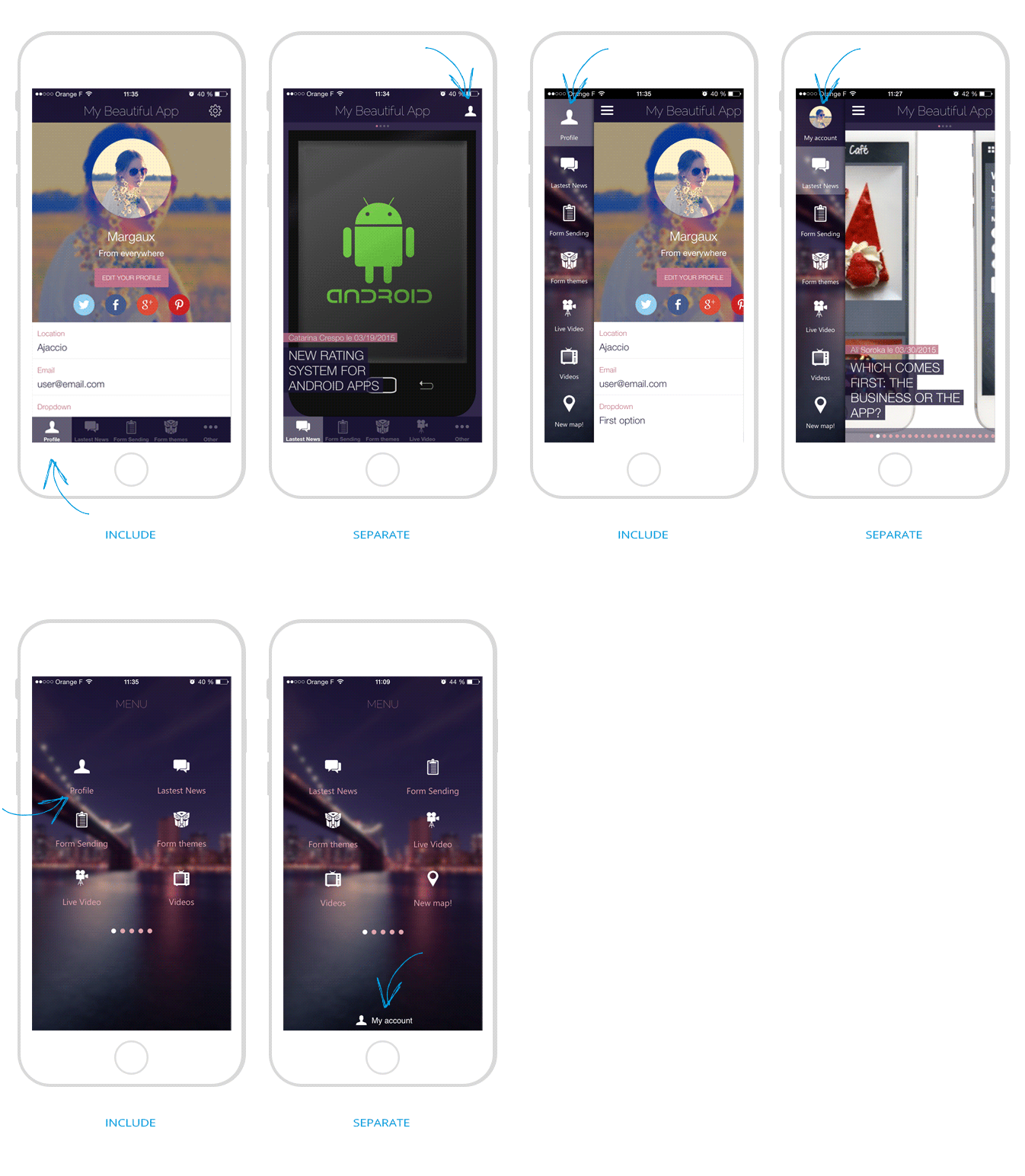
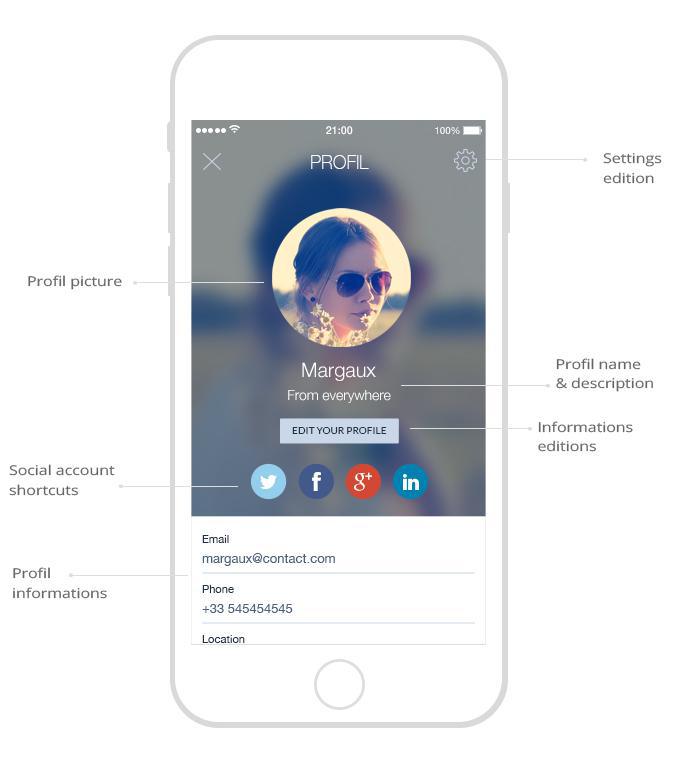
The Profile Section, in addition to all the usual design tools, offers a very interesting feature that gives you the option to separate the Profile page from the navigation mode.
The profile display will depend on the type of navigation mode, for example: - For the mode Swipe or Little Swipe, the profile section will stay in the menu but with a different look. Instead of the icon it will have the user's profile picture. - For the mode TabBar, Typo and Large Typo, the profile icon will be moved to the top right corner of the app. - For the mode Grid and Slate, the profile will be moved to the bottom of the screen.
Here are some pictures...
The new menus...
Now that I have shown what the Login and Profile pages can look like in your app, it's time to see how to set the profile information, the app restrictions, and most importantly, where you will be able to find the information about your users.
Users > Public/Private
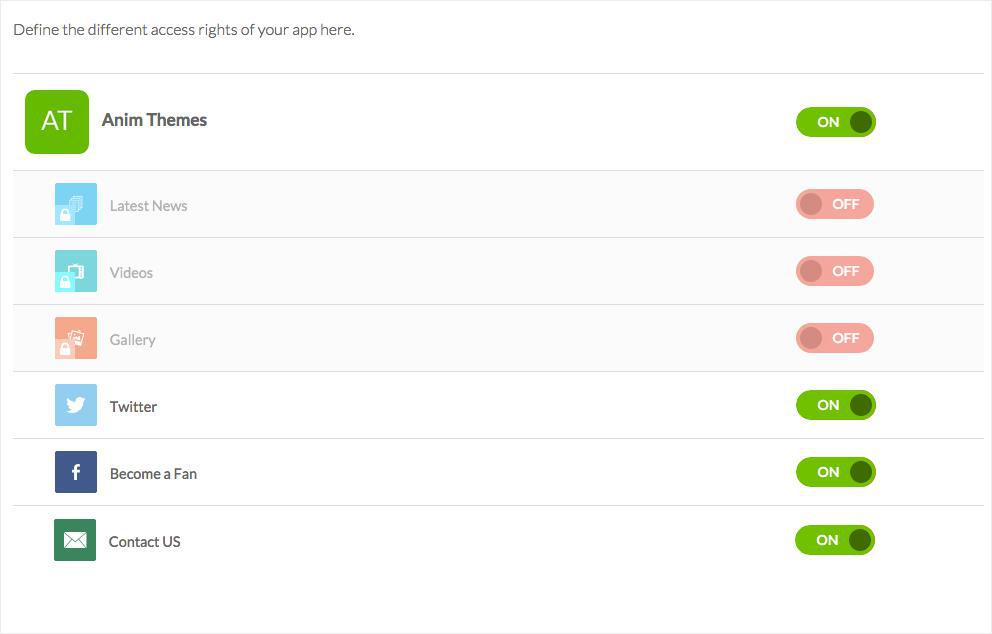
When you activate the User Authentication Add-Ons in your back office, we automatically lock the access to the entire app. If you want to restrict the access only to certain sections, you will have to go to the Public/Private menu of your back office and set the access to your sections as you want.
User > Settings
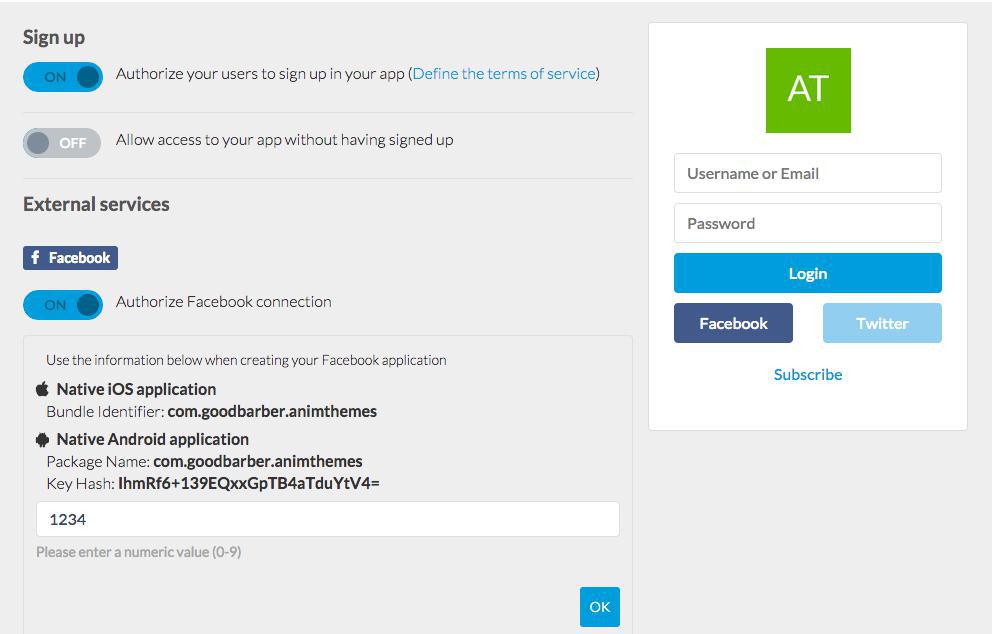
In this menu you can set the Sign up option of your Login layer and the information your users will be able to put in their profiles.
You can choose to authorize people to sing up in your app, or if you are creating an internal app just for your company for example, to enable just the login, so external users will not be able to create a new profile without your authorization.
You can also decide to allow users to visit the app without been forced to sign up, allowing them to skip the registration process.
Last but not least, the login through Facebook and Twitter. This is a very popular option, which is simple to configure but that will be much appreciated by your users.
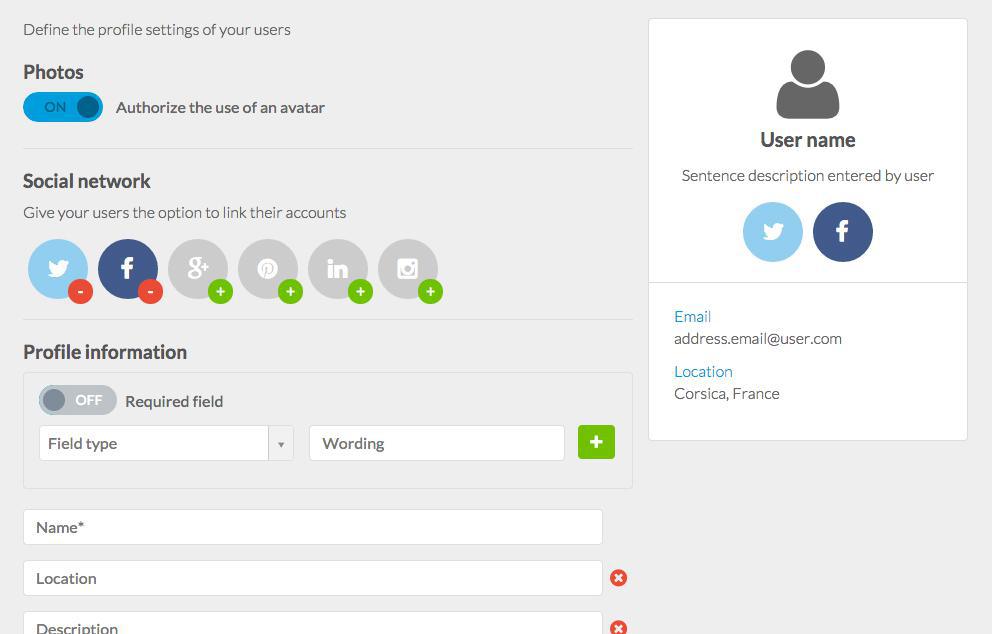
On the second page of this menu, you will find the User Profile configuration where you will be able, as with the Form section, to add different kinds of fields, as well as give the user the option to include his social profile and profile picture.
User > List
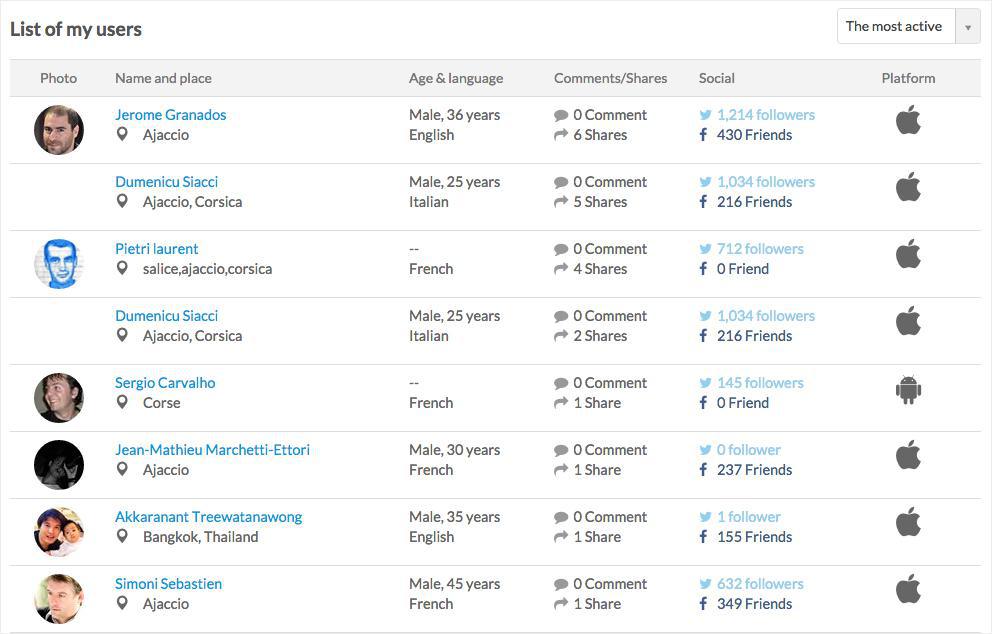
Once the feature has been published in the app and your users start creating their profiles, you will be able to consult the list of your users, as well as the data, in the List menu. Through this same page, you will even be able to manually add a new profile, and very soon to automatically import a list of profiles.
Now you know everything you need to know, but remember that the hands-on experience is better then any lesson written in a book. So roll up your sleeves and start making your own app!
The short version. Meta catalog, map and Meta catalog, listings are two extensions of GoodBarber, the no-code app builder, that read an agency's "Home listings" catalog, the XML feed it gives Meta for its real estate ads. Meta catalog, map fills a Map section: each property with a known position becomes a pin with its own page, sorted by distance when the app knows where the user is. Meta catalog, listings fills an Article section with the same properties, newest first. You connect them with the link to your catalog feed. Both are free for Content apps.Agencies build this catalog to reach buyers and tenants where they spend their time. Meta's apps were used by 3.60 billion people a day on average in June 2026, up 3% in a year, according to Meta's second quarter 2026 results published on July 29, 2026. Here is how the two extensions play out for an agency in Hamburg.
The short version. Givebutter Events and Givebutter Campaigns are two extensions of GoodBarber, the no-code app builder, that read a nonprofit's campaigns on Givebutter. Givebutter Events fills a Calendar section with upcoming events, at their time in the event's time zone, with their location unless you share it with attendees only. Givebutter Campaigns fills an Article section with active forms and fundraising pages, with their cover image and description. You connect them with a Givebutter API key. Both are free for Content apps: each section counts as one of the extensions included in your plan.A lot of giving already goes through Givebutter. On Giving Tuesday 2025, supporters gave $20 million on the platform, up from $16.4 million in 2024, from more than 93,000 donors across 16,000 active campaigns, according to Givebutter's recap published on December 8, 2025. Here is how the two extensions play out for an animal rescue.
 eCommerce
 Memberships
 Chatbot
 Online Courses
 Bookings
 Travel guide
 Events
 Content Creators
 Pickup & Delivery
 Newspaper
 Radio
Radio Schools
 Faith
Faith Organizations
 Restaurant
 Grocery
 Custom apps
 Employee Communication

 NO CODE APP BUILDER
 TECHNOLOGY
 WHY GOODBARBER?
 Design
 PRODUCT RESOURCES
 TOPICS
 MOBILE APPS RESELLERS
 DISCOVER