eCommerce
 Memberships
 RAG Chatbot
 Online Courses
 Bookings
 Travel guide
 Events
 Content Creators
 Pickup & Delivery
 Newspaper
 Radio
Radio Schools
 Faith
Faith Organizations
 Restaurant
 Grocery
 Custom apps
 Employee Communication

 NO CODE APP BUILDER
 TECHNOLOGY
 WHY GOODBARBER?
 Design
 PRODUCT RESOURCES
 TOPICS
 MOBILE APPS RESELLERS
 DISCOVER
GoodBarber's Online Help
App style: Additional options
The App Style menu allows you to manage your app’s overall design from a single location.
All options set in this menu are applied globally to every section of your app.
⚠️ Important
If you modify any option in the App Style menu, any design settings previously customized at the section level will be overridden.
The new App Style settings will replace those section-specific designs and will apply to all sections of your app except for the margins.
To set up your App Style:
1. Go to the left menu "My App"
2. Click "App Style " in the right column
To modify the design of a specific section, for in-depth customization, read this online help.
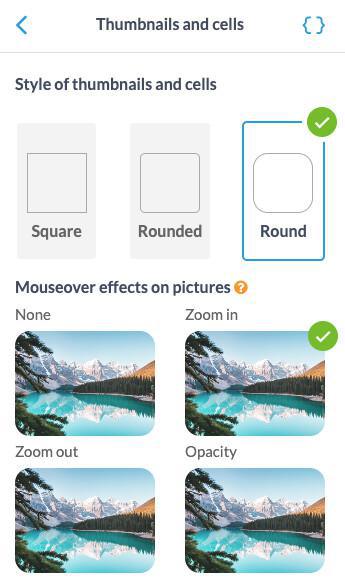
Thumbnails and cell
Adjust the style and layout of your app's thumbnails and cells.
Note that mouseover effects on pictures are only applied when the app is viewed on desktop (PWA).
Spacing
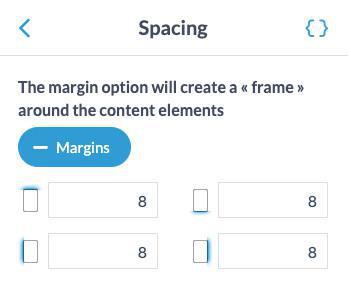
Manage margins to optimise the spacing and organisation of elements.
To set specific margins for some parts of your app:
Sections: You can set margins for a specific section via the Advanced edition extension
Home widgets: You can set margins for a specific widget from the widget settings panel
To apply margins globally to your app:
From the App Style menu:
1. Set in pixels the margins you wish to apply
2. A verification will be made for each type of margin (top, bottom, left, and right margins):
If you have previously set specific margins for a section or widget, you'll be asked to either:
- Keep your custom widgets/sections margin settings and apply the global margin settings to the rest of your app
or
- Reset all margins of your app by applying margins set in the App Style menu instead.
Haptic feedback and animation
This effect is applied when transitioning from a list view to a detail view of your app only on native iOS and Android versions of your app.
For instance, when opening an article page from the list view of your article section.
3. Enable Scroll effect to activate an effect that reveals the different elements of your app as you scroll.
Note:
Haptic feedback is only applied to iOS and Android versions of your app, it is not managed on PWA.
The type of vibrations is set by default, it can't be customized.
Android specificities:
- Haptic feedback is only managed on devices running Android 11 and above.
- Some devices allow users to adjust the haptic vibration intensity in more detail from the device settings app.
- Some devices might not manage haptics properly due to a layer added on top of stock Android. On these devices, users can disable haptic feedback from the app settings section.
Icons
Customize each icon in your app for a unique, consistent design.
Select the icons that will be used by default in your app from the library or upload your own icons.
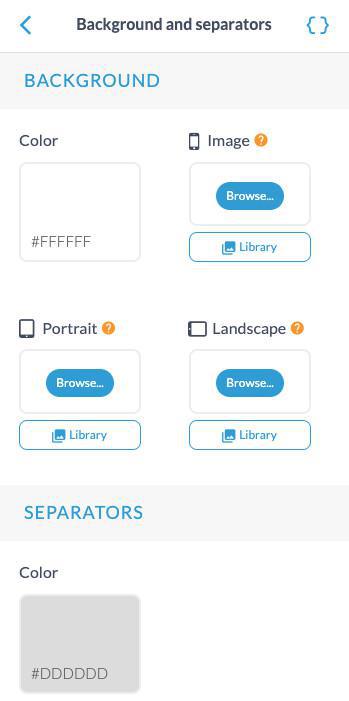
Background and separators
Customize the general background color or image and colour of the separators in your app.