1. RSS podcast section
To connect a podcast to your GoodBarber app, you simply need to use the RSS link of the podcast stream.
This stream must respect the same standards as those required by iTunes .
Some services like Simplecast or Ausha for instance are compatible, you need to get the RSS feed from those services to set it in your back office section.
Note: The URL must start with https:// for the podcast to work with every version of your app.
This stream must respect the same standards as those required by iTunes .
Some services like Simplecast or Ausha for instance are compatible, you need to get the RSS feed from those services to set it in your back office section.
Note: The URL must start with https:// for the podcast to work with every version of your app.
1. Go to the menu My app > Structure
2. Click + Add a Section, select the Podcast section
2. Click + Add a Section, select the Podcast section
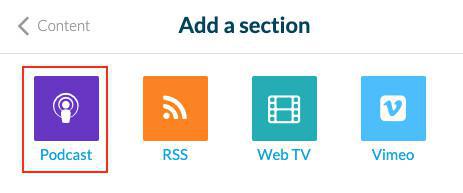
3. Add a name for the section
4. Fill in the RSS url of your podcast stream in the field "Settings"
5. Click "Add" at the bottom right of the page.
4. Fill in the RSS url of your podcast stream in the field "Settings"
5. Click "Add" at the bottom right of the page.
2. Spreaker section
Link your Spreaker account to your GoodBarber app:
1. Install the extension Spreaker
2. Fill in the URL of your Spreaker RSS feed* in the section settings that has been created
*To find your RSS Spreaker URL, follow the instructions in this online help
3. Click "Add"
1. Install the extension Spreaker
2. Fill in the URL of your Spreaker RSS feed* in the section settings that has been created
*To find your RSS Spreaker URL, follow the instructions in this online help
3. Click "Add"
3. Spotify for Podcaster section
Stream the podcasts you have on Spotify for podcaster directly to your app:
1. Install the extension Spotify for Podcaster
2. Fill in the URL of your Spotify for Podcaster RSS feed* in the section settings that has been created
*To retrieve your RSS Spotify for Podcaster feed, click this link and log in to your Spotify account
3. Click "Add"
1. Install the extension Spotify for Podcaster
2. Fill in the URL of your Spotify for Podcaster RSS feed* in the section settings that has been created
*To retrieve your RSS Spotify for Podcaster feed, click this link and log in to your Spotify account
3. Click "Add"