 eCommerce
 Memberships
 Chatbot
 Online Courses
 Bookings
 Travel guide
 Events
 Content Creators
 Pickup & Delivery
 Newspaper
 Radio
Radio Schools
 Faith
Faith Organizations
 Restaurant
 Grocery
 Custom apps
 Employee Communication

 NO CODE APP BUILDER
 TECHNOLOGY
 WHY GOODBARBER?
 Design
 PRODUCT RESOURCES
 TOPICS
 MOBILE APPS RESELLERS
 DISCOVER
AI Extension Builder: upload your own files
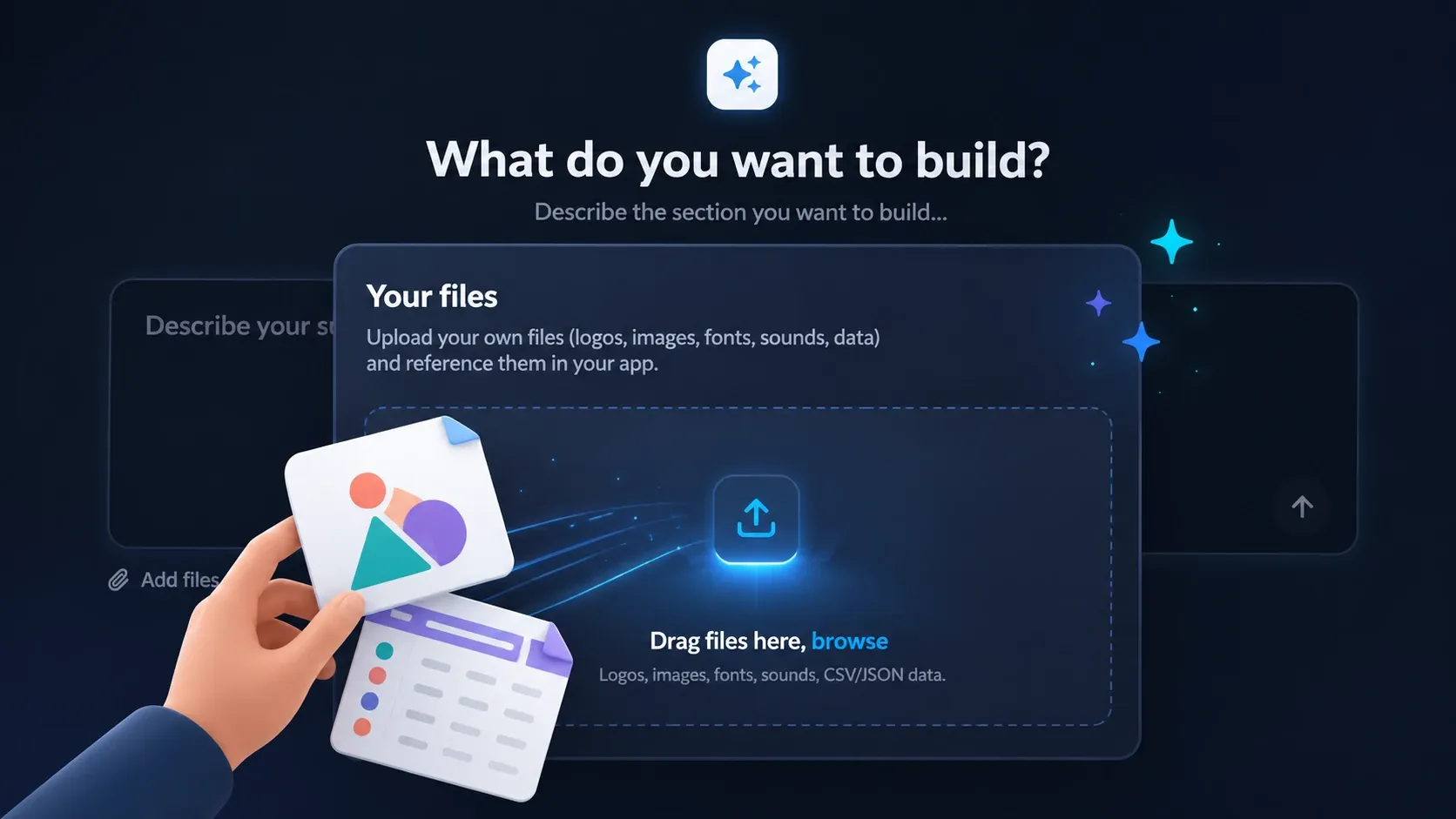
The AI Extension Builder can now use your files. Drop a logo, an image, or a CSV/JSON dataset into your section, and the assistant builds them straight into the code it generates. Your visuals and your data, inside a native extension — no external URLs, no placeholders, no workarounds.

A concrete example
When we launched the AI Extension Builder, it could build a custom section from a single prompt. The missing piece was your own material: until now the assistant started from a blank slate, wrote the code, rendered it live — but with its own stand-in images. To use your logo or your data, you had to point to an external URL, a fragile link hosted somewhere else. The new file manager removes that step.
Take a running club that wants a "Race calendar" section in its app.
The owner opens the Assets panel and drops in two files: logo.png and a races.csv with the dates and locations. Then they ask the assistant:
"Show the upcoming races from this CSV, with our logo at the top."
The assistant already knows these files. It doesn't invent them, recreate them, or base64-encode them: it references them by their exact URL — logo.png in an <img> tag, races.csv through a fetch(). The section renders live, in the club's colors, with its real dates.
Days of work for a developer, minutes here. And the result isn't a mockup: it's a native extension, hosted by GoodBarber, that ships into the published app like any other section.
What the feature actually does
The Assets panel lives in the sidebar of the Extension Builder's Code menu. You drop files in, see them listed, delete them. And crucially: the AI knows about them when it generates the code.
At every generation, the assistant receives the list of your files — name, type, URL — with the instruction to use them as-is. That makes three differences that matter:
Your files, not placeholders. The logo on screen is yours. The data on screen is yours. No more swapping out the demo image or sample values after the fact.
Stable URLs, on your own domain. Each file gets a canonical address served from your app's domain, not from a third-party service. The URL doesn't change when you regenerate the code, and the file ships with the extension — no external dependency, no risk of a dead link.
A quick mention in the prompt. As you write your request, type @ followed by the start of a file name: the list appears, you pick one, the name is inserted. No copying a URL by hand.
A few quick examples: drop in your logo and images, and a section comes out already matching your identity; upload a background, a banner, or an illustration that's unmistakably yours; or — the one that unlocks the most — hand the assistant your data.
Use your own CSV or JSON data in a no-code app
A surprising number of app sections are really just your data, displayed well: a price list, a class schedule, a member directory, a set of results, a product feed. Until now, getting that into a no-code app meant retyping it by hand or rebuilding a table cell by cell.
Now you upload a .csv or a .json, describe the section in plain language, and the assistant builds one that reads your file and renders it. Change a price, add a row, update a date — edit the file, and the section follows. No copy-paste, no manual table, no developer in the loop.
If your starting point is a spreadsheet, that's a path GoodBarber already knows well — here's a related route to convert an Excel file into a mobile app. The file manager brings the same idea inside the AI Extension Builder: your data, your section, generated on the spot.
Why it fits GoodBarber
The AI Extension Builder doesn't write code in a vacuum: it produces code that talks natively to the GoodBarber platform, and inherits its hosting, design system, and store publishing. The file manager extends that logic. Your assets aren't hosted elsewhere: they live on GoodBarber's infrastructure, tied to your section, embedded in the extension. Nothing to wire up, nothing extra to pay for, nothing to maintain on your side.
That's the difference between an AI that generates a snippet to copy-paste and an AI that delivers a living section inside a real app — and it sits alongside the rest of GoodBarber's AI features, from content writing to the RAG chatbot.
Frequently asked questions
Which file formats can I upload? Images (PNG, JPG, GIF, WebP, SVG, AVIF) and data files (JSON, CSV, TSV).
Where are my files hosted? On GoodBarber's own infrastructure, served from your app's domain — not a third-party service. Each file gets a stable, canonical URL and ships embedded in your extension, so there's no external dependency and no risk of a dead link.
Is the generated section production-ready? Yes. It's an extension that inherits GoodBarber's hosting, design system, compilation, and store publishing — the same pipeline as any other section, not a copy-paste snippet.
Can the assistant use structured data from my CSV or JSON? Today the assistant references your data files by their URL and reads them (for example via fetch()) to render content. Deeper structured-data handling — parsing your columns and injecting rows directly — is next on the roadmap.
Available now
The AI Extension Builder is in Beta, available to every customer from the back-office. The Assets panel is already there: open a section, drop in a file, and ask the assistant to use it. Next on the roadmap: deeper handling of structured data — so your CSV and JSON files become real content sources, not just referenced files.
Drop in a file, write a prompt, watch your brand land in the code.


