GBTC: Publish your app with easeDiscover GoodBarber Takes Care and simplify the app publication process for both the App Store and Google Play. Let us handle the technical details for you.Learn more about GBTC
This is the 3rd episode of our App Reseller Business tutorials series. In this part, we will discover how to manage, create and import apps in your dashboard.
In the Apps menu, you can manage your existing applications and add new ones. By default, the only app created in your account is your Alpha application (See Video 1 ).
Add an app to your Reseller Dashboard
Add an app to your Reseller Dashboard
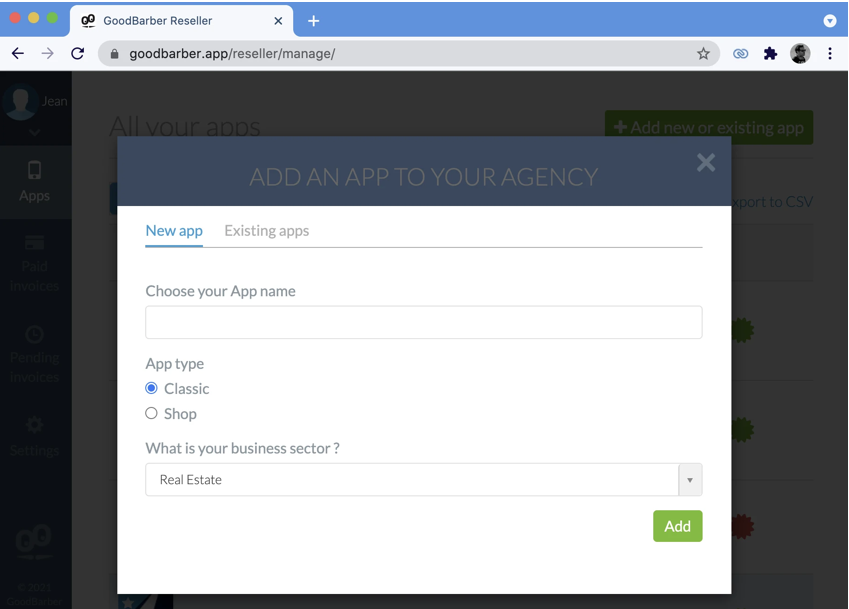
To add a new app, click on "Add a new or existing app", fill in the name of your app, choose also Classic or Shopping, then select the sector of your app! Now you can create your app by clicking "Add". Here is your new application!
You can also import an existing one. To do so, you must have a GoodBarber app created with the same email you used to create your Reseller account. Click again on "Add a new or existing app", go to the "Existing apps" tab, open the drop-down menu and select the app you want to import into your reseller account. Just click on "Add" to import it. As soon as an app is included in your Reseller account it will no longer be charged to you individually.
Apply filters and searching tools in your Reseller Dashboard
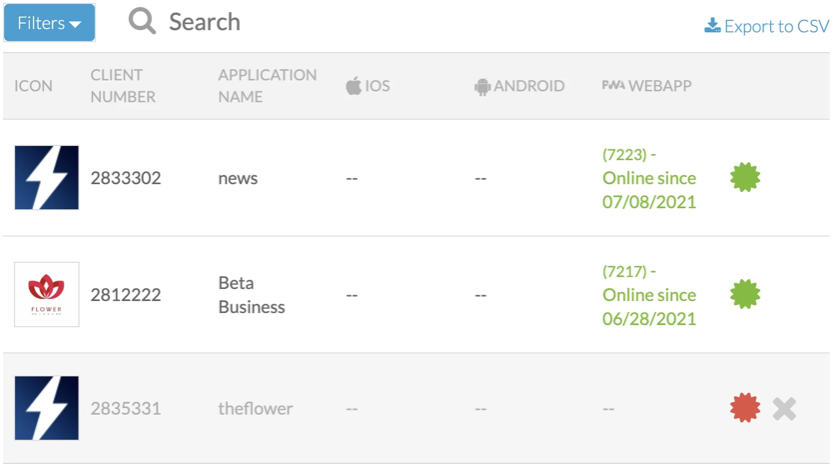
Now that you have some apps, let's see how to manage them. You can use the search bar to find an application with its name, use the filters (price or status), and finally, you can also sort your applications by: - client number - name - publication status - activation status
Activate or Deactivate an app
Reseller Dashboard: activate or deactivate an app
A button to the right of each application in the main list will tell you whether the application is enabled (green) or disabled (red).
You can also choose to deactivate an application by clicking on the green button to the right of the app. By clicking on "Continue", the button will turn red. If you deactivate an application, you will not be able to use it. Even if it has already been published in the stores, once opened, it will appear empty of content. To instantly reactivate an application, simply click on the red button and click "Continue".
If you want to permanently remove an application from your reseller account, you will first have to deactivate it. Then an X will appear next to the red button. By clicking on the X, the app will no longer be attached to your Reseller Dashboard, and will disappear from it.
Now you know everything about managing apps in your dashboard!
In the next video, you will learn how to give a client access to the back office of their app.
On iPhone Duo, an app switches displays every time the phone opens or closes: the outer display, narrow and tall, then the inner display, as wide as a small tablet. Apple asks apps to treat that switch as a simple change of size, like a window being resized, and draws a rule from it: when the device opens or closes, people find what they left.A GoodBarber app follows that rule to the letter. When iPhone Duo opens or closes, it keeps its screens and lays them out again at their new size: the same screen, the same place, what's playing, what was typed into a form. The gesture changes the shape of the screen, never what you were doing.
 eCommerce
 Memberships
 Chatbot
 Online Courses
 Bookings
 Travel guide
 Events
 Content Creators
 Pickup & Delivery
 Newspaper
 Radio
 Schools
 Faith
 Organizations
 Restaurant
 Grocery
 Custom apps
 Employee Communication

 NO CODE APP BUILDER
 TECHNOLOGY
 WHY GOODBARBER?
 Design
 PRODUCT RESOURCES
 TOPICS

 MOBILE APPS RESELLERS
 DISCOVER