GBTC: Publish your app with easeDiscover GoodBarber Takes Care and simplify the app publication process for both the App Store and Google Play. Let us handle the technical details for you.Learn more about GBTC
Google Analytics for Firebase is a solution for collecting and analyzing usage statistics for your app. This solution is offered free of charge by Google. In this article, we'll discuss the general principles to configure Google Analytics for Firebase and to interpret the information obtained for your iOS app and for your Android app.
Activating Google Analytics for Firebase in your app
If you refer to the technical documentation of Google Analytics for Firebase, you will see that one of the prerequisites for its use is the addition of an SDK for iOS and an SDK for Android in your native apps. This technical implementation has already been done by GoodBarber engineers. All you have to do is follow the different configuration steps from the Firebase console (https://console.firebase.google.com/ ) to start collecting events in your app and sending them to Firebase.
Android You don't have to do anything, Google Analytics for Firebase was enabled by default when you followed the compilation process of your app. It is during this process that all the information necessary for the proper functioning of Google Analytics for Firebase has been filled in.
iOS You need to retrieve a file (.plist) from the Firebase console and upload it to your GoodBarber back office. If your app is already on the App Store when you upload this file, you will need to rebuild and submit an update to start collecting events with the Firebase SDK. To find out how to retrieve the file (.plist), refer to the online help directly in your back office. It will guide you step by step.
I advise you to use the same Firebase project to collect stats from your Android app and your iOS app. This will allow you to have aggregated data for both platforms. We'll see in the rest of this article that you will be able to filter the data coming from a particular platform if you wish.
Event collection
Google Analytics for Firebase works on the principle of event collection. When an event occurs in the app, it is recorded by the Firebase SDK. The collected information is then available in the Firebase console. The concept of events is very generic. An event is, for example, the display of a section, the action of authenticating or the finalization of an eCommerce transaction.
The Firebase SDK automatically records a series of predefined events. But during the implementation of the SDK, the developer (GoodBarber in this case) can define other events to collect. We have therefore added several key events such as viewing a section, a category, an article, the submission of a form, etc.. Collecting these events and analyzing them allows you to learn more about how your users interact with your app.
Custom Settings Report
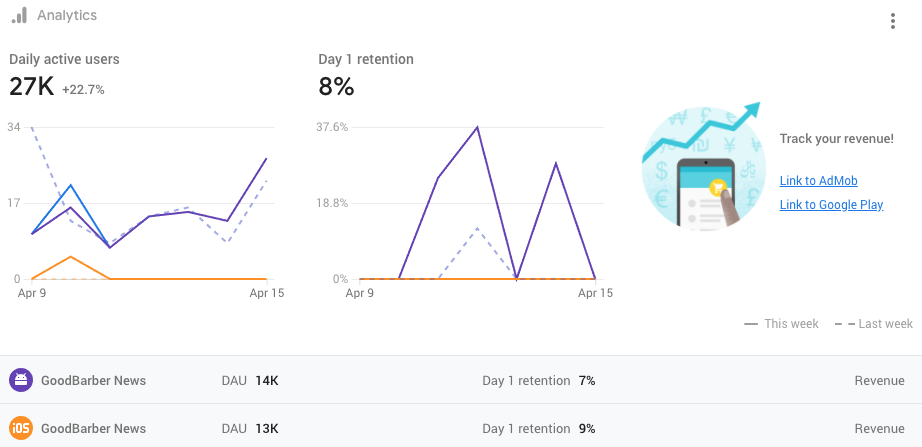
In the Firebase console, the "Analytics" section is dedicated to the analysis of statistics. This section contains various reports, including the Dashboard. The Dashboard displays information about the main events as well as those you have decided to monitor.
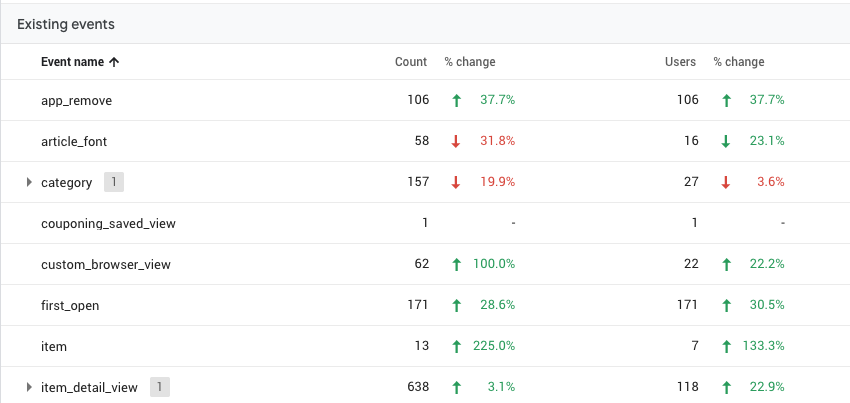
The dashboard indicates for each event it contains the number of times it has been triggered.
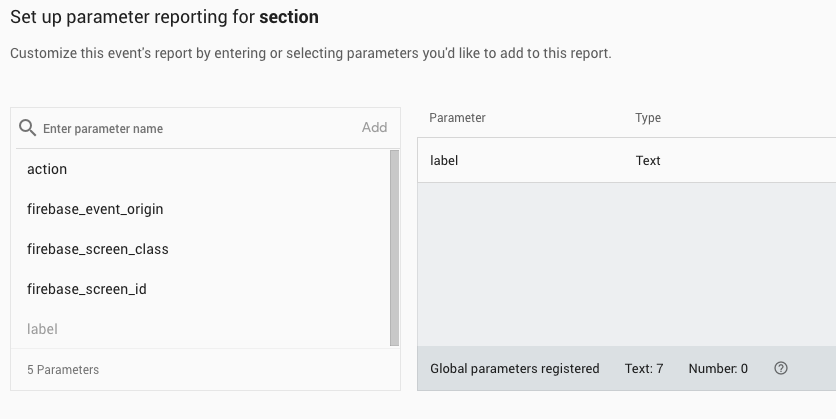
Each event has attributes, also known as parameters. The Firebase SDK collects all the events and their parameters, but the console does not display everything in the reports. You have to make a choice. To do so, go to the Analytics > Events menu of the console. Choose the event you are interested in from the list and open the reporting options. From the list of settings associated with the event, select the ones you want to include in your dashboard. Note that you can track a maximum of 100 custom settings per Firebase project.
For example, for the GoodBarber blog app,%3D4 I decided to save the "Label" setting for the "Section" event in my reports. Each time a section is viewed, the event is triggered and the "Label" parameter contains the name of the viewed section.
Real-time report
The StreamView menu displays the information collected by the app in real-time. In this menu, as with each report, it is possible to filter the information displayed. If you collect events from your iOS app and your Android app in the same Firebase project, you will be able to filter the information from each platform.
I use the StreamView menu to verify that Google Analytics for Firebase is correctly installed on my apps. To do so, I display the Events > Trending view. It shows all the events collected since the last 30 minutes. Then, I browse my app to trigger events. Once I think I have triggered enough events, I quit the app and a few seconds later, the events are displayed in the StreamView menu.
Generally, the events recorded by your app are grouped together over a period of about an hour and sent in batches to the console. This approach saves the battery life of your users' phones and reduces the use of network data. However, you should also be aware that the events are sent to the console also when the app runs in the background on your user's phone. This is why I leave the app immediately after triggering events, in order to see the collection results in StreamView.
Synchronization between Google Analytics and Google Analytics for Firebase
If you are more familiar with the Google Analytics interface, you can also use it to view the statistics collected by the Firebase SDK in your app. The data can be used in both Google Analytics and Firebase.
To synchronize the two tools, from the Firebase console, go to Project Settings > Integrations and activate the Google Analytics module. A new property will be created in your Google Analytics account.
Five ways lead to a fitness app for your business, and each is priced its own way: a flat plan, an add-on to gym software, per client, per subscriber or quoted. The table below compares what each one costs and the job it is built for.
OpenAI released GPT-6 Sol and GPT-6 Luna on September 22, 2026, after GPT-6 Astra, the flagship of the family, earlier the same month. Luna is the smallest of the three. OpenAI describes it as its most efficient model for focused, high-volume tasks, and sells it at half the price of GPT-5.6 Luna, the model it replaces in OpenAI's own line-up.The next morning, we moved the AI Extension Builder to GPT-6 Luna, for every app, on the four moments where a model is at work: understanding your request, writing the code of the section, rewriting it when you ask for a change, and answering the questions you ask about what it built.
 eCommerce
 Memberships
 RAG Chatbot
 Online Courses
 Bookings
 Travel guide
 Events
 Content Creators
 Pickup & Delivery
 Newspaper
 Radio
Radio Schools
 Faith
Faith Organizations
 Restaurant
 Grocery
 Custom apps
 Employee Communication
 NO CODE APP BUILDER
 TECHNOLOGY
 WHY GOODBARBER?
 Design
 PRODUCT RESOURCES
 TOPICS
 MOBILE APPS RESELLERS
 DISCOVER