 eCommerce
 Memberships
 Chatbot
 Online Courses
 Bookings
 Travel guide
 Events
 Content Creators
 Pickup & Delivery
 Newspaper
 Radio
 Schools
 Faith
 Organizations
 Restaurant
 Grocery
 Custom apps
 Employee Communication


 NO CODE APP BUILDER
 TECHNOLOGY
 WHY GOODBARBER?
 Design
 PRODUCT RESOURCES
 TOPICS

 MOBILE APPS RESELLERS
 DISCOVER
CarPlay, Android Auto and HomeView: your radio and podcast app, in the car and the living room
Your live radio and podcasts now show up on your listeners' car screen, with CarPlay on iPhone and Android Auto on Android phones. Free for native Content Apps, the new extension is set up from your back office: choose the sections to show, then publish a new version of your app. Once CarPlay compatible, your app is also built to show up on Apple HomeView, Apple's new display for the home, which launches today.
Your radio station or podcast, in the car
The morning commute, the weekend drive: the car is a natural place to listen to a radio station or a podcast. Until now, your app had no place on the car's screen. To listen to you on the road, listeners had to start it on their phone before driving off.
With the extension, your app joins the audio apps in CarPlay and Android Auto. As soon as a listener's phone is connected to the car, it appears on the dashboard screen, one tap away.
Pick up right where they left off
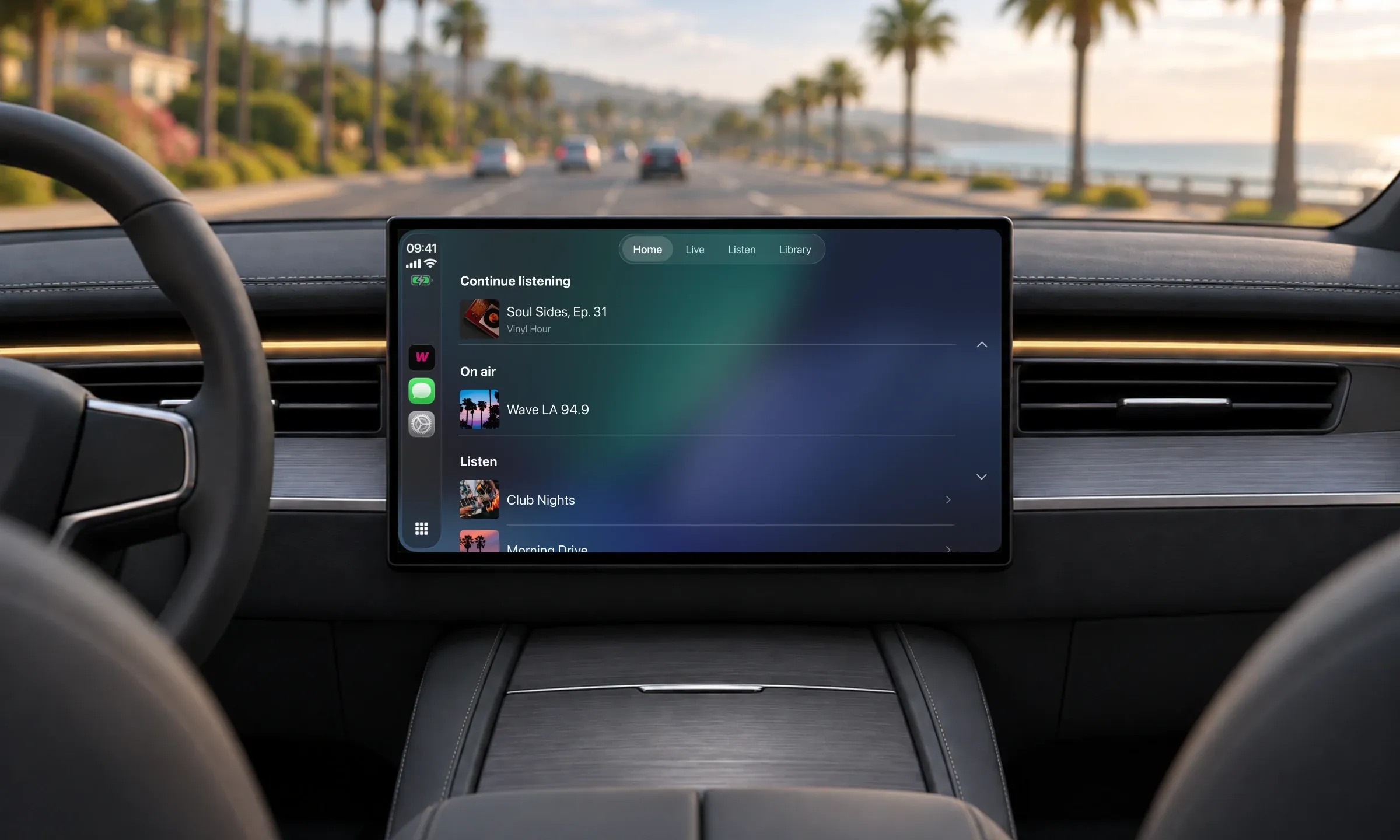
The home screen opens on "Continue listening": the last episode played, at the exact spot where the listener stopped, whether they started it on their phone or in the car. It also lists the live streams currently "On air". Tabs then separate your live streams, your podcasts and the listener's Library.
An episode started over breakfast finishes on the drive to work, without missing a beat.
In the car, the same player as in your app
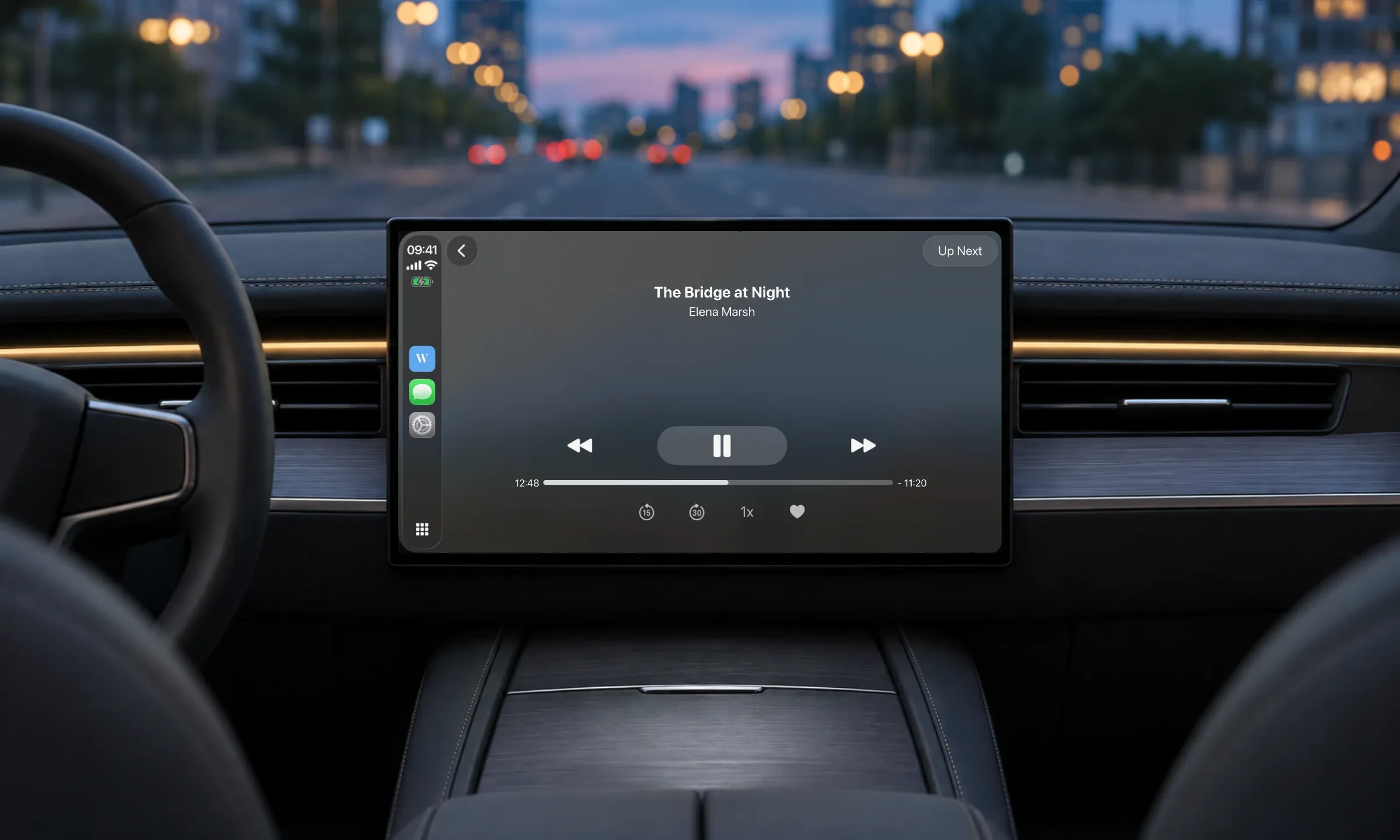
During your live stream, the screen shows the current track, with its artist and cover art.
The player uses each section's settings: skip back and skip forward buttons, playback speed, favorites. You set them once in your back office, and they apply in the car too.
Subscriber-only content follows the same rules as in the app. A subscriber signed in on their phone listens to it in the car.
The Library: what listeners lined up before leaving
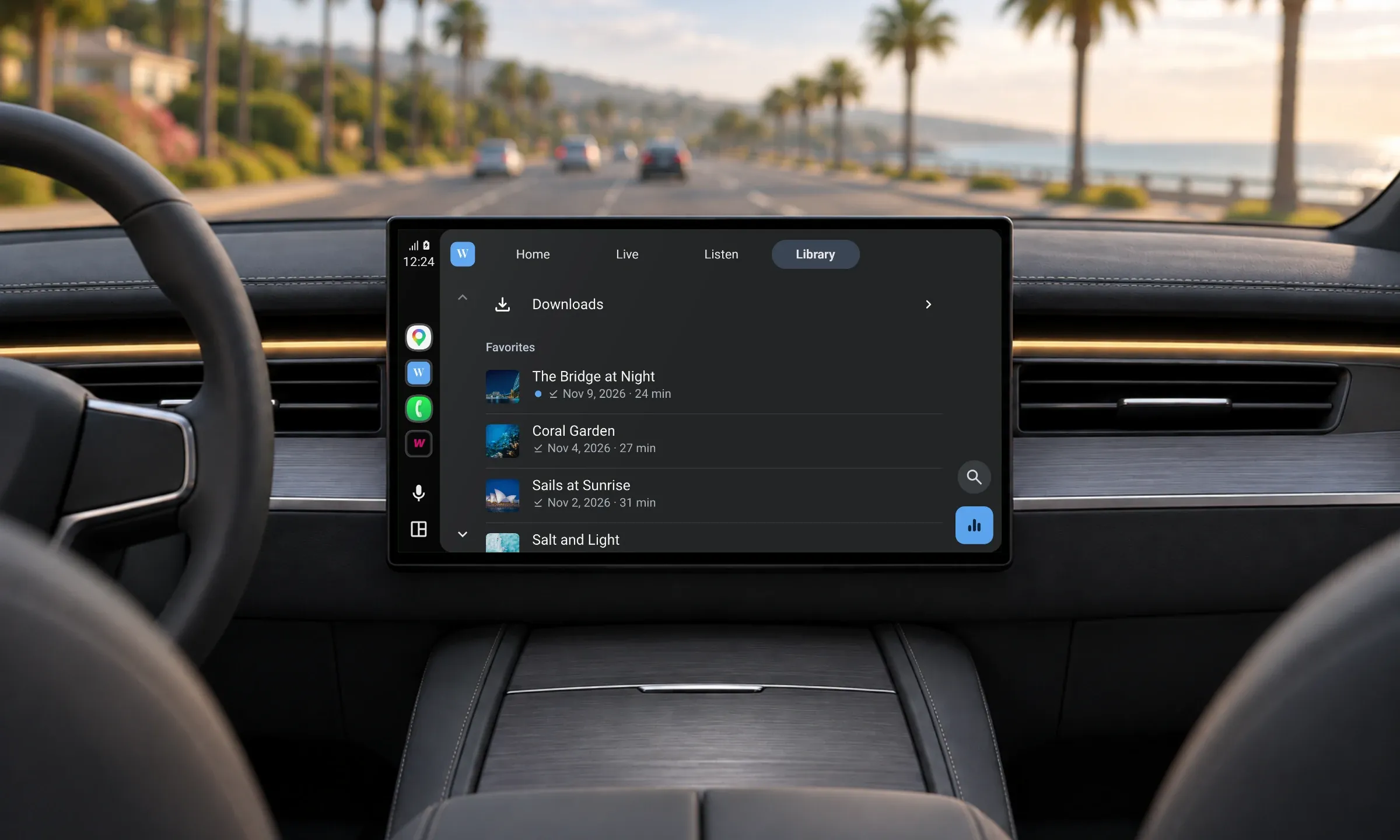
Favorites and episodes downloaded in the app are waiting in the car's Library tab. A listener who saved three episodes the night before finds them ready to play, even where the signal drops, since they're already on the phone.
If an episode catches their ear on the road, a tap on the heart adds it to their favorites, so they can find it later in the app on their phone.
Find an episode by voice on Android Auto
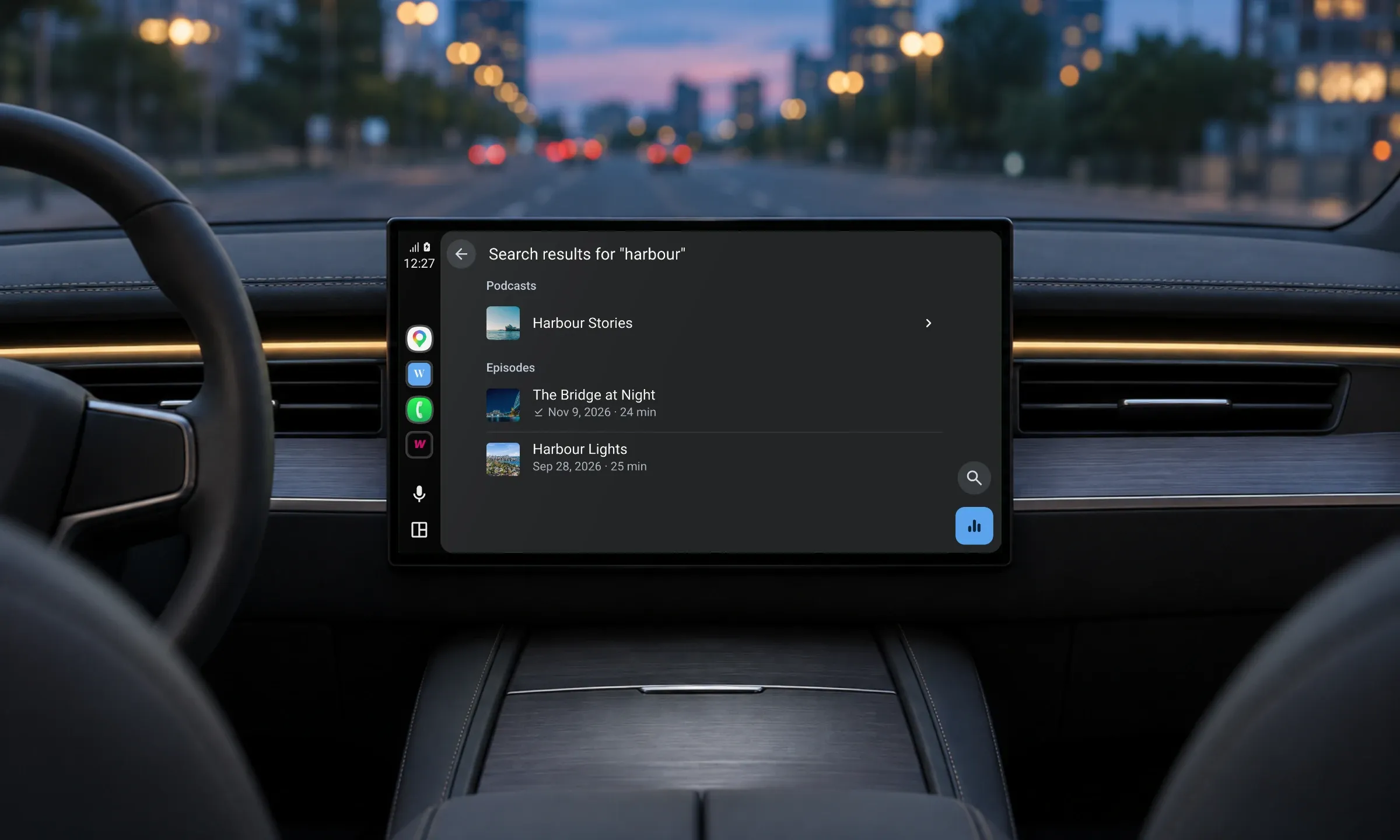
On Android Auto, listeners search for a live stream, a podcast or an episode by voice or with the keyboard. They can also ask the voice assistant to start your live stream in your app. For your episodes to show up in the results, your app needs a Search section. You can also turn search off in your back office.
Set up the extension in your back office
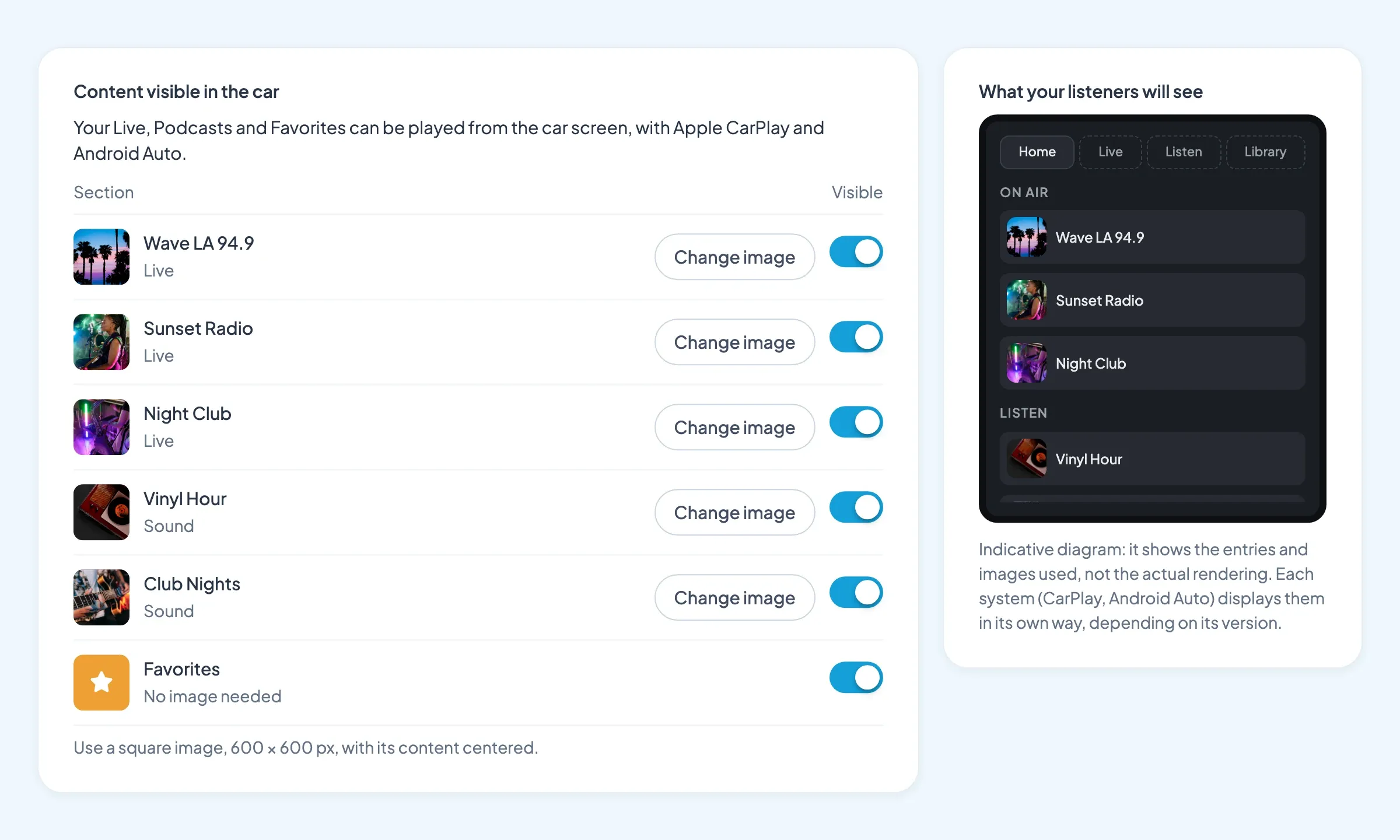
Add the extension for free from the Extensions menu, then choose the live streams and podcasts shown in the car.
For each section, you add an image, used in the car's lists and player. On Android Auto, you also pick an accent color, used for the Now Playing button, to carry your app's visual identity.
An "Availability" block tells you where you stand. For CarPlay, it shows whether Apple's entitlement is in your iOS provisioning profile. For Android Auto, it reminds you of the step to take in the Google Play Console.
Your audio app on Apple HomeView
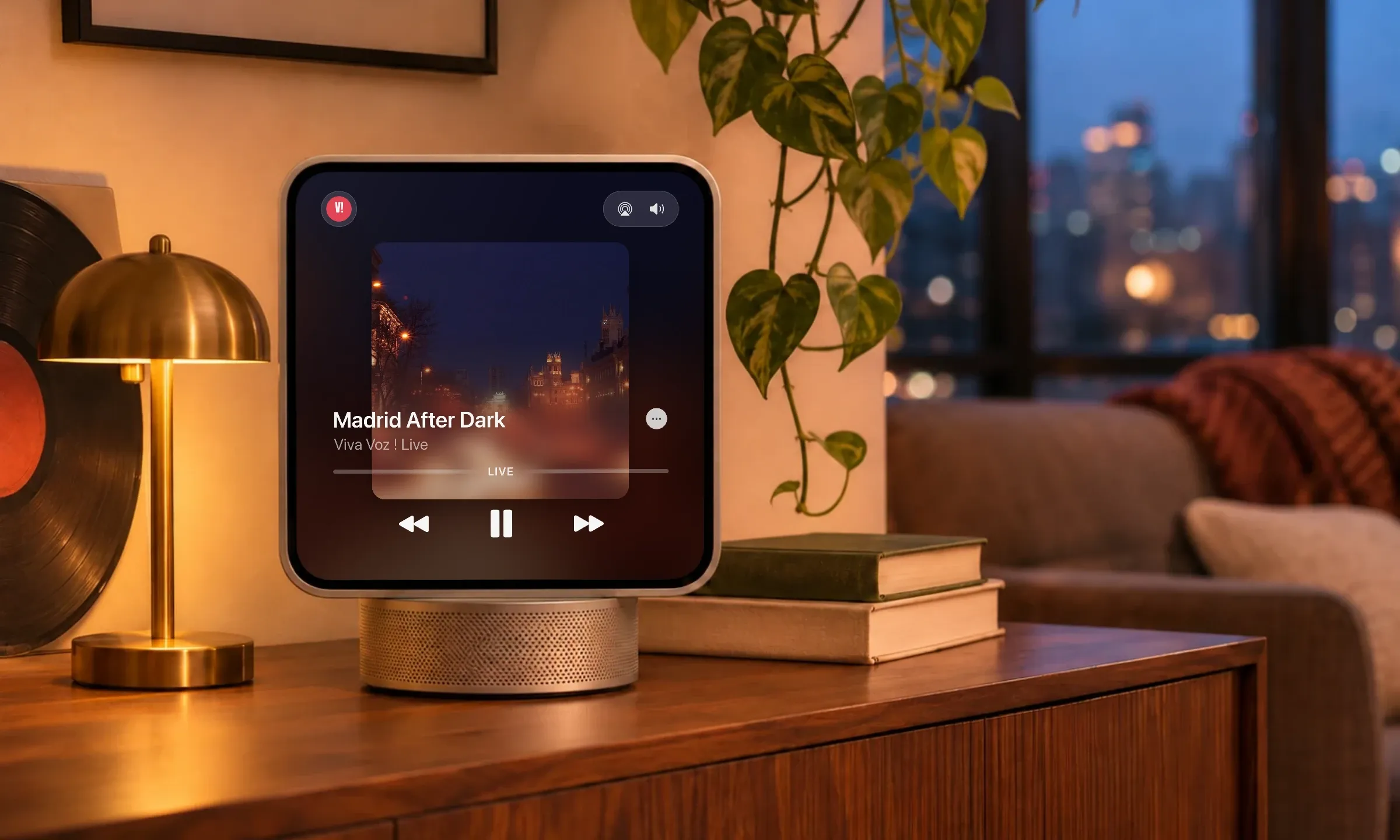
Launched today, Apple HomeView pairs a 7-inch display with a speaker base. Apple designed it for music and podcasts, video, calls and smart home control. For a radio station or a podcast, that's a new place to be heard at home: the kitchen, the living room, the home office.
For an audio app to show up on HomeView, it needs to be CarPlay compatible. The extension makes yours compatible, so it's built to show up there with your live radio and podcasts, with no separate app to build.
Turn on CarPlay and Android Auto
- Make sure your app has at least one live radio or podcast section.
- Add the CarPlay & Android Auto extension in your back office. Then choose the sections to show in the car, their images and, for Android Auto, your accent color.
- For CarPlay and HomeView, get the CarPlay entitlement from Apple, if you haven't already. Your Apple developer account holder requests it through Apple's CarPlay form. Apple reviews each request, so send yours without waiting. Once access is granted, enable CarPlay on your app's App ID and create a new provisioning profile: without them, your iOS app is generated without CarPlay. Your back office guides you through each step.
- Publish a new version of your app on the App Store and Google Play: this new version is what brings CarPlay and Android Auto to your listeners.
- Android Auto needs no prior authorization. Once the new version is uploaded to Google Play, select the Android Auto form factor in your Play Console: Google then reviews your app before offering it in cars.
If GoodBarber publishes your apps for you, all you need to do is get CarPlay access from Apple (step 3), then ask us to generate a new version of your app, as usual: we'll take care of the rest, Android Auto form factor included.
Your next step
Open the Extensions menu in your back office and add CarPlay & Android Auto. Our help articles Set up the CarPlay & Android Auto extension and Enable CarPlay and Android Auto for your native apps walk you through each step, from the section image to the entitlement request with Apple.
Your station or podcast doesn't have its app yet? Read how to create an app for a radio station, then build yours: the CarPlay & Android Auto extension is included at no extra cost.


