 eCommerce
 Memberships
 Chatbot
 Online Courses
 Bookings
 Travel guide
 Events
 Content Creators
 Pickup & Delivery
 Newspaper
 Radio
Radio Schools
 Faith
Faith Organizations
 Restaurant
 Grocery
 Custom apps
 Employee Communication

 NO CODE APP BUILDER
 TECHNOLOGY
 WHY GOODBARBER?
 Design
 PRODUCT RESOURCES
 TOPICS
 MOBILE APPS RESELLERS
 DISCOVER
Excel to app: how to turn a spreadsheet into a mobile app

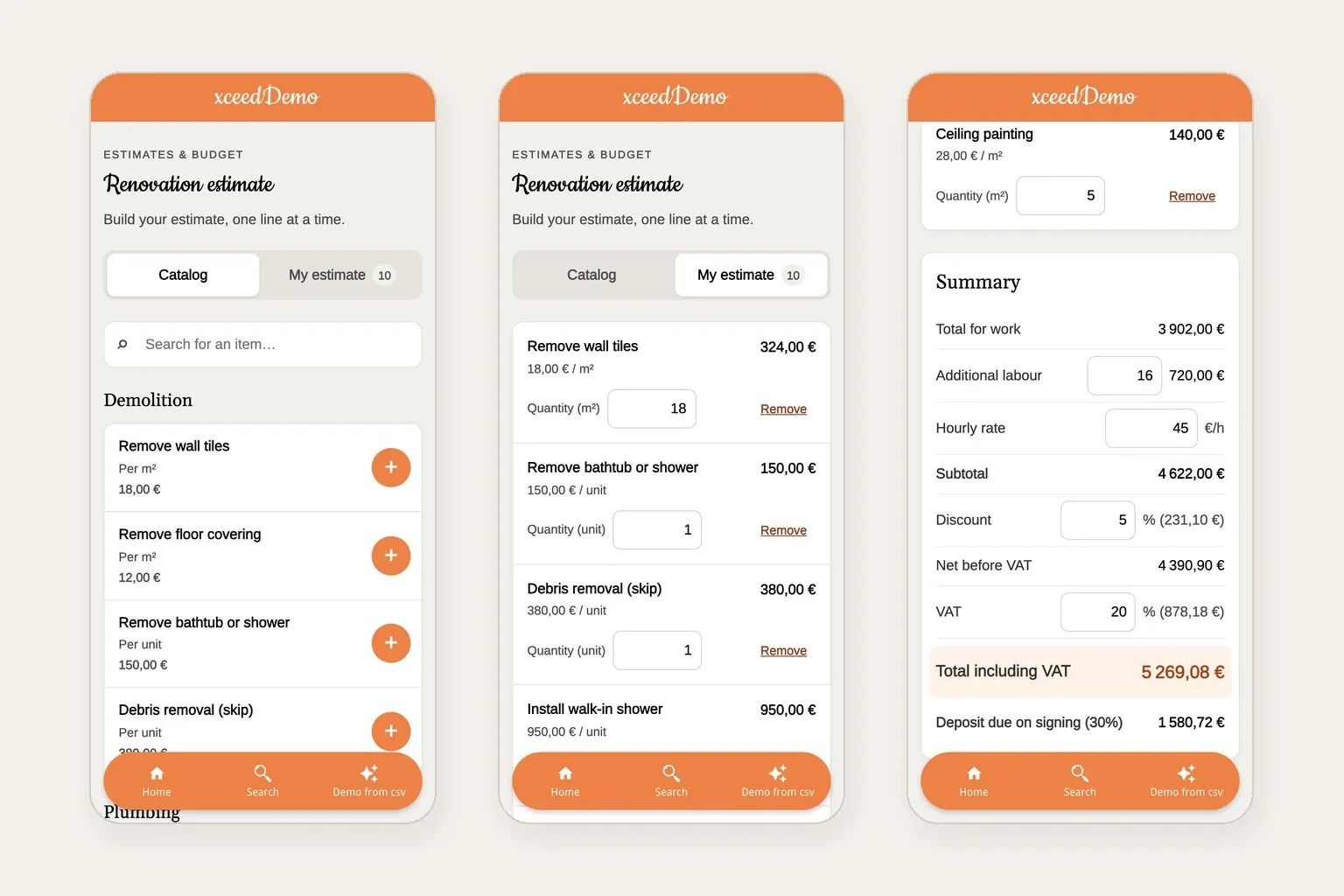
We rebuilt an Excel quote calculator as an app section with the AI Extension Builder. Same total, to the cent. Files, prompt and screenshots inside.
Two kinds of spreadsheets, two things to move
Most spreadsheets people want to turn into an app hold two things. Data: a price list, a product catalog, a schedule, a member directory. And logic: the formulas that turn that data into an answer, a quote, a total, a monthly payment.
An app needs both. The data has to be readable on a phone, sorted and searchable. The logic has to give exactly the same answer as the spreadsheet, or nobody will trust it.
There are three ways to get there:
| Route | What happens to your spreadsheet | A good fit for |
|---|---|---|
| Convert the workbook as it is | A converter turns the file, formulas included, into a web calculator you embed in an app or a website. Appizy does this and works with GoodBarber. | Large workbooks full of formulas you do not want to rewrite |
| Build an app on top of the sheet | The spreadsheet stays the database, and a builder such as Glide or AppSheet puts screens on top of it. | Data that several people edit every day |
| Rebuild it as a section of your app | You upload the data file, describe the formulas, and an AI agent builds the section inside your app. | A price list, a catalog or a calculator you want your customers to use in your own app |
This article tests the third route on a real file, from start to finish, and shows every step.
The test file: a renovation quote calculator
We built the kind of workbook a renovation contractor keeps on a laptop. Two tabs:
- Price list: 30 lines of work, from removing wall tiles to fitting a worktop, each with a reference, a category, a unit (m², unit or linear meter) and a unit price.
- Quote: the calculator. You type a reference and a quantity in the yellow cells, VLOOKUP brings back the item and its price, and the rest follows: line totals, extra labor, a discount, VAT, the total and a 30% deposit.
The sample quote in the file is a bathroom renovation: 10 lines, 16 hours of extra labor at €45 an hour, a 5% discount and 20% VAT. Excel gives a total of €5,269.08 including VAT, with a €1,580.72 deposit. That is the number the app has to match.
Both files are free to download so you can run the same test: the Excel workbook and its CSV export, price-list.csv.
Step 1: export the data tab as a CSV file
The builder reads data files, CSV or JSON, not Excel workbooks. So the first step is to save the Price list tab as a CSV file: in Excel, open the tab, then File > Save As > CSV UTF-8 (Comma delimited).
Open the file in a text editor and check the first line. It should read ref,category,item,unit,unit_price. If Excel is set to a European language, it may separate the columns with semicolons instead of commas, and the builder expects commas today. Google Sheets always exports with commas (File > Download > Comma-separated values), which makes it the quickest workaround.
Keep one header row, one line per item, no merged cells and no totals at the bottom. The CSV holds your data; the formulas come in step 3.
Step 2: add a Create with AI section and attach the CSV
In the back office, add a new section and pick Create with AI, the section type of the AI Extension Builder. Before typing anything, click Add files under the prompt field and select the CSV.
The builder then knows the shape of the file: its columns, their types, the number of rows and a couple of sample lines. It does not copy your 30 rows into its code. The section it writes loads price-list.csv every time it opens, so the prices live in the file, not in the code.
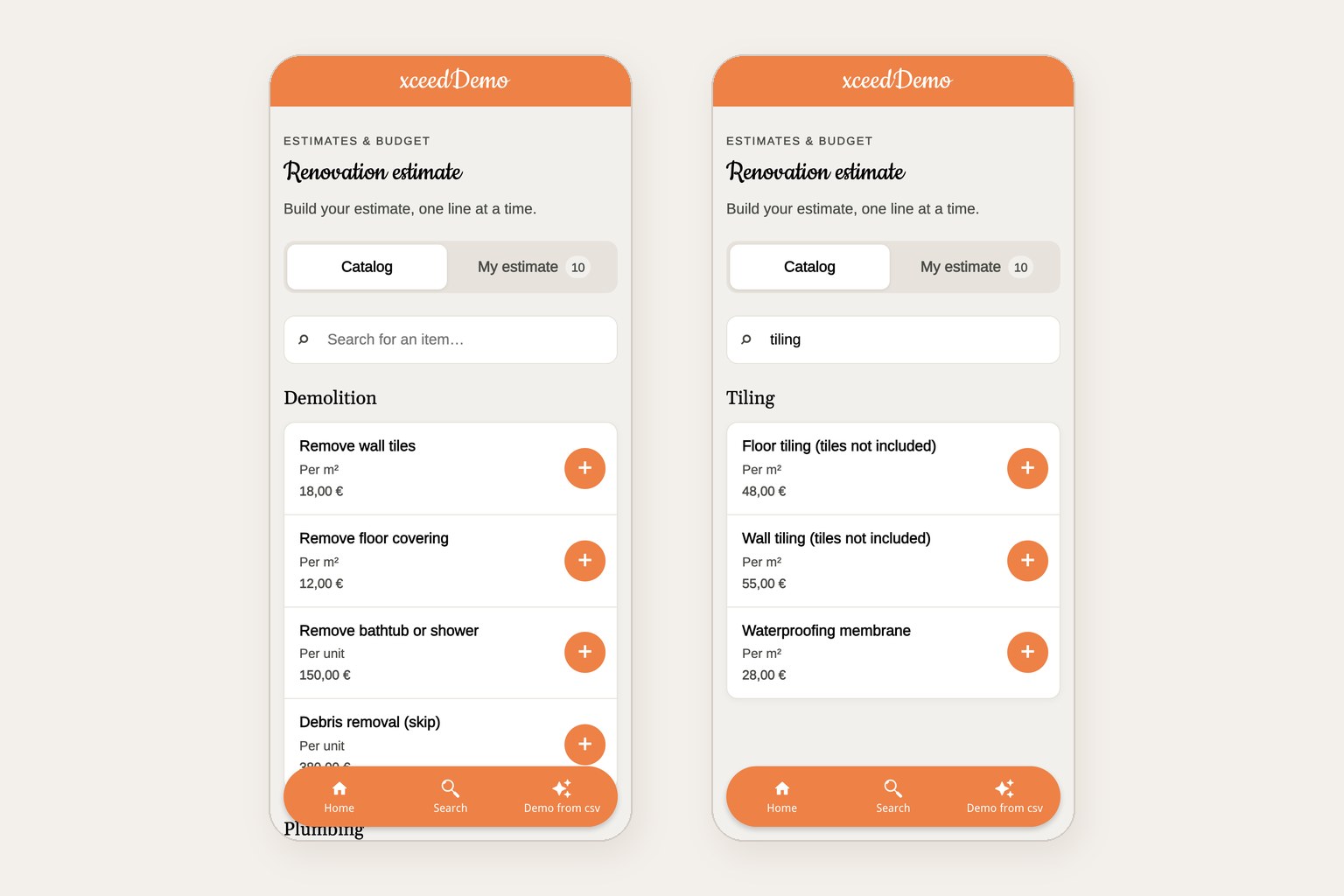
Screenshots: the 30 rows of the CSV displayed as a catalog grouped by category, and the same catalog filtered by the word “tiling”.
Step 3: describe the formulas in plain language
This is the part a converter does for you, and the part you do yourself here: the builder does not read formulas, you describe them. Each formula of the Quote tab becomes one line of the prompt.
| In the Excel file | In the prompt |
|---|---|
VLOOKUP on the Price list tab | The user picks items from the catalog; each shows its unit and unit price |
=D5*E5 | Line total = quantity x unit price |
=SUM(F5:F19) | Works subtotal = sum of the line totals |
=F22*F23 | Extra labour = hours x hourly rate |
=F21+F24 | Subtotal = works subtotal + extra labour |
=-F25*F26 | Discount = subtotal x discount rate |
=F25+F27 | Net before VAT = subtotal - discount |
=F28*F29 | VAT = net before VAT x VAT rate |
=F28+F30 | Total incl. VAT = net before VAT + VAT |
=ROUND(F31*F32,2) | Deposit = 30% of the total incl. VAT, rounded to the cent |
Here is the full prompt we used, as we typed it:
The first version showed the labor line as a rate, 16 h × €45.00/h, without the amount. One follow-up message fixed it:
The result: same quote, same total, to the cent
We opened the published section on a phone-sized screen, entered the bathroom quote from the Excel file and compared every line. Test run on September 30, 2026:
| Line | Excel | App |
|---|---|---|
| Works subtotal | €3,902.00 | €3,902.00 |
| Extra labor, 16 h at €45 | €720.00 | €720.00 |
| Subtotal | €4,622.00 | €4,622.00 |
| Discount, 5% | €231.10 | €231.10 |
| Net before VAT | €4,390.90 | €4,390.90 |
| VAT, 20% | €878.18 | €878.18 |
| Total including VAT | €5,269.08 | €5,269.08 |
| Deposit, 30% | €1,580.72 | €1,580.72 |
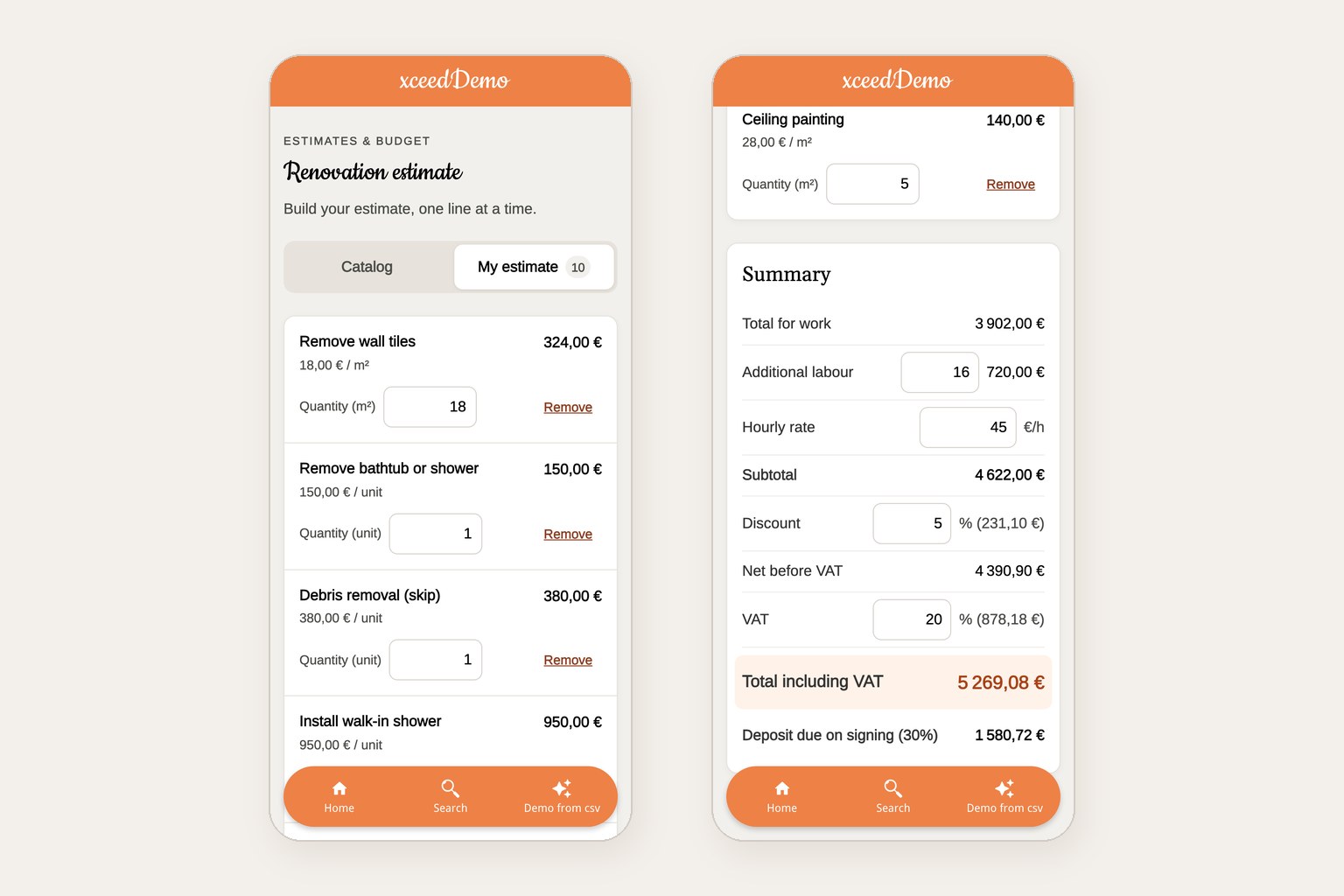
Screenshots: the quote lines with their quantities, and the summary with the same total as the Excel file.
You can try the live demo: it runs in the web version of a test app. Add a few lines and compare with the workbook.
What the app does that the spreadsheet did not
- Search and categories. Type “tiling” and the catalog narrows down to three items. In the spreadsheet, you scroll.
- The quote stays on the phone. Close the app, come back later: the lines, the hours and the discount are still there.
- It looks like the rest of your app. The section picks up your app's fonts and colors automatically; nothing to style by hand.
- It ships with your app. The section is part of the web version on every plan, and of the iOS and Android apps from the Premium plan.
Where this approach stops
- No .xlsx files. The builder reads CSV and JSON. Export the tab that holds your data first.
- No formula reading. You describe the formulas. Ten of them fit in a prompt; a workbook with hundreds of chained formulas, macros or pivot tables is a job for a converter that keeps them as they are.
- Small, stable data. A price list, a catalog, a schedule. Data that several people edit every day belongs in a database, and the builder can connect a section to a Supabase database for that.
- Check the numbers. The agent writes code from your description. Test it on a quote you already know, as we did here, before your customers use it.
Try it with your own spreadsheet
Pick one tab, the one your customers ask you about most: a price list, a menu, a timetable. Export it as CSV, add a Create with AI section, and describe what the app should do with it. Keep the Excel file open next to the preview and compare the results line by line.
Start for free: build your first section during the 30-day free trial, no credit card required. To go further, read our guide to the AI Extension Builder or see the extension page.
FAQ
Can I turn an Excel spreadsheet into an app without coding?
Yes. Export the data as a CSV file, attach it to a Create with AI section in GoodBarber, and describe the formulas in plain language. The AI Extension Builder writes the section, and you check it against a result you already know from Excel.
Can I convert an Excel file into an Android app?
Yes, as a section of your GoodBarber app. GoodBarber builds and publishes the Android and iOS apps from the Premium plan, and the web version on every plan. You do not compile anything yourself.
Does the app read my .xlsx file directly?
No. The builder reads CSV and JSON files. Save the tab that holds your data as CSV UTF-8, with commas as separators, and upload that file.
Will the app calculate exactly like my spreadsheet?
Only if the prompt describes the formulas exactly, rounding included. In our test, the app matched Excel on every line, to the cent. Always check with a quote you have already calculated in Excel.
How much does it cost?
The AI Extension Builder is a free extension for Content and eCommerce apps. You pay for the GoodBarber plan that publishes your app: the web version from the Standard plan, the iOS and Android apps from the Premium plan.


