 eCommerce
 Memberships
 Chatbot
 Online Courses
 Bookings
 Travel guide
 Events
 Content Creators
 Pickup & Delivery
 Newspaper
 Radio
 Schools
 Faith
 Organizations
 Restaurant
 Grocery
 Custom apps
 Employee Communication


 NO CODE APP BUILDER
 TECHNOLOGY
 WHY GOODBARBER?
 Design
 PRODUCT RESOURCES
 TOPICS

 MOBILE APPS RESELLERS
 DISCOVER
How do I animate my app walkthrough?
In GoodBarber, the app walkthrough introduces your app at first launch, in five screens at most that people see only once. Your app has just a few seconds to introduce itself, and the walkthrough takes a few minutes to set up in the back office, in your app's colors and fonts. Each step shows an image or, if you like, a Lottie animation.

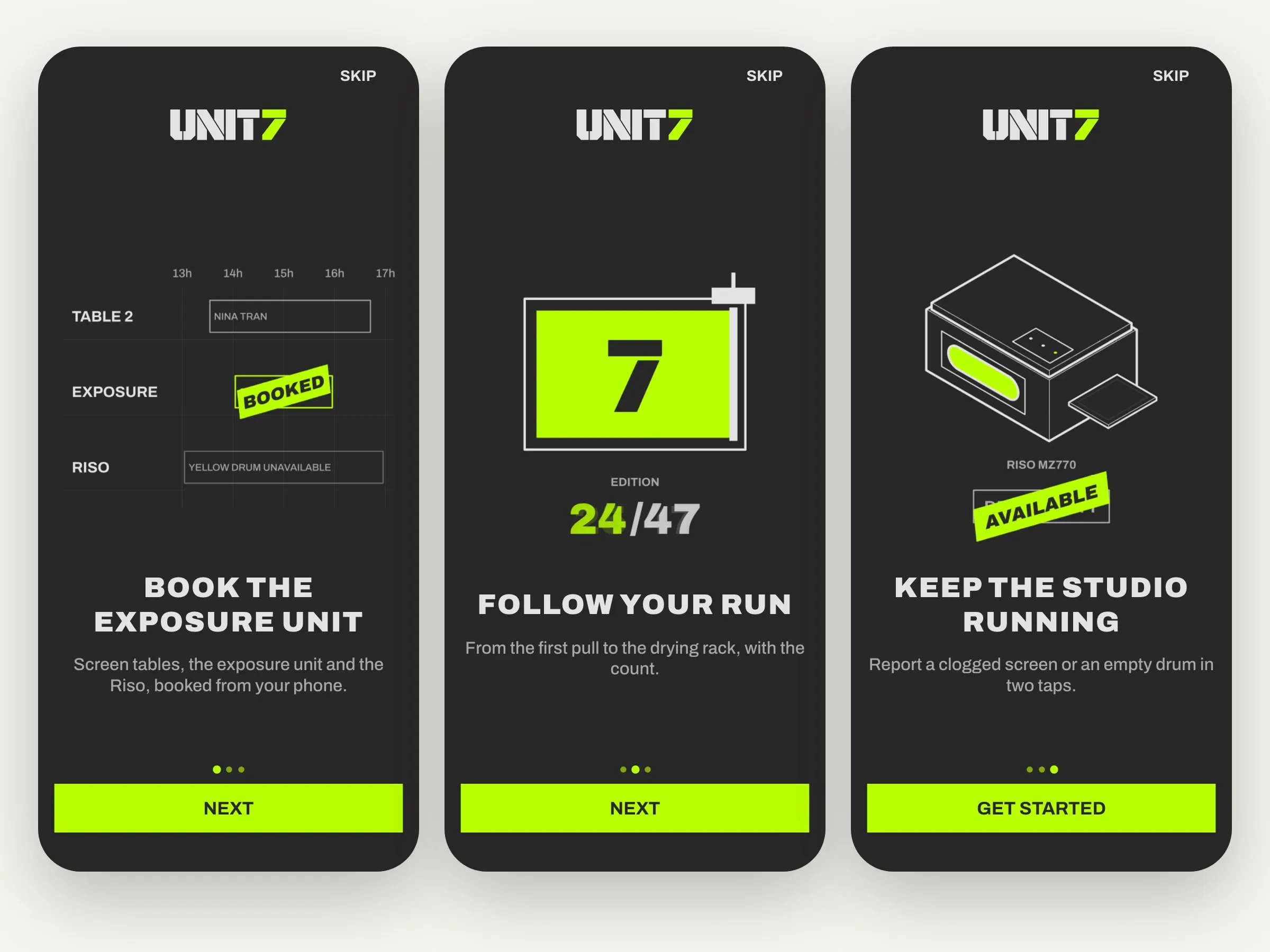
Here's what a walkthrough does for your app, the two layouts to choose from, and how to animate a step.
What an app walkthrough is, and when it shows
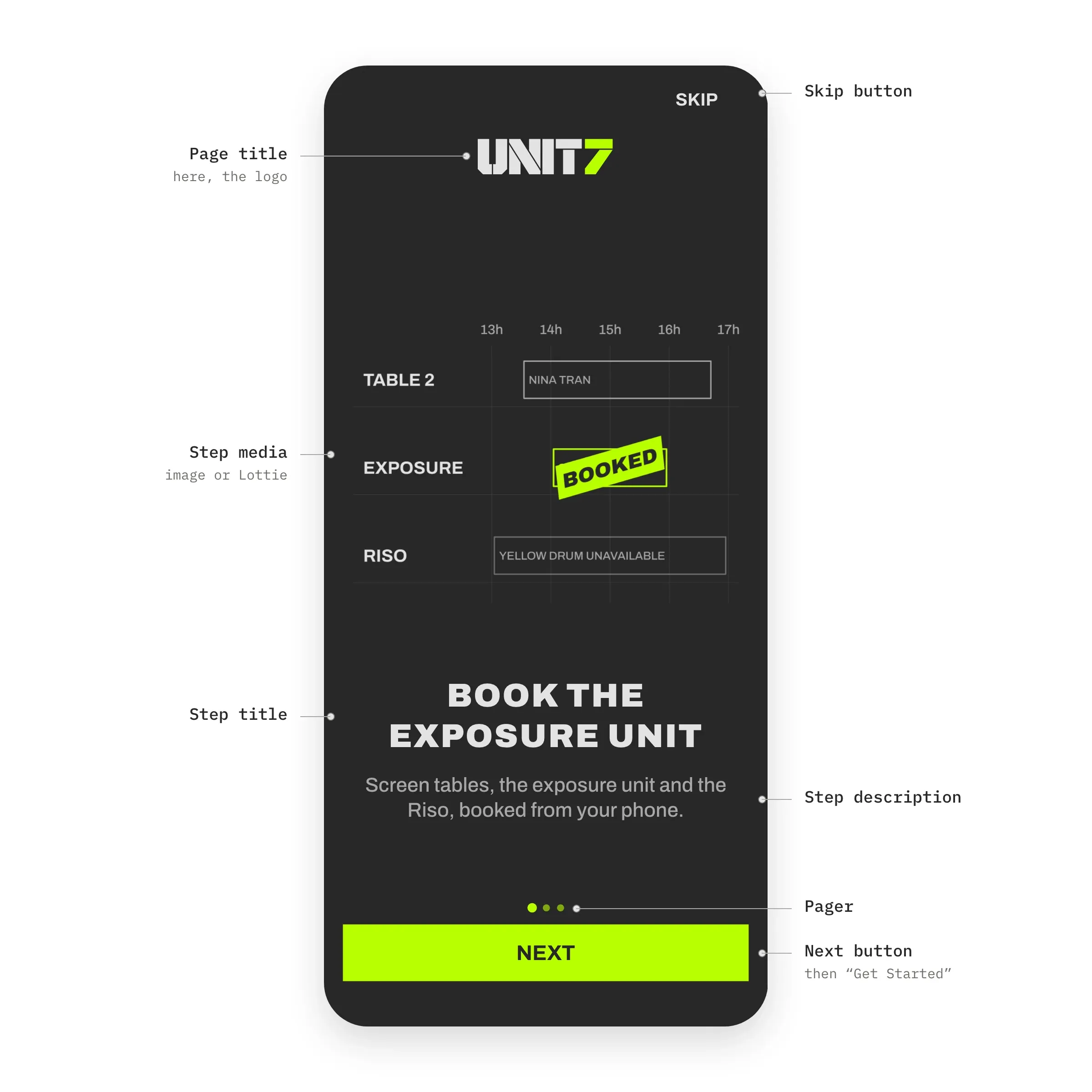
The walkthrough is your app introducing itself. In the GoodBarber back office, you'll find it under My App › Walkthrough. It shows on the phone, only once, the first time the app is opened after it's installed. It comes before the permission requests, notifications or location, so the first thing people see is your app.
It has up to five steps, each with a media, a title and a description, all optional. Around them, the same elements from one step to the next, the page title or your logo, the Skip button, the pager, and the Next button, which becomes Get Started on the last step. People move on by tapping the button or by swiping the screen.
The background, the fonts, the color of the button and of the pager are your app's own, that's our principle "Set once, consistent everywhere". You have nothing to redraw. The walkthrough is the first step of onboarding, and we've covered its best practices in detail.
Polaroid or Immersive, two layouts for the walkthrough steps
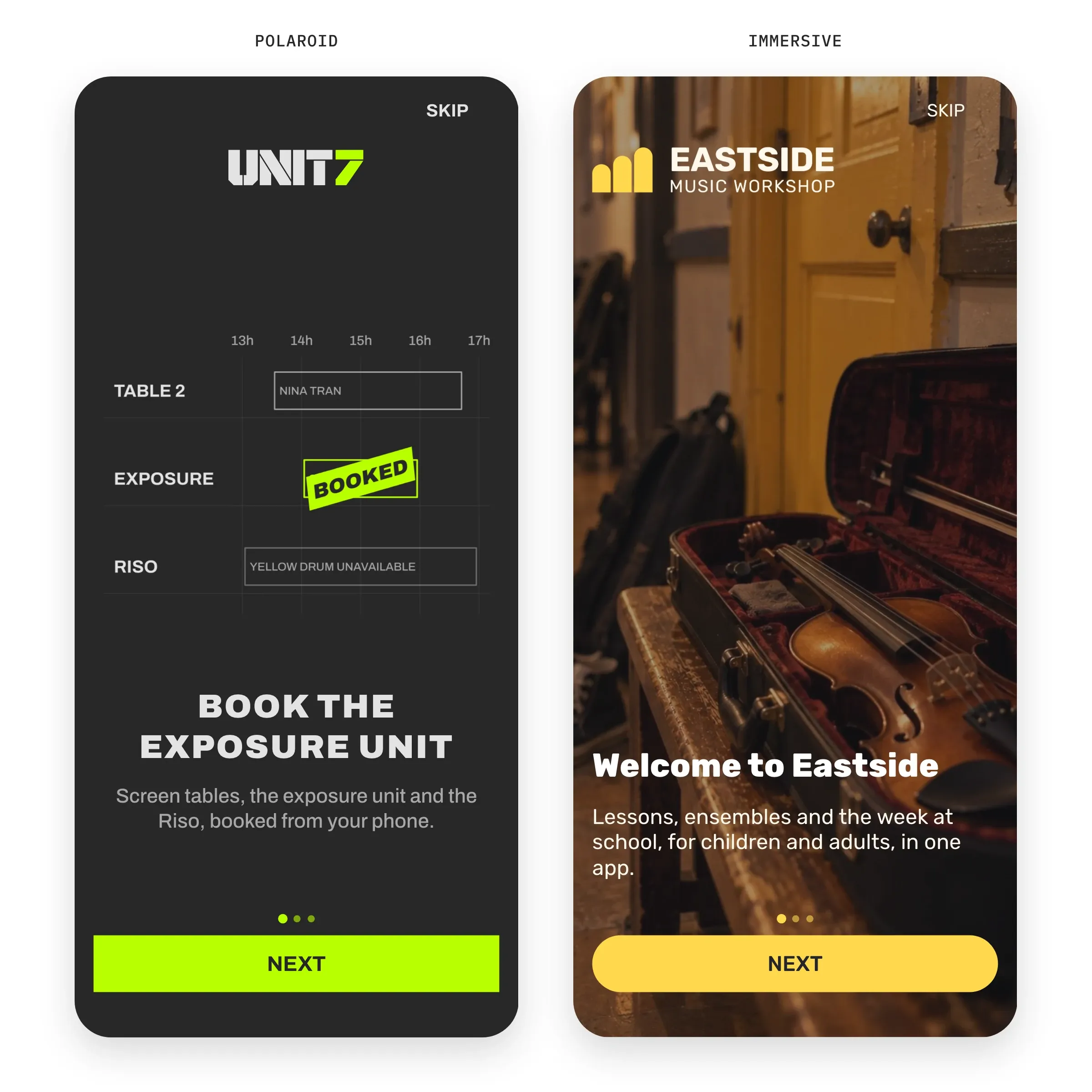
The GoodBarber back office offers two layouts for the steps. In Polaroid, the media shows above the title, in its original proportions, never enlarged, and a 1200 × 1200 pixel image is enough. In Immersive, the media fills the whole screen, like a background, and the text sits on top of it. Plan for 1536 × 2048 pixels, and choose an Effect on the images, None, Opacity or Gradient, so the text stays readable on the photo. In both layouts, the content alignment offers six positions, left or center, at the top, in the middle or at the bottom.
A simple rule to choose. A photo that carries a mood calls for Immersive, which is what the music school Eastside Music Workshop did with its photos of lessons. A drawing or an animation that explains calls for Polaroid, on a background of its own, the choice of Unit 7, the screen-printing workshop, whose three steps are drawn.
Animate a step, with a Lottie animation instead of the image
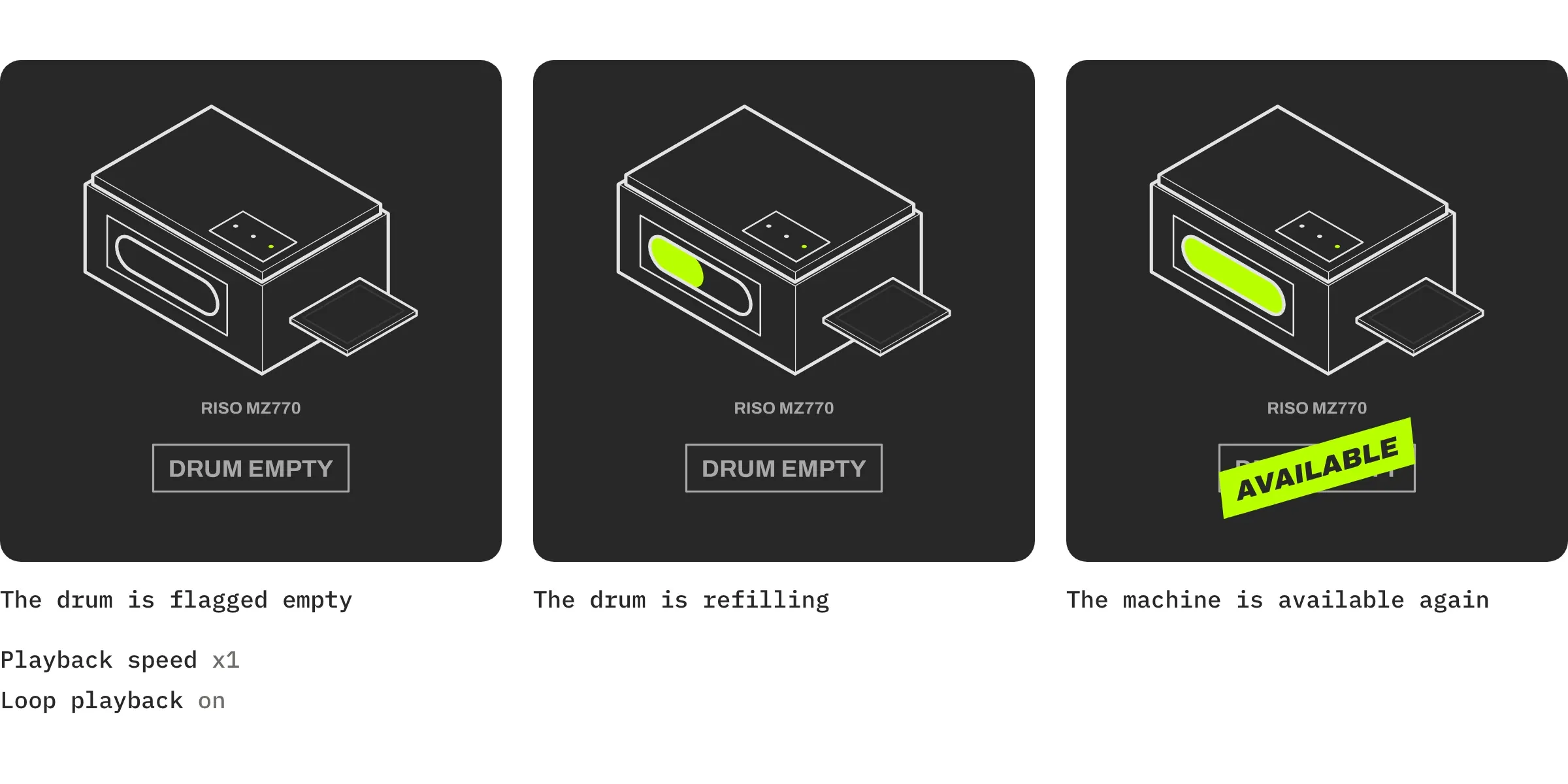
An image says what your app does. An animation shows it. On Unit 7's first step, a slot in the schedule fills in green and the word BOOKED is stamped on, and you understand that you book from your phone before you even read the sentence. On the second, a squeegee crosses the frame and the counter goes from 23 to 24 prints. On the third, a Riso drum flagged empty is available again, AVAILABLE as a sticker. Three gestures of three seconds each, on a loop. That's our principle "Polish you can feel", the motion that makes an app feel well made.
These animations are Lottie files, a light vector animation format the app plays directly. You can find them in the LottieFiles library, as our help article explains, or have them drawn in your app's colors, like Unit 7's. In GoodBarber, an animation is as easy to set as an image. On the step, choose LottieFiles rather than Image, add the file, then set the Playback speed, from x0.5 to x3, and Loop playback. Either way, the animation starts over each time its step shows. In Polaroid, it takes the width of the screen and keeps its proportions. In Immersive, it fills the screen like a photo.
The animation stays a choice. A step does just fine with a still image, and the two mix in the same walkthrough.
Set up the app walkthrough in GoodBarber
The walkthrough is a GoodBarber extension. Install it from Extensions Store › All extensions, on the App Walkthrough page, with the Install button. It costs €5 a month on the Standard and Premium plans, and it's included in the Pro plan. The My App › Walkthrough menu then appears, with your app's preview next to it.
- Choose the layout, Immersive or Polaroid, at the top of the panel.
- Add your steps, five at most. Click Add a step, then Image or LottieFiles. For an animation, the File tab takes your Lottie JSON file, and the URL tab the asset link of a LottieFiles animation. Then set the speed and the loop, and write the Title and the Description. The preview, next to it, opens on the first step, and its Next button scrolls through the others.
- Set the General settings, shared by all the steps. The Background color, the Content alignment, the Page title or a logo in its place, the font and color of the step title and description, the Skip button and the Next button, the color of the Pager, and in Immersive the Effect on the images. Everything saves without a button to click, and the preview follows.
In the video, the Content alignment is set to bottom left, and every step follows. To give a single step its own settings, a background of its own, a different alignment, another title or button color, go through your app's JSON. The free Advanced edition extension opens it with one click on { EDITING }, as for the shadow, the borders or the shape. The editor opens on walkthrough. Expand steps, then the step you're editing, and add the panel keys you want to change. For example, to set only the first step's text bottom left, click "+ Add", type contentAlign in the newKey field and the value bottom_left, then "Add". Finally, click "Save". The other steps keep the panel's Content alignment.
Before, after: the same step, as an image then as an animation
To see what an animation changes, here's the same step twice, the print run at Unit 7. On the left, the still image. The drawing is polished but static. It's a little abstract, and you don't see right away what it shows. On the right, the same illustration, animated. The squeegee crosses the printing screen, the ink appears where it passes, the counter goes from 23 to 24, and you instantly recognize a print run in progress. Nothing else has changed, not the text, not the colors, not the button.
Here, motion makes the step easy to read. But even when the drawing is already clear, the animation brings the walkthrough to life and shows that your app is carefully made.
My favorite walkthrough is animated
What I like best is an animated walkthrough. To introduce an app in a few screens, I know of nothing more telling than motion. The one from Unit 7, a shared screen-printing workshop, is a great example. It uses Polaroid, on a Charcoal #282727 background, with the workshop's logo in place of the title. The titles are in Archivo Black 28, the descriptions in Archivo 17, in a Concrete #A7A7A7 gray. The button, with square corners, and the pager take the workshop's green, Unit Green #B9FF00. The three Lottie animations were drawn for the app, in its colors, and each one shows one of the members' gestures in three seconds, book, print, report. In twenty seconds, you understand what the app is for, and the home screen takes over.
The walkthrough in brief
- In a GoodBarber app, the app walkthrough shows only once, at first launch on the phone, and has up to five steps.
- Each step carries a media, a title and a description, all optional. Around them, the page title or your logo, the Skip button, the pager and the Next button, which becomes Get Started on the last step.
- Two layouts, Polaroid, the media above the title, and Immersive, the media full screen with an effect to keep the text readable.
- A Lottie animation is set like an image, with a speed from x0.5 to x3 and loop playback. It starts over each time its step shows.
- Everything is set in My App › Walkthrough, and each step can have its own settings in the JSON, with the free Advanced edition extension.
Your turn
Install App Walkthrough from Extensions Store, open My App › Walkthrough, and add a first step with an image, your title and a sentence. The preview shows it right away. Then try a Lottie animation in place of the image, and watch the page come to life.
No app yet? Create yours with GoodBarber, the Mobile App Builder.


