 eCommerce
 Memberships
 Chatbot
 Online Courses
 Bookings
 Travel guide
 Events
 Content Creators
 Pickup & Delivery
 Newspaper
 Radio
 Schools
 Faith
 Organizations
 Restaurant
 Grocery
 Custom apps
 Employee Communication


 NO CODE APP BUILDER
 TECHNOLOGY
 WHY GOODBARBER?
 Design
 PRODUCT RESOURCES
 TOPICS

 MOBILE APPS RESELLERS
 DISCOVER
Which shape for my app: square, rounded or round corners?
In GoodBarber, the shape of your app's corners is a choice between three options, and the exact radius, if you want it, is set in the JSON. It is the most visible signature of an app. Square corners give a sharp, assertive character. Slightly rounded, they soften it. Round, they make the app warm and welcoming.

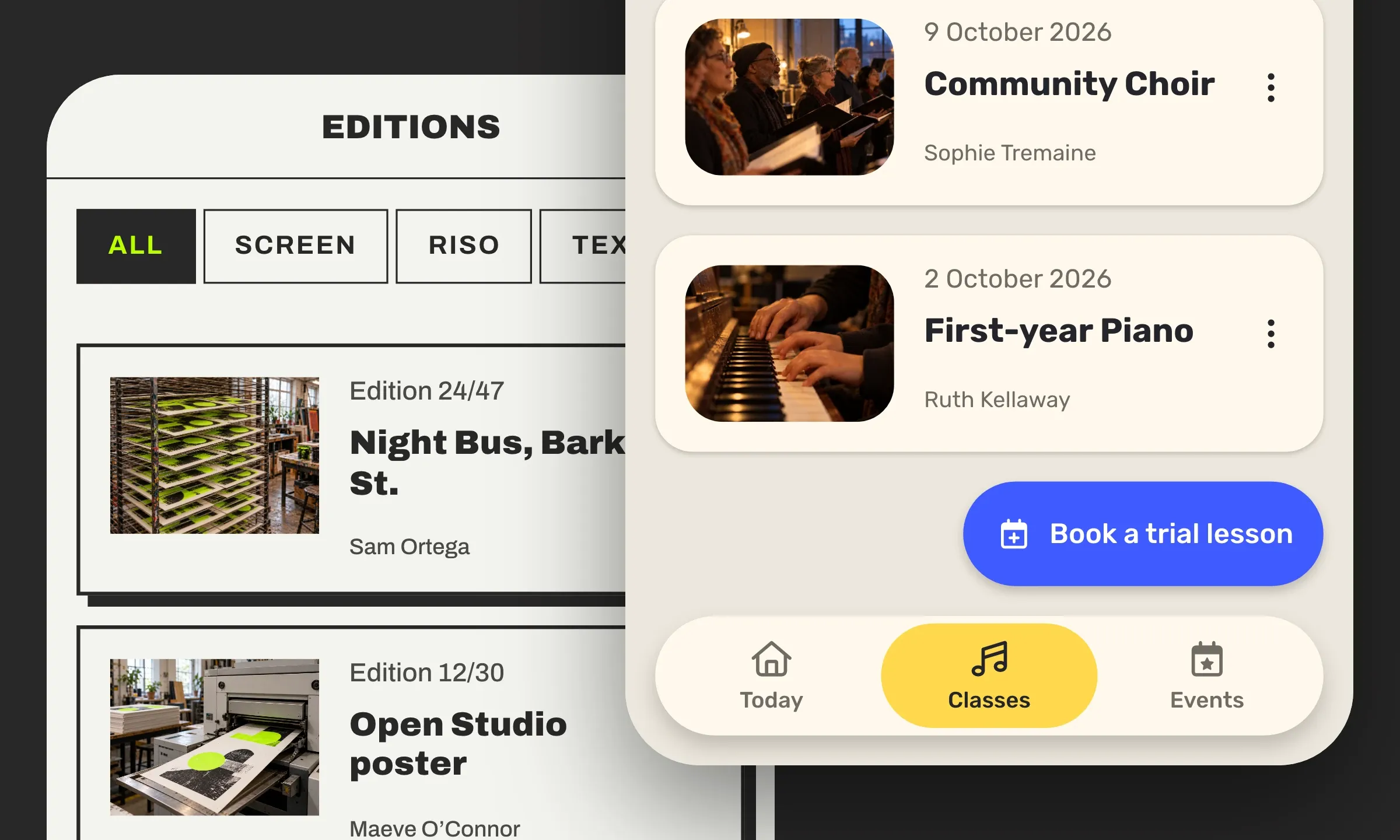
Here is what the shape changes in a GoodBarber app, where it is set, and how to go all the way to the radius of your choice.
Three shapes for the whole app: square, rounded, round
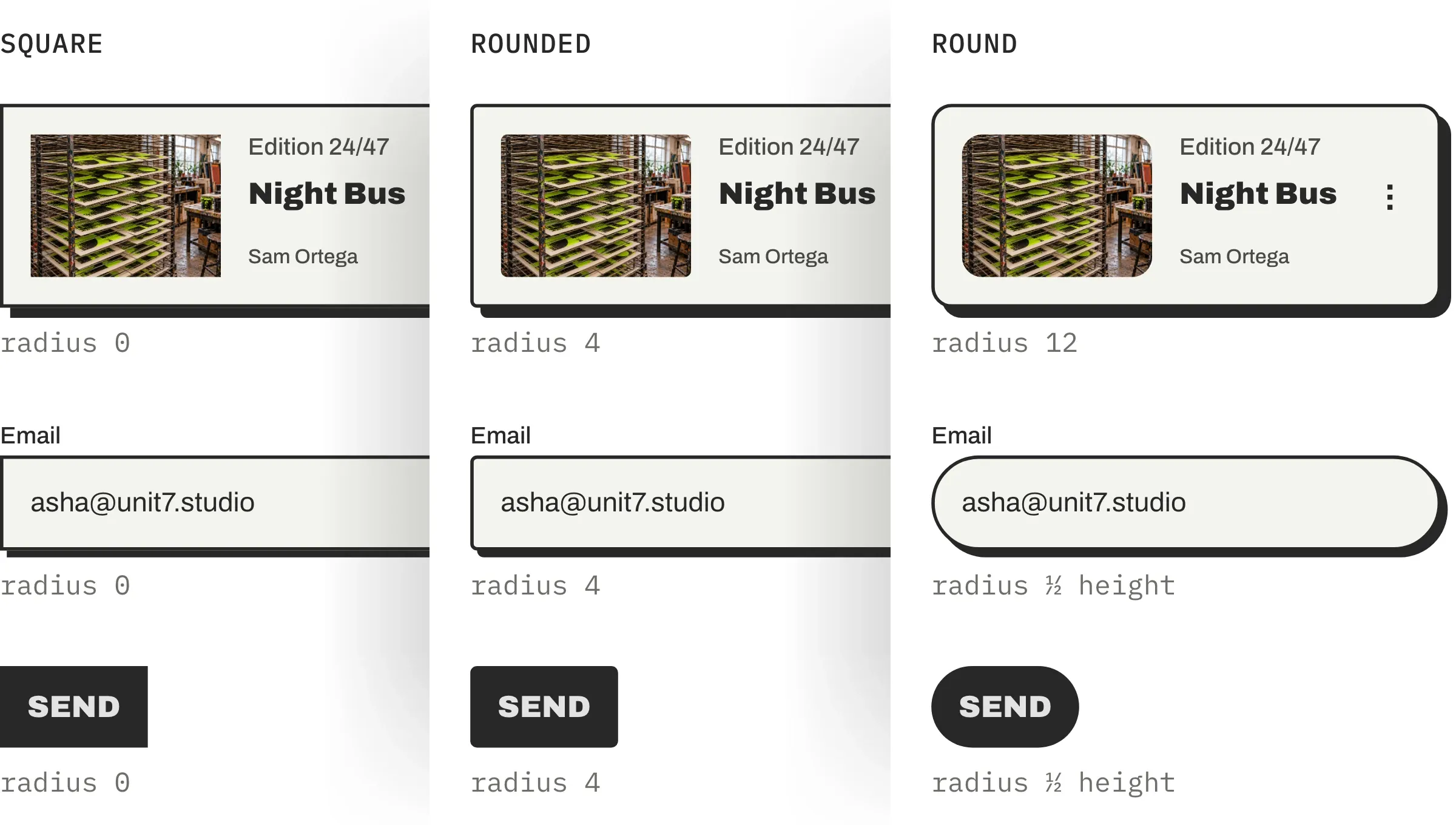
The shape is how rounded the corners of your cells, thumbnails, buttons and fields are, what people often call rounded corners. In the GoodBarber Design System, it is the Shape atom, and it offers three ready-made shapes. Square, the corner is sharp and the radius is 0. Rounded, the radius is 4 pixels, enough to soften without drawing attention. Round, it is 12 pixels on a cell or a thumbnail, and on a button or a field it takes the full height, the shape designers call a pill.
You don't set these corners element by element. A shape chosen in My App › App style › Thumbnails and cells applies to every list, every widget on the Home and their headers, on all your pages. That is our "Set once, consistent everywhere" principle, a value set once and repeated everywhere. Buttons and fields have their own option, also in App style, under Buttons and Form fields, with the same three predefined shapes. So you can keep square cells and round buttons.
Small elements stay round
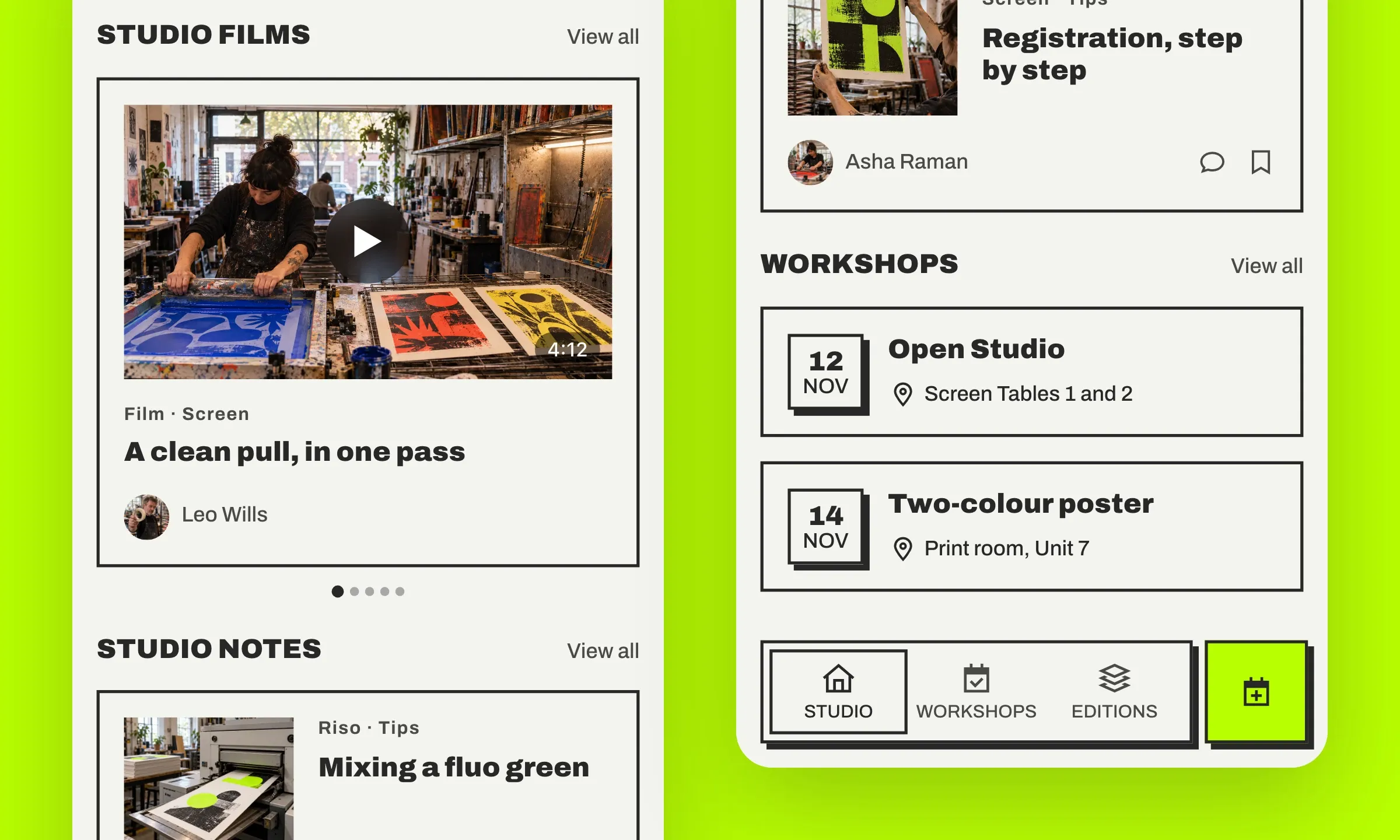
In a GoodBarber app with square corners, not everything is square. Cells, thumbnails and buttons are. But an author's avatar stays a circle, round by nature. And other small elements have their own shape, which does not follow the shape chosen for the app, a video's play icon, its duration label, the date bullet. Our templates deliver them round. A circle is recognized at a glance, even when tiny, and it signals something apart, a person, an action, a marker.
Their shape is not fixed, though. The date bullet has its own slider, "Date background shape", with three positions. That is how the Unit 7 app above, a screen-printing workshop, switched its date bullets to square, to go all the way with its square-cornered look.
Set the shape of your app in GoodBarber
Everything happens in My App › App style. Three panels offer the same choice there, Square, Rounded or Round. Thumbnails and cells sets the cells, thumbnails, headers and widget backgrounds. Buttons sets the buttons, and Form fields the fields. Your choice is saved on click, and the preview updates. With the Bold, Minimal and Clean TabBar templates, the tab bar has its own setting, "Corner style", in My App › Structure › Menu › Settings.
For a radius that is not among the three options, the free Advanced edition extension opens the JSON, the full list of settings, the same one as for the shadow and the borders. Install it from the "Extensions Store" menu, on the "Advanced edition" page, and your design screens get the { EDITING } button, at the top right.
- Open the app's JSON. In My App › App style › Thumbnails and cells, click { EDITING }. The editor opens on the app's general settings, sorted in alphabetical order. Expand shape, and you'll find the type key, with the value of your choice (sharp, rounded or round).
- Switch to a free radius. Click the value of type and replace it with custom.
- Give your radius. Under shape, click "+ Add", type radius in the newKey field, leave "Value" selected, enter a whole number in pixels (20 here), then "Add". The key appears, tagged "New". Click "Save". Cells, thumbnails, headers and widget backgrounds take this radius. Buttons and fields keep the option chosen in their panel, and the small round elements keep their own shape.
A tip. The radius is a whole number, and it reads at the scale of a page, not of a single cell. Compare in the preview before choosing.
Before, after: a radius of 20 changes an app's character
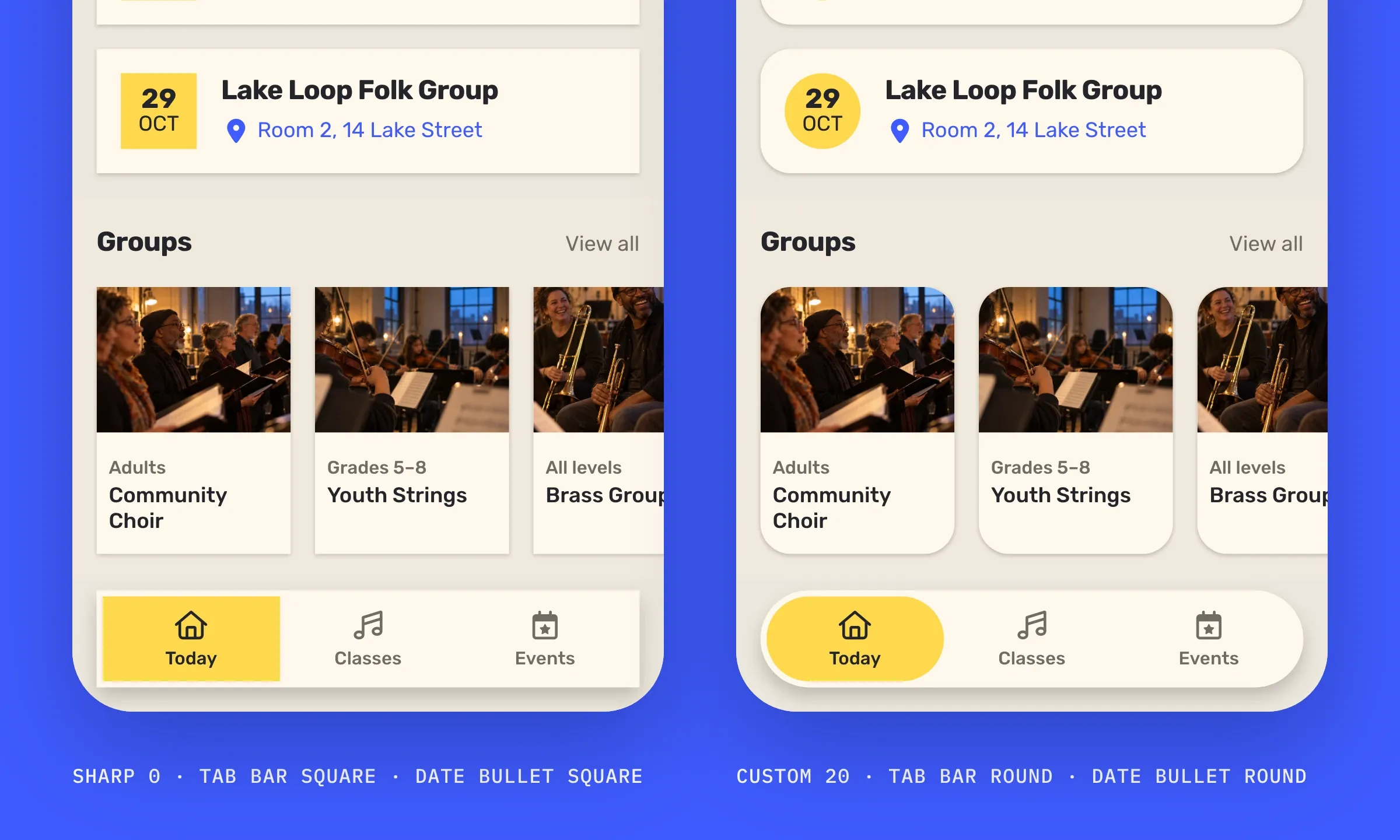
Here is the same screen twice, the one of Eastside Music Workshop, a music school. On the left, everything is square, the Square option for thumbnails and cells, the tab bar with "Corner style" set to Square, the date bullet in the first position of its slider. The app is clean, and a little stern for a school. On the right, three settings have changed, the shape object set to custom with a radius of 20, the tab bar set to "Fully rounded" and the date bullet on the Round option. Nothing else has moved, not the colors, not the fonts, not the spacing. And yet the app changes character. It becomes welcoming, like a school where young and old come to learn music.
That is all a radius does, and that is why it deserves to be chosen rather than left to chance.
Square, rounded or round corners, what effect on your app?
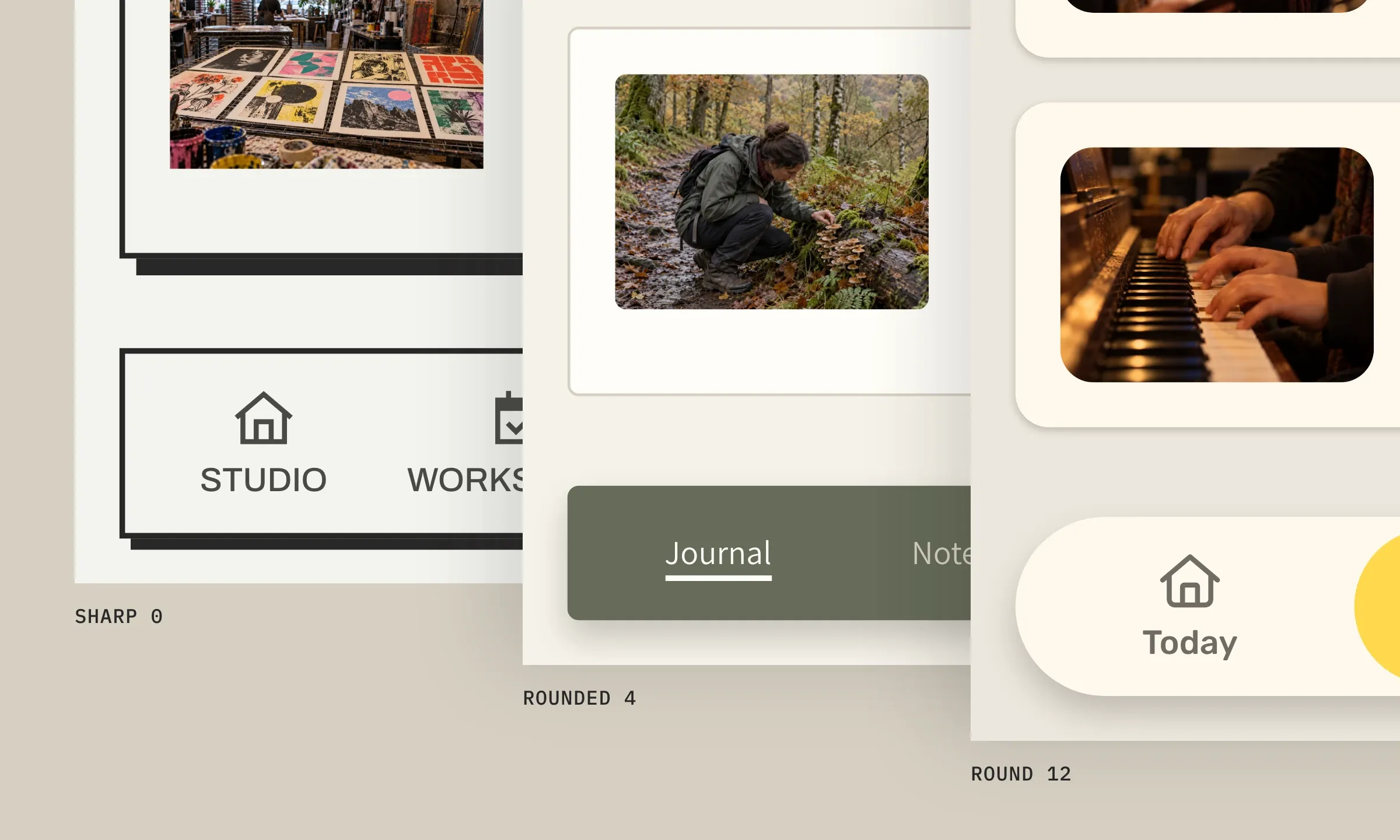
Three apps, three shapes, and each one tells a different story. From left to right, the image shows square corners for the app of a screen-printing workshop, rounded ones for that of a natural history society, round ones for that of a music school. The table adds the free radius.
| Shape | type | Radius | The effect |
|---|---|---|---|
| 1. Square | sharp | 0 | Sharp, assertive, a poster feel |
| 2. Rounded | rounded | 4 px | Softened without drawing attention, the most discreet choice |
| 3. Round | round | 12 px, full height on buttons and fields | Soft, welcoming, a consumer-app feel |
| 4. Free radius | custom | the number of your choice | Your signature, off the scale, like the 20 of the before and after |
The first three rows are chosen in App style. The fourth is set in the editor, with two keys.
No shape is better than another. Each of these three apps holds together through its own, because it says the same thing as its colors and its fonts.
A radius of 20 and round buttons, for a warm app
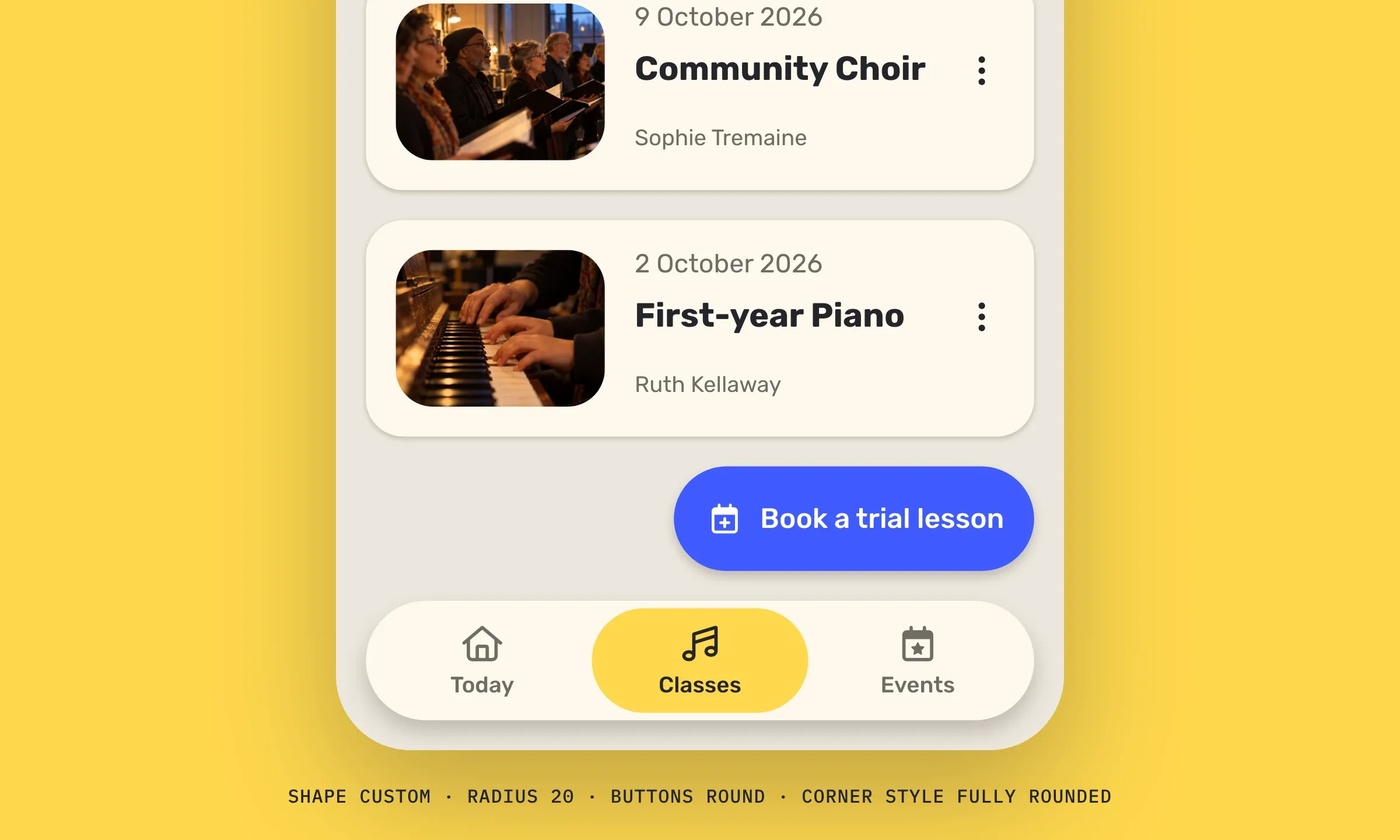
My favorite setting is Eastside's, a radius of 20 on the cells, round buttons and a round tab bar. It comes from the school's logo, three rounded arches, and that curve comes back in every cell and every button. With such generous curves, each cell becomes a distinct object on the background, and the round buttons stand out at first glance.
The radius of 20 goes in the JSON, with the three steps of "Set the shape of your app in GoodBarber". Buttons and fields switch to the Round option, and the tab bar to "Fully rounded".
The shape in brief
- In a GoodBarber app, the shape of the corners is a choice between three options, Square (0), Rounded (4 px) and Round (12 px, or the full height on buttons and fields).
- A shape chosen in App style › Thumbnails and cells applies to every cell, thumbnail, header and widget background. Buttons and fields have the same choice, in their own panel.
- The tab bar has its own setting, "Corner style", with the Bold, Minimal and Clean TabBar templates.
- Some small elements do not follow the app's shape. The avatar is round by nature, the play icon, the duration and the date bullet have their own shape, round in our templates.
- For a precise radius, go through the JSON with the free Advanced edition extension, by setting type to custom and adding radius, a whole number.
Your turn
Open My App › App style › Thumbnails and cells and try the three options, the preview follows. When you feel like a radius of your own, the free Advanced edition extension adds the { EDITING } button on the same screen, and two keys are enough.
No app yet? Create yours with GoodBarber, the Mobile App Builder.


