 eCommerce
 Memberships
 Chatbot
 Online Courses
 Bookings
 Travel guide
 Events
 Content Creators
 Pickup & Delivery
 Newspaper
 Radio
Radio Schools
 Faith
Faith Organizations
 Restaurant
 Grocery
 Custom apps
 Employee Communication

 NO CODE APP BUILDER
 TECHNOLOGY
 WHY GOODBARBER?
 Design
 PRODUCT RESOURCES
 TOPICS
 MOBILE APPS RESELLERS
 DISCOVER
How do I change the colors in my app?
In a GoodBarber app, you do not have to color the elements one by one. Each color of your theme plays a role (the text, the accent, the cell background), and everything that carries this role takes its hue, on all your pages. Change one color, and the whole app follows.

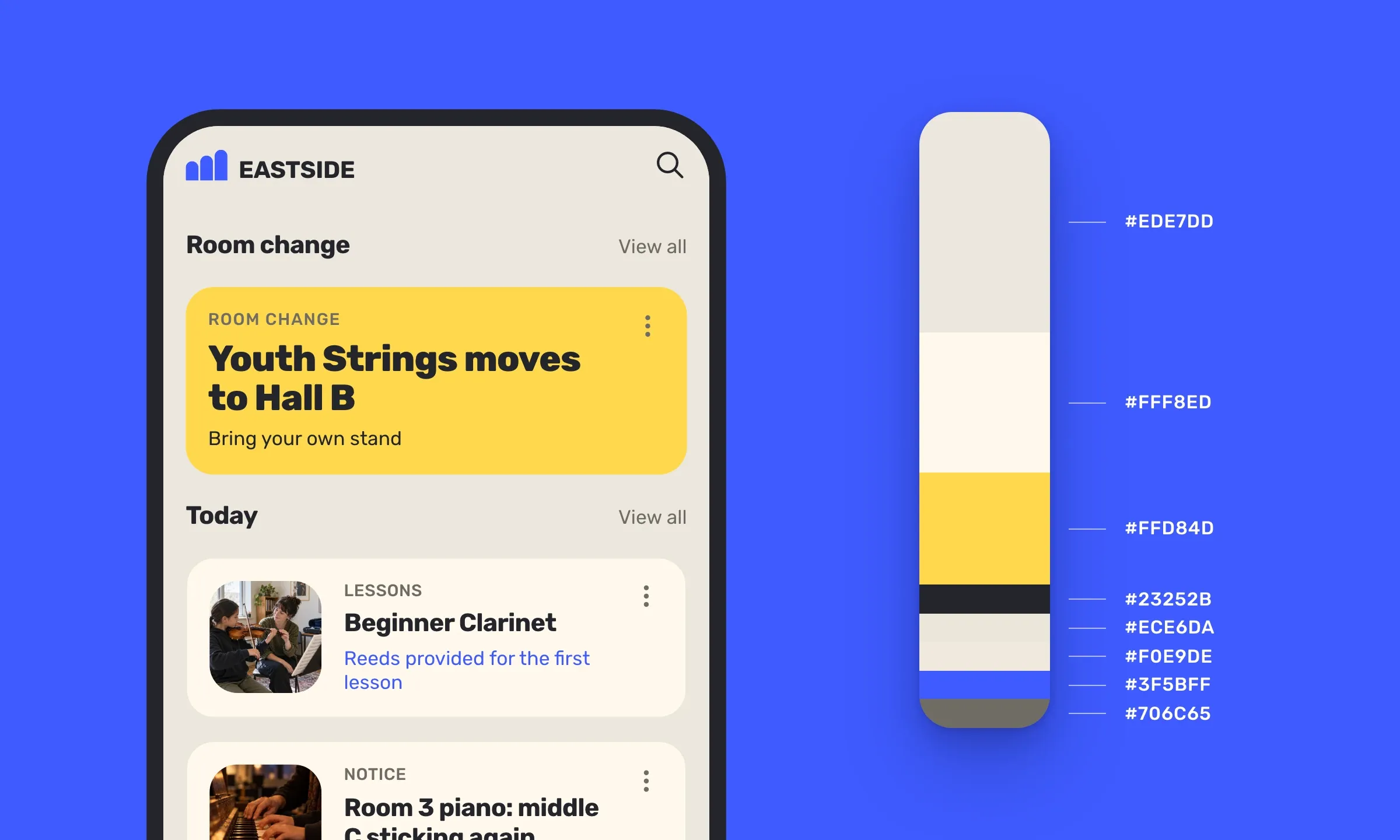
Here is the role of each color, how to change them for the whole app, and how to give a single element its own color.
The colors of the whole app in a single panel
In the GoodBarber back office, the My App › App style › Colors panel brings together the twenty color settings of your app. At the top, “Color theme”. Below it, the “Header”, four “Primary colors”, two “Secondary colors”, then the areas of the app, the “App background”, the menu, the “List separator” and the buttons.
You do not choose these colors screen by screen. Each one plays a role, and the titles, the borders or the date bullets that carry this role take it on all your pages. You set it once, and it spreads through the whole app. That is our “Set once, consistent everywhere” principle, at the heart of the Color foundation of the GoodBarber Design System.
Choosing the hues themselves is another question, covered in an article and five tools. Here, we look at how the app carries them.
One role per color
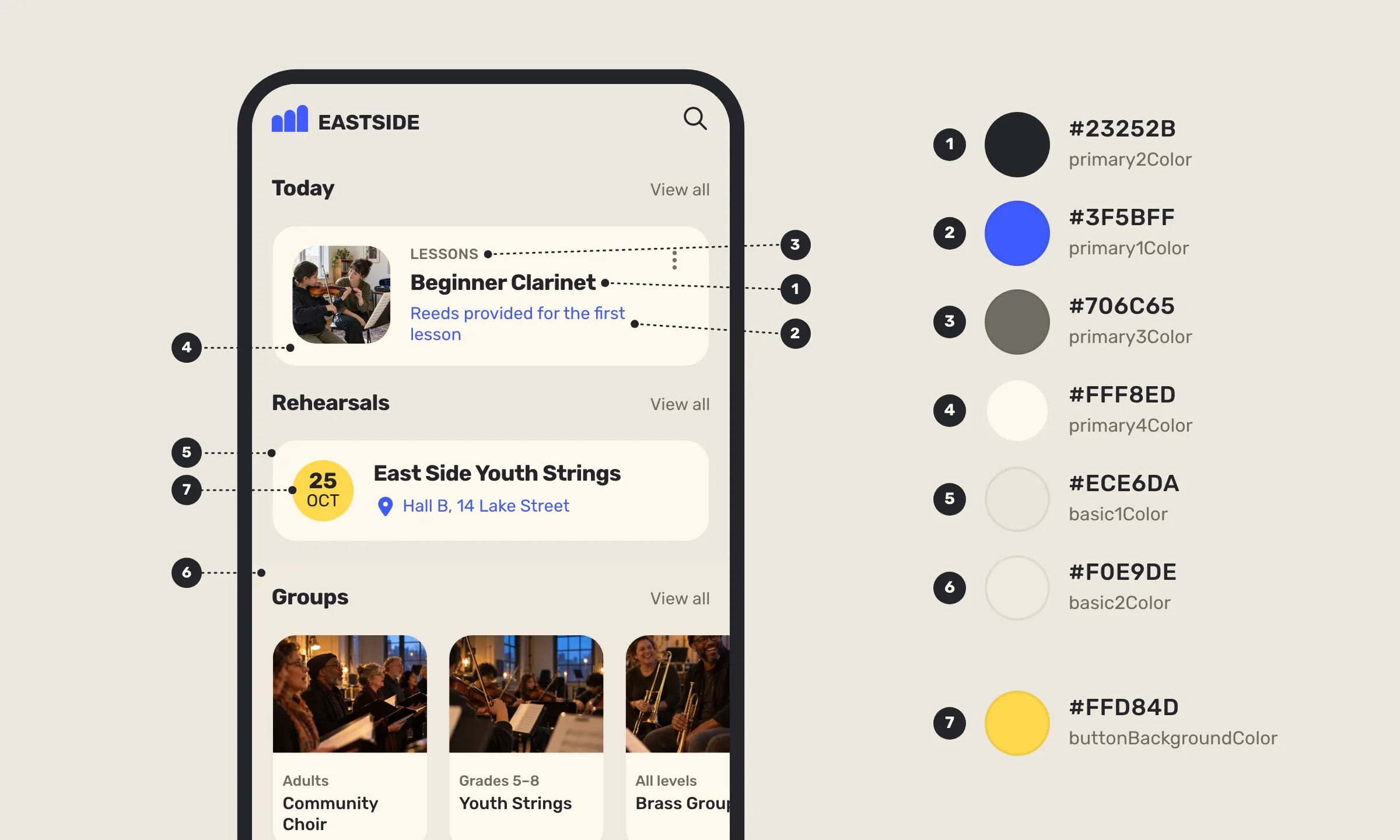
In the Colors panel, the four “Primary colors” and then the two “Secondary colors” each have a role, the same across the whole app. Here they are in the order of the panel, as in the image.
- The main text, the titles and the text of articles.
- The accent, the information under the title, the address of an event, the icon of a selected action.
- The secondary text, the information above the title (date, category), the authors, the link to the full list.
- The surface background, the cells and the widget headers.
- The borders, around the cells.
- The secondary background, that of a widget when you give it one.
So in a GoodBarber app, a color has a function, not a place. If your accent is blue, everything that carries the accent turns blue, from one screen to the next. And when you change the hue, the text stays text, the background stays background. The areas of the app, the “Header”, the menu, the buttons, have their own settings, in the same panel. The yellow of the date bullets, number 7 in the image, thus comes from “Other buttons”.
Set your colors in GoodBarber
Everything happens in the Colors panel, in three moves, from the broadest to the finest.
- Choose a theme. The “Color theme” carousel offers dozens of them, including the Classic themes released this summer. A theme sets the twenty settings of the panel in one go. The “Magic palette” can also compose one for you, and the “Create a color theme” button saves your own, which joins the carousel. In the video, it is the “Eastside” theme of the music school.
- Change a color. Click a color, type its hex code, then “Choose”. The preview follows at once.
- Apply. The “Apply” button repaints the whole app, after a confirmation. All the elements take the colors of the theme, on all your pages.
“App style” also groups the Fonts, Buttons and Form fields panels, which set the whole app from a single place in the same way.
For a single element, open the design panel of its section or of its widget. Its colors are prefilled there by the theme, and you can change one of them for this list only. That is the end of the video, where the “Room change” cell turns yellow. The free Advanced edition extension and its { EDITING } button go further, with the color of each element written in hex, as for the shadow and the borders. The Colors panel, though, stays at the level of the whole app, and “Apply” there brings each element back to the color of its role. So set your theme first, and your details after.
Before, after: a single color changes, and everything that carries it follows
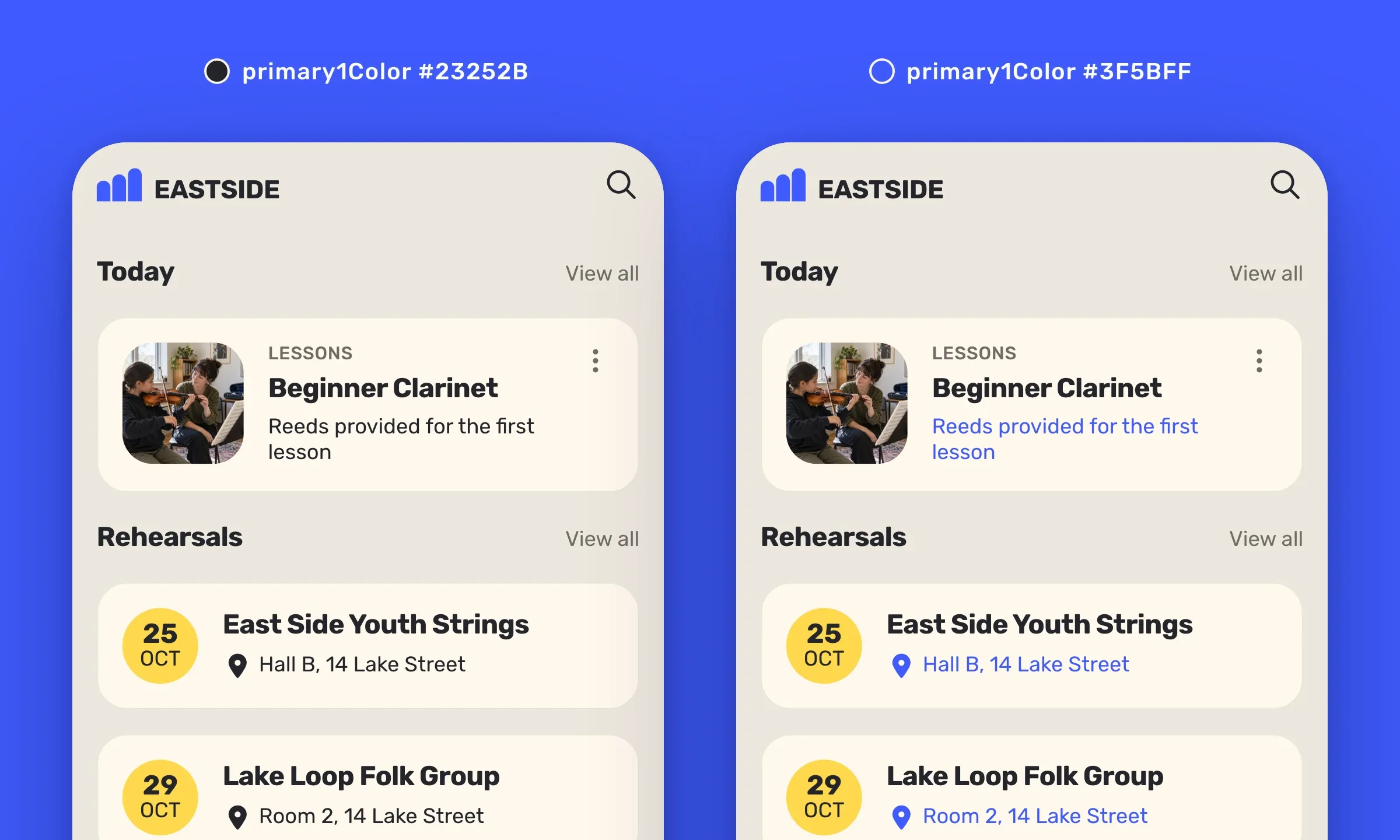
Here is the same screen twice, and a single color changed between the two, the accent. On the left, it has the color of the text, and everything reads at the same level. On the right, it switches to the brand blue, and with it the information under the title of the notice and the address of each rehearsal, with its icon. The eye finds what is useful at once. Neither the titles, nor the backgrounds, nor the fonts have moved.
A single setting reaches far. On one of our GoodBarber apps, changing the color of the main text repainted 95 settings in one go, across the whole app, without opening a single screen. That is our “No design burden” principle, so that consistency is never a burden on you.
To judge your setting, look at the preview before applying, then browse two or three pages. If the accent jumps out where it should not, it is probably the element carrying it that needs adjusting, in its design panel.
Four ways to handle the accent color
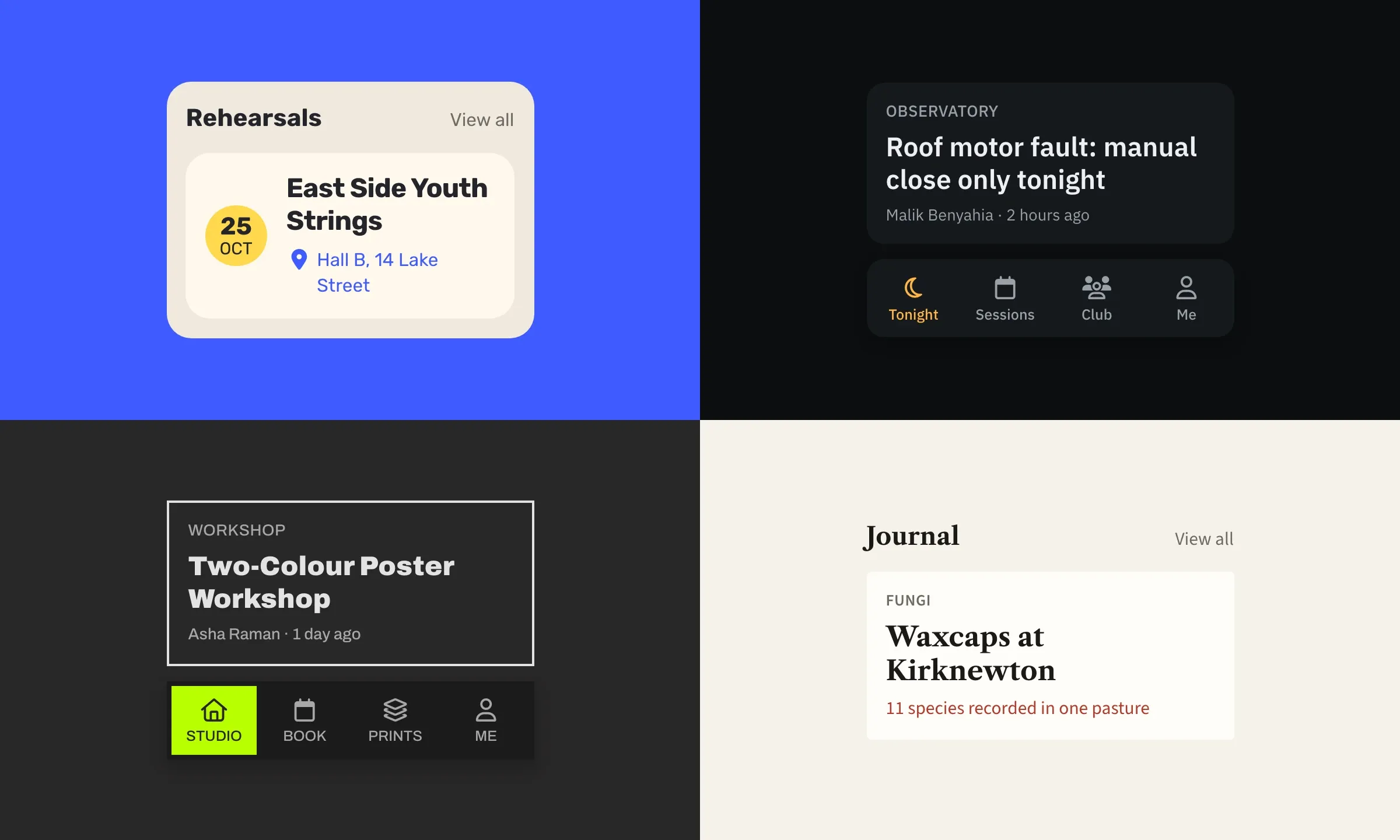
These four apps use the same roles, and yet they do not look alike. The difference lies in the settings where each one puts its color.
- Eastside Music Workshop puts its blue in the accent, which here colors the address of a rehearsal, and its yellow in “Other buttons”, which colors the date bullets.
- Blandas Astronomy Club puts its amber in the settings of its tab bar, and here only the current tab lights up.
- Unit 7 lays its fluorescent green as the background of the active tab, a solid fill with its name written on it.
- Tweed & Cheviot puts its red in the accent, but only shows the information under the title where it counts, here the figure to remember.
It is up to you to choose where to put yours. Ask yourself what it should say, what is active, what is new, what is waiting for an action.
My favorite setting: never pure white, never pure black
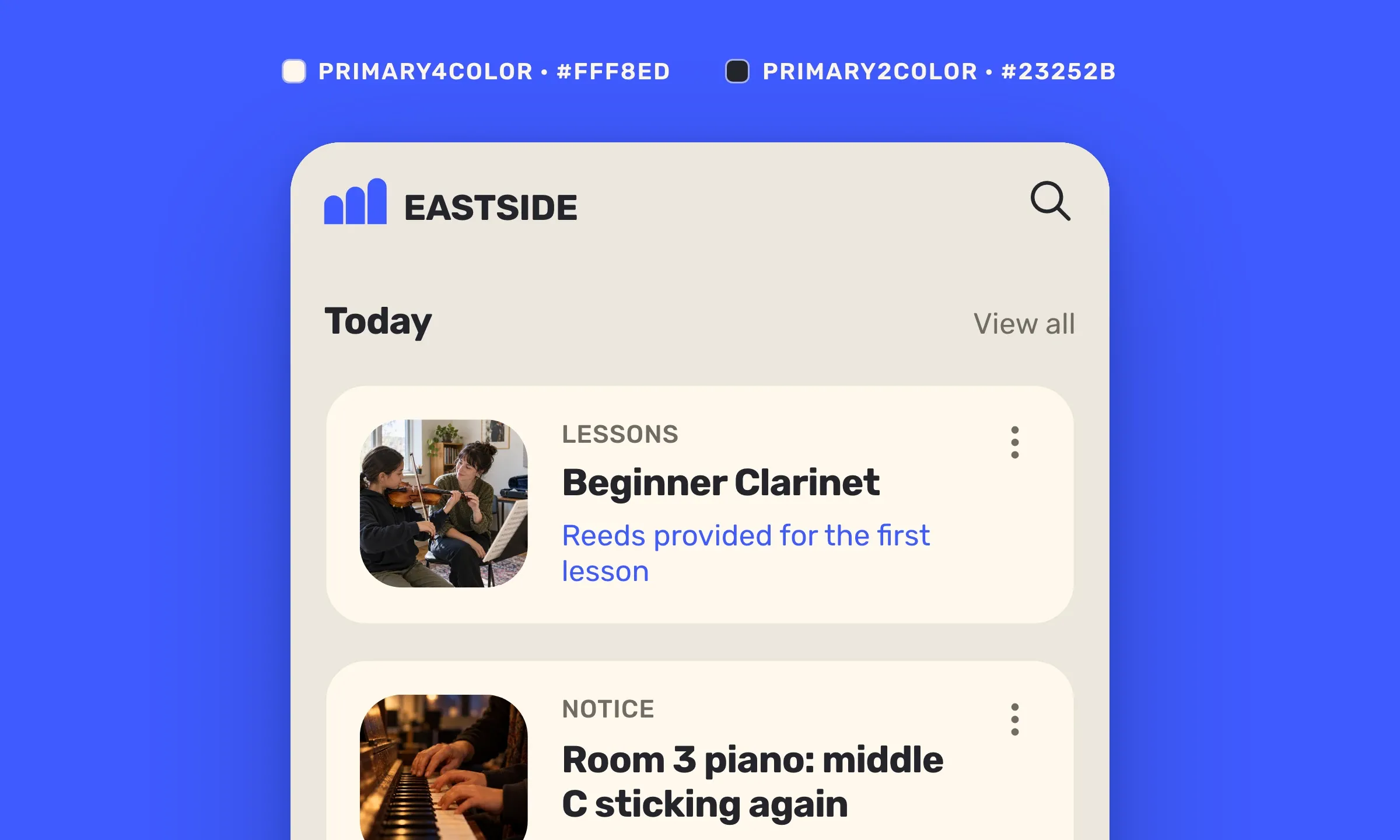
My favorite setting goes unnoticed. For the surface background, I never use #FFFFFF, but a slightly tinted white, #FFF8ED in Eastside, set on an “App background” one notch darker, #EDE7DD. The cells stand out without a shadow, and the screen takes on a texture, like paper. For the main text, never #000000 either, but a tinted near-black, #23252B here. Pure black on white gives the maximum contrast, 21:1, which I find harsh over a long read. #23252B on #FFF8ED keeps 14.5:1, twice the most demanding WCAG level (7:1), with softness on top.
Three values, and the whole app benefits, the titles, the texts, the cells. That is what the role makes possible, you set it once, and it holds everywhere.
Colors in brief
- In a GoodBarber app, the colors of the whole app are set in a single panel, twenty settings, including six colors that each carry a role.
- A color has a function, not a place, the main text, the accent, the secondary text, the surface background, the borders, the secondary background.
- Everything is set in the Colors panel, a theme, the Magic palette or a single color, then “Apply”, which repaints the whole app.
- A single element is adjusted in the panel of its section or of its widget, or key by key with the free Advanced edition extension.
- Set the theme first, the details after.
- Two designer settings, never pure white for surfaces, never pure black for text.
Your turn
Open My App › App style › Colors, click the color of your accent and try another hue in the preview. Nothing is applied until you click “Apply”.
No app yet? Create yours with GoodBarber, the Mobile App Builder.


