 eCommerce
 Memberships
 Chatbot
 Online Courses
 Bookings
 Travel guide
 Events
 Content Creators
 Pickup & Delivery
 Newspaper
 Radio
Radio Schools
 Faith
Faith Organizations
 Restaurant
 Grocery
 Custom apps
 Employee Communication

 NO CODE APP BUILDER
 TECHNOLOGY
 WHY GOODBARBER?
 Design
 PRODUCT RESOURCES
 TOPICS
 MOBILE APPS RESELLERS
 DISCOVER
Every GoodBarber feature, in plain sight
In the GoodBarber back office, everything you can add to your app is in one place: sections, the sources that fill them, extensions. You search for a feature, you see the screens it adds, you pick its layout and its home widget, all in the same move. Before you even click, you know what you are adding.

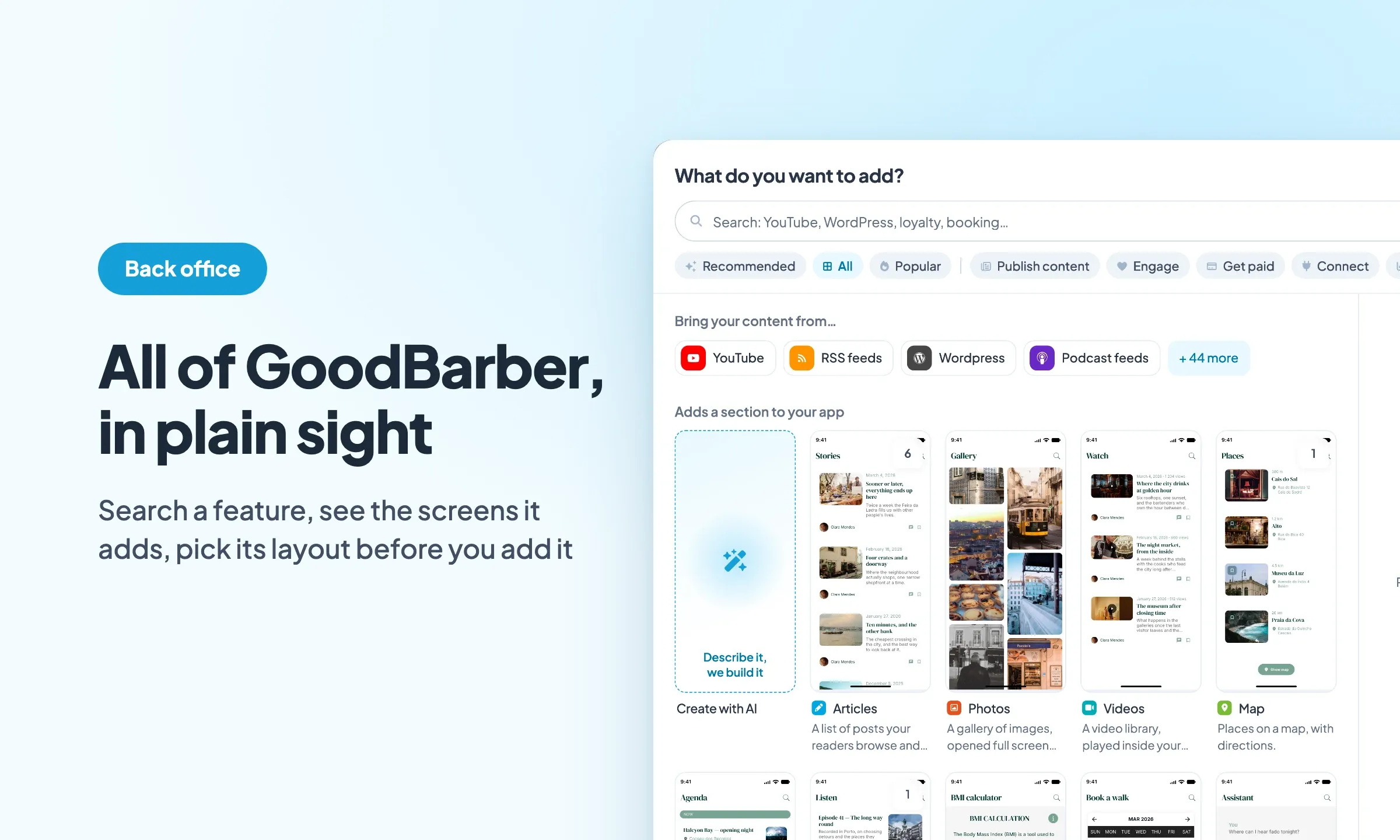
In Structure, the "Add a section" button opens a window that starts with a question: "What do you want to add?". Below it, the list gathers everything GoodBarber can add to an app, grouped by what each entry does to it: what adds a section, what fills a section from a service you already use, what works in the background without adding a screen, and what enriches a section already in place. Ideas to build with the AI Extension Builder have a group of their own.
Each section is presented the same way: its screen drawn in your app's theme, its name, one sentence on what it does, and a badge when it is already in the app. All of GoodBarber's power is visible in one place, and seeing it whole is how you understand what your app can become.
Search for a feature in your own words
The search field waits for a word. Type "map": suggestions appear as you type, and the results fall into two groups. On one side, the Map section, places on a map with directions. On the other, the sources that fill a map from a service you already use: a KML file, Kyero listings, a Meta catalog, onOffice or IDX Broker. The search reads names, descriptions and keywords.
With no word in mind, the filters do the sorting. "Recommended" suggests what suits your type of app. The use filters run from "Publish content" to "Tools", through "Engage", "Get paid", "Connect" and "Measure".
When nothing matches, the window says so and offers "Describe what you need": you describe what you need, and the assistant builds it as a custom extension for your app. Finding the feature your app needs should be as simple as naming it.
See the screens before you add them
Hover over Map: the right-hand pane shows the screens the section adds, drawn in your app's theme. Two screens side by side, "The list" and "Opening an item": the list of places, then an opened place with its directions. An Articles section works the same way, a list and a detail, and the preview shows it before any click.
Click, and the pane gives the full detail: the name, "Included" or the price, the sentence that describes it, then "What this adds": a section in your main menu, a widget on your home page. An extension tells you in the same way what it costs and where it lands in the app, on your loyalty card for example.
Adding a section starts with understanding what it is: its screens, its structure, the place it takes in the app.
Pick the layout as you add it
The add button opens the next step. You name the section, then you choose its layout among those of its type: for Map, Enriched, Visual and Split Enriched, shown as tiles, with your theme's one already checked. Prefer another, Split Enriched for example? One click is enough. The choice stays open: you can change the layout later, in the section's design.
The same goes for a source: YouTube offers the layouts of the Videos section, since that is the section it fills. You also set where the section goes in the app's structure, then you confirm.
The layout is chosen from the start, the one that suits you best, and the section arrives in the app already looking the way you want.
Build your home page with widgets
At the same step, a switch, "Also show a widget on the home page", places the Map widget on the app's home page along with the section. The Home page puts it in one sentence: "A widget is the home-page shortcut to one of your sections."
To compose the rest of the home page, the "Add widgets" button on the Home page opens the "Add a widget" panel. It lists the widgets "From your sections" first, with how many are already on the home page, then the "Standalone widgets", the ones that live with no section behind them: a link, a text, a search, a newsletter, a separator. The Link widget takes your users wherever you want from the home page.
Here too, hovering shows before you add: the widget drawn in your app's colors, then what it does, the header with its name and View all, the section it links to, the category and the layout you choose.
This is how the home page comes together, widget by widget: you put forward what matters, content or a whole section, and you open the paths people take through your app.
Confirm: the window closes, Structure reloads, the new section appears highlighted in the list and a banner says what has just been added. Your map is in the app, with the layout you chose and its place on the home page.
The path is always the same, Structure then "Add a section", and everything GoodBarber can add to your app is waiting behind that window.


