 eCommerce
 Memberships
 Chatbot
 Online Courses
 Bookings
 Travel guide
 Events
 Content Creators
 Pickup & Delivery
 Newspaper
 Radio
Radio Schools
 Faith
Faith Organizations
 Restaurant
 Grocery
 Custom apps
 Employee Communication

 NO CODE APP BUILDER
 TECHNOLOGY
 WHY GOODBARBER?
 Design
 PRODUCT RESOURCES
 TOPICS
 MOBILE APPS RESELLERS
 DISCOVER
Read, cite, train: decide what AI does with your content
Let AI read your content. Training on it is a separate yes. Until now your PWA's `robots.txt` couldn't tell the difference — GPTBot, OAI-SearchBot, ClaudeBot, Claude-SearchBot, PerplexityBot and CCBot all got the same answer, because the file was generated for you and you never had a say. A new ROBOTS.TXT tab in your SEO settings hands that decision back, with four presets or the raw file.

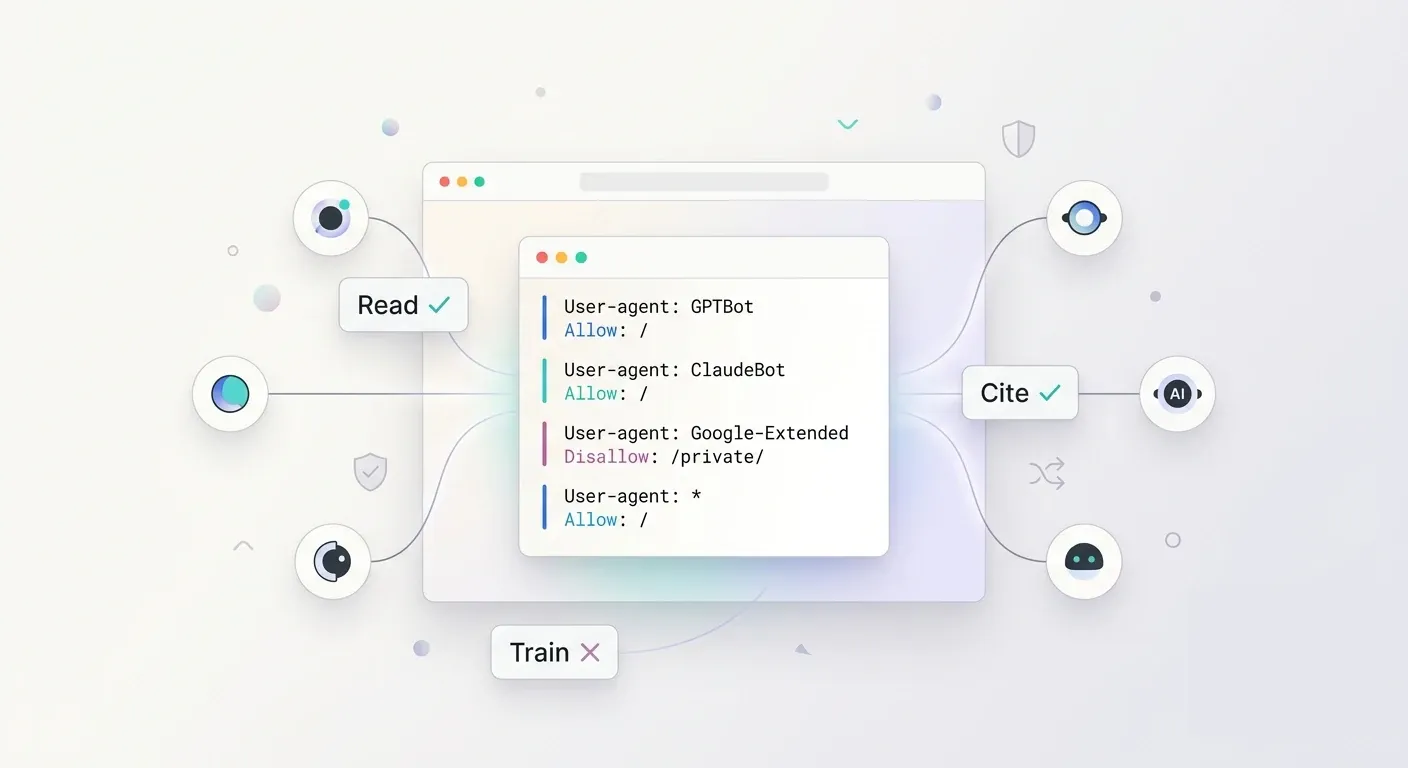
The file you never wrote is answering for you
If you've published your PWA, it's serving a robots.txt right now — the first thing any crawler reads, and the file that decides what happens next: which parts of your site get fetched, and by whom. Yours has been saying yes to everyone.
Everything below concerns that web version of your app. Your iOS and Android apps aren't crawled by anyone, and the tab only appears once your PWA has been published at least once — before that, there's no file to configure.
That was a defensible answer. It just wasn't one you made — and the population it answers has changed. A few years ago, a crawler on your content was Google, Bing, or a scraper you didn't care about. Today a growing share of that traffic belongs to AI companies, and they don't all want the same thing from your pages. Treating them as one block means choosing between all of them and none of them.
The new tab splits them into four families, in plain language: search engines (Google, Bing and the others that list your site in their results), AI answers (ChatGPT, Claude or Perplexity citing your site when they answer), AI training (robots collecting your content to train their models), and on-demand reading (someone asks an AI to open one specific page of your site). Four families, because those are four different deals.
Read, cite, train: three different deals
Here's what the split looks like in practice. OpenAI sends GPTBot to collect training data, and OAI-SearchBot to answer questions in ChatGPT Search — the second one links back to you. Anthropic does the same with ClaudeBot and Claude-SearchBot. Google separates Googlebot, which feeds Search, from Google-Extended, which feeds its models. Apple separates Applebot from Applebot-Extended.
Same company, two crawlers, two entirely different exchanges. One brings you readers. The other takes the content and gives nothing back. A single yes-or-no can't tell them apart; a robots.txt that names them individually can.
That's what the four presets encode:
- Max visibility — open to all robots, including AI training ones. Maximizes reach. It's the file you have today, unchanged.
- No AI training — allows search engines, classic and AI alike, and blocks AI training robots. Keep the traffic, decline the training set.
- Classic SEO only — allows Google, Bing & co, and blocks AI assistants entirely, search and training both.
- Strict privacy — blocks everything. For an internal app or a test environment.
One preset applies at a time, and you can change it whenever you want. Most content publishers land on the second one, and that's the whole point of the feature: it wasn't expressible before.
See exactly what you're publishing, before you publish it
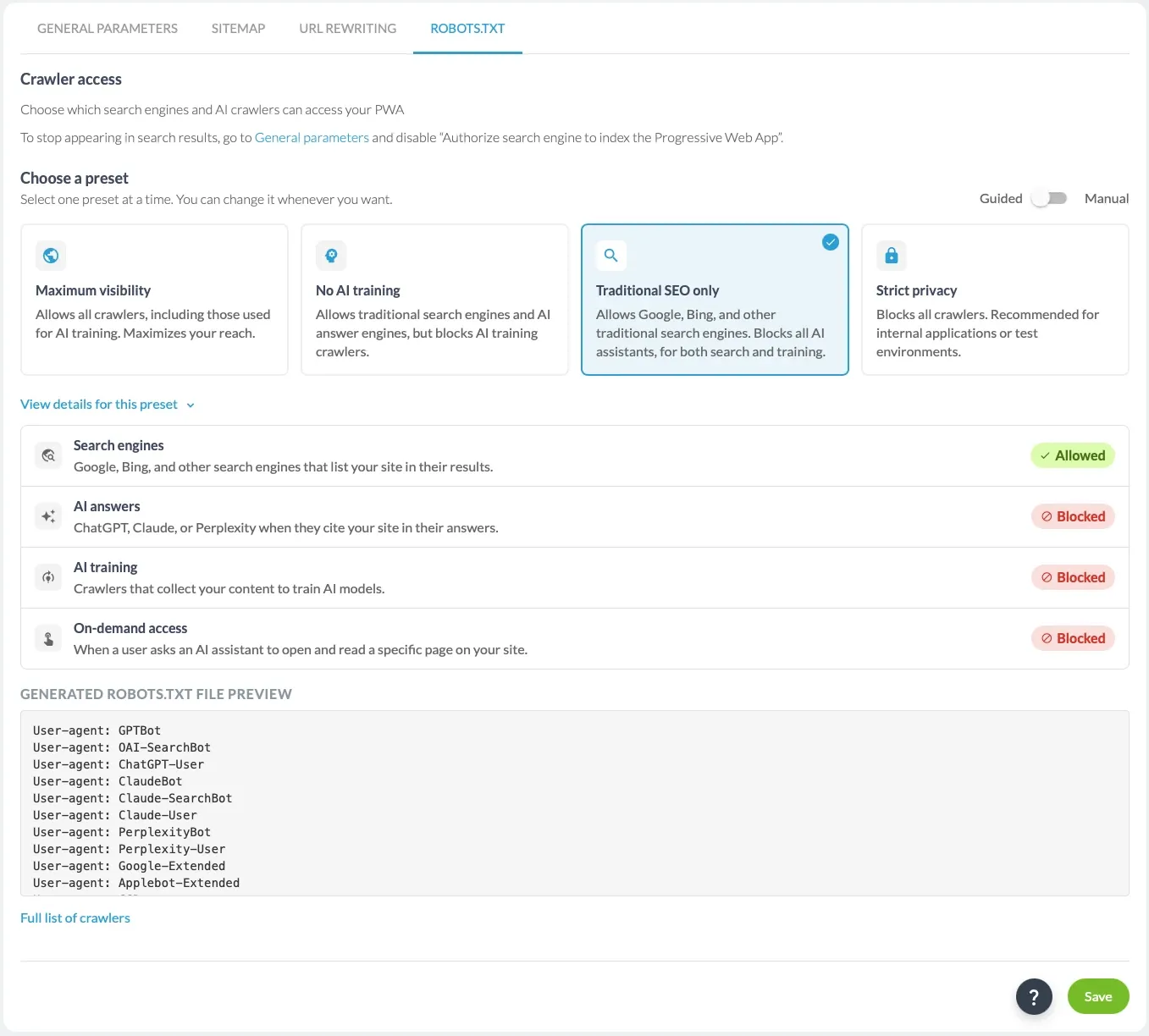
A preset is a label, and a label is easy to misread. So the tab shows its work.
Open See this preset's details and you get two things. First, a verdict for each of the four families — Allowed or Blocked — so the trade-off is on screen rather than implied by a name. Second, a live preview of the actual crawler rules the preset generates, updating as you click from one card to the next. You approve a file, not a promise.
Behind those four cards sits a registry of 22 crawlers from 15 editors — OpenAI, Anthropic, Google, Apple, Meta, Amazon, Perplexity, Common Crawl, ByteDance, Cohere and others — with each one's role recorded. Keeping it current is our job, not yours: when a new AI crawler shows up, it joins the right family and your preset keeps meaning what you chose. The complete list is a click away in the tab, for anyone who wants to see exactly who's in there.
Manual mode, if you already speak robots.txt
There's a second mode, and it comes with a condition attached: it's for people who have written a robots.txt before.
Flip the switch to Manual and the presets step aside — you edit the file directly, one directive per line. It opens pre-filled with the rules of the preset you had selected, so you're not staring at a blank box, and from there you name crawlers individually: block Common Crawl but keep GPTBot, slow one bot down with a Crawl-delay, open a path you'd otherwise leave closed. Whatever you write is preserved every time you republish, and the Sitemap line stays in place on its own.
What gets checked is the shape of the file, not the wisdom of it. Content is capped at 10 KB, four directives are accepted — User-agent, Disallow, Allow and Crawl-delay — and anything else is refused with its line number. That's a syntax check, not a safety net. Disallow: / is a perfectly valid line, and it takes your entire site out of Google. The editor won't stop you, because it has no way to tell that apart from a deliberate decision. The interface warns you when you switch, and it means it.
So, plainly: if you're not sure what a line does, don't write it. The four presets are reversible, they show you the file before you commit to it, and they cover what nearly everyone needs. Manual mode is there for the cases they genuinely can't express — and if you have one of those, you already know it.
What a robots.txt can do, and what it can't
robots.txt is a declaration, not a firewall. It's a public request that well-behaved crawlers honor — and the honest part of this feature is that not all of them do. ChatGPT-User and Perplexity-User, which fetch a page because a user asked for it, state that they don't follow it. Bytespider doesn't either. Common Crawl honors it only partly. We track that status per crawler rather than pretend the file is a lock, and you should read your choice as "who I've told, and what", not "who I've stopped".
Two things do work, reliably. Whether your app appears in search results at all isn't governed here — it's the indexation setting in your general SEO settings, and when indexation is off, the robots tab steps aside and tells you so rather than letting you configure something with no effect. And when you save, the cached copy served on your domain is dropped immediately, so your new rules apply within seconds instead of whenever the cache would have expired on its own.
Open your back office, go to SEO → ROBOTS.TXT, pick the posture that matches your content strategy, and save — your file is live on your domain seconds later.


