 eCommerce
 Memberships
 Chatbot
 Online Courses
 Bookings
 Travel guide
 Events
 Content Creators
 Pickup & Delivery
 Newspaper
 Radio
 Schools
 Faith
 Organizations
 Restaurant
 Grocery
 Custom apps
 Employee Communication


 NO CODE APP BUILDER
 TECHNOLOGY
 WHY GOODBARBER?
 Design
 PRODUCT RESOURCES
 TOPICS

 MOBILE APPS RESELLERS
 DISCOVER
Two-step verification: protect your GoodBarber account
A password can be guessed, reused somewhere else or stolen without you ever knowing. Since November 12, 2026, you can protect your GoodBarber account with two-step verification: on top of your password, a six-digit code shown on your phone. It is included in every plan, and it takes two minutes to turn on.
Your app deserves more than a password
Behind your account sits your app, your content, your users, and sometimes your store and its orders. Today, the only thing standing between all of that and a stranger is a password. And passwords leak: one breached third-party site, one convincing phishing email, and the password you have used for years is out there with nothing to tell you so.
Two-step verification changes that. Getting in takes two things: something you know, your password, and something you have, your phone. A stolen password is no longer enough.
The 2026 reports confirm it. According to the Microsoft Digital Defense Report 2026, more than 99% of the initial access attempts Microsoft observes against cloud services are password attacks. The same report notes that these attacks fell by 26% in a year, and sees in that drop evidence that multifactor authentication and passkeys are forcing attackers to look elsewhere. Yet according to Verizon's 2026 Data Breach Investigations Report, 37% of organizations still have an administrator account without a second factor on their cloud infrastructure. That is the protection we are now putting within reach of every GoodBarber account.
Two minutes to turn it on
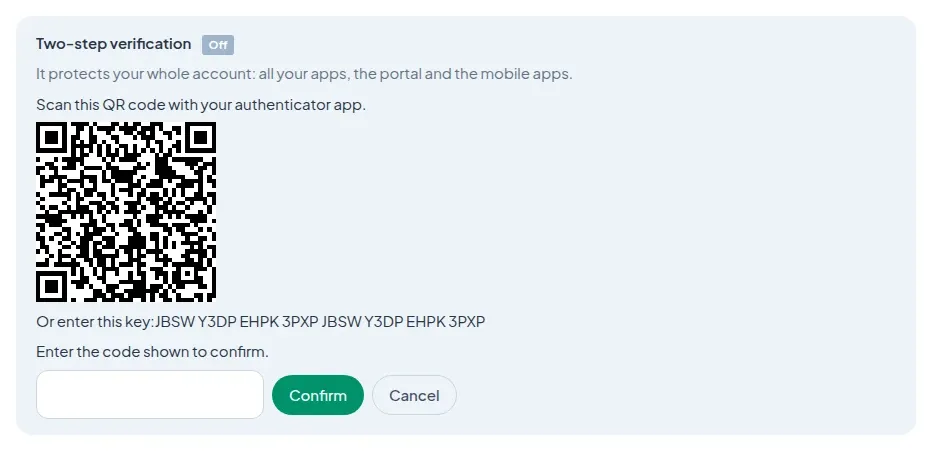
You need an authenticator app on your phone: Google Authenticator, Microsoft Authenticator, 1Password or any other compatible app. If you already use one for another service, it will do.
Then open your app's back office and, in the settings, your account page. In the "Two-step verification" section, click "Turn on", confirm your identity, then scan the QR code with your app. It shows a six-digit code: enter it to confirm, and you are done. You will find the same setting on goodbarber.com, in your avatar menu.
As soon as it is on, we send you an email to let you know, and the other sessions open on your account are signed out. If it was not you, that email contains a link to undo everything.
Backup codes, for the day your phone is not around
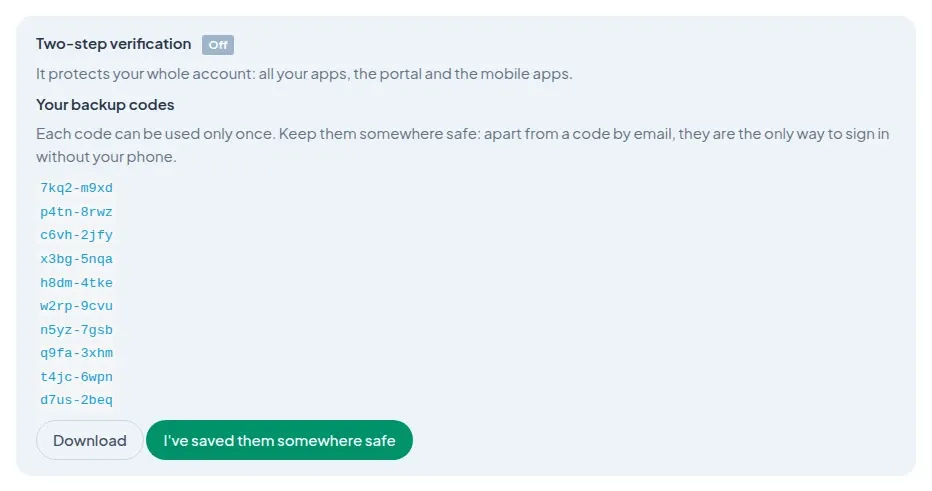
Phones get lost, broken or left at home. So when you turn two-step verification on, we give you ten backup codes. Each one works once and stands in for the code from your app.
Download them and keep them somewhere safe, your password manager for instance. You can generate new ones at any time from the same section: the old ones then stop working.
And if you have neither your phone nor a backup code at hand? On the verification screen, choose "I don't have my phone": we send a code to your email address. You are signed in, but as a precaution that session cannot change the account's security settings for 24 hours.
One setting protects your whole account

We did not want protection that stops at one screen. Once it is on, two-step verification applies everywhere you sign in:
- the back office of each of your apps;
- the goodbarber.com portal, where you find your apps and create new ones;
- the reseller dashboard, for agencies managing their clients' apps;
- the My GoodBarber apps, including the Commerce version, and Shop Companion. Remember to update them: the latest version is the one that shows the verification screen. You turn it on from the back office or the portal; the mobile apps then ask for the code when you sign in.
The protection belongs to your account, not to an app. If you work as a team, each member turns it on for their own account.
A code when it matters, not every time
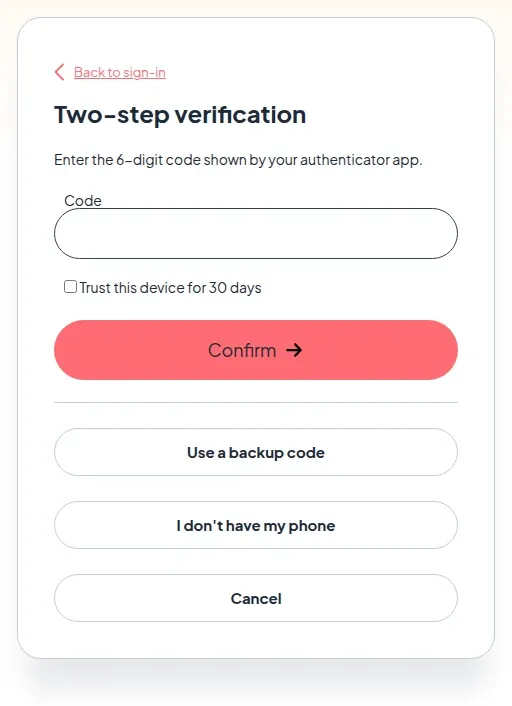
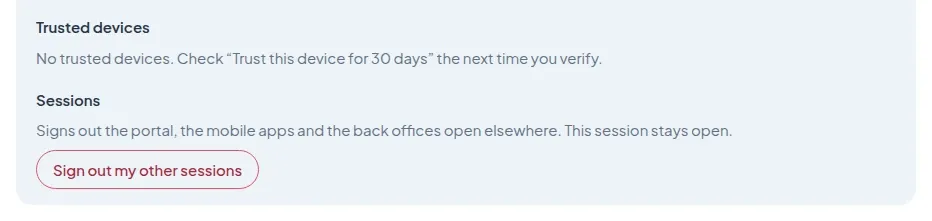
Security should not become a chore. When you enter your code, tick "Trust this device for 30 days": on that browser, we will not ask again for a month. You stay in control: your trusted devices are listed in the same section, and you can remove one, or all of them, in a click.
If you sign in with Apple, we do not ask for an extra code: Apple already enforces its own two-step verification. With Google, we ask for the code, unless Google has just checked a second factor itself.
If someone tries without you
Without the code, a stolen password leads nowhere. Attempts are limited: after too many wrong codes, verification locks, and we send you an email with a link to unlock it. You then know someone has been trying.
If in doubt, the same section also offers "Sign out my other sessions": the portal, the mobile apps and the back offices open elsewhere are closed at once, and only your current session stays open.
Turn it on today
Two-step verification is optional, but it is the single most effective step you can take for your account, and it costs nothing. Open your app's back office, go to your account page, and turn it on before you close this tab.


