 eCommerce
 Memberships
 RAG Chatbot
 Online Courses
 Bookings
 Travel guide
 Events
 Content Creators
 Pickup & Delivery
 Newspaper
 Radio
Radio Schools
 Faith
Faith Organizations
 Restaurant
 Grocery
 Custom apps
 Employee Communication
 NO CODE APP BUILDER
 TECHNOLOGY
 WHY GOODBARBER?
 Design
 PRODUCT RESOURCES
 TOPICS
 MOBILE APPS RESELLERS
 DISCOVER
Use ChatGPT with GoodBarber: run your app without code
Written by Pierre-Laurent Medori on · Last update:
You've got a GoodBarber app. You've seen our announcements about the "MCP server," AI, "agent-ready" apps — and assumed all of it was for developers. It isn't. In five minutes, from ChatGPT, you can run your app just by talking to it: update a price, publish an article, send a push. No terminal, no code. Here's how, with five copy-paste prompts to get you started.
No, this isn't just for developers
Let's settle it right away, because it's the misunderstanding that stops everyone: you don't need any technical skills. No terminal, nothing to install, not a single command line. If you can write a message, you can run your app.
The "MCP" our other articles talk about is simply the secure bridge between ChatGPT and your app. You'll never have to touch it, or even remember what those three letters stand for. You plug it in once, and you forget it.
What you use is ChatGPT: the OpenAI assistant you've probably already opened a hundred times. The same chat window. The only difference, once it's connected to your app, is that it now knows how to act on it.
We've been building tools for non-technical creators since 2011. This one follows the same rule as the rest: more power, less complexity.
What does it actually change?
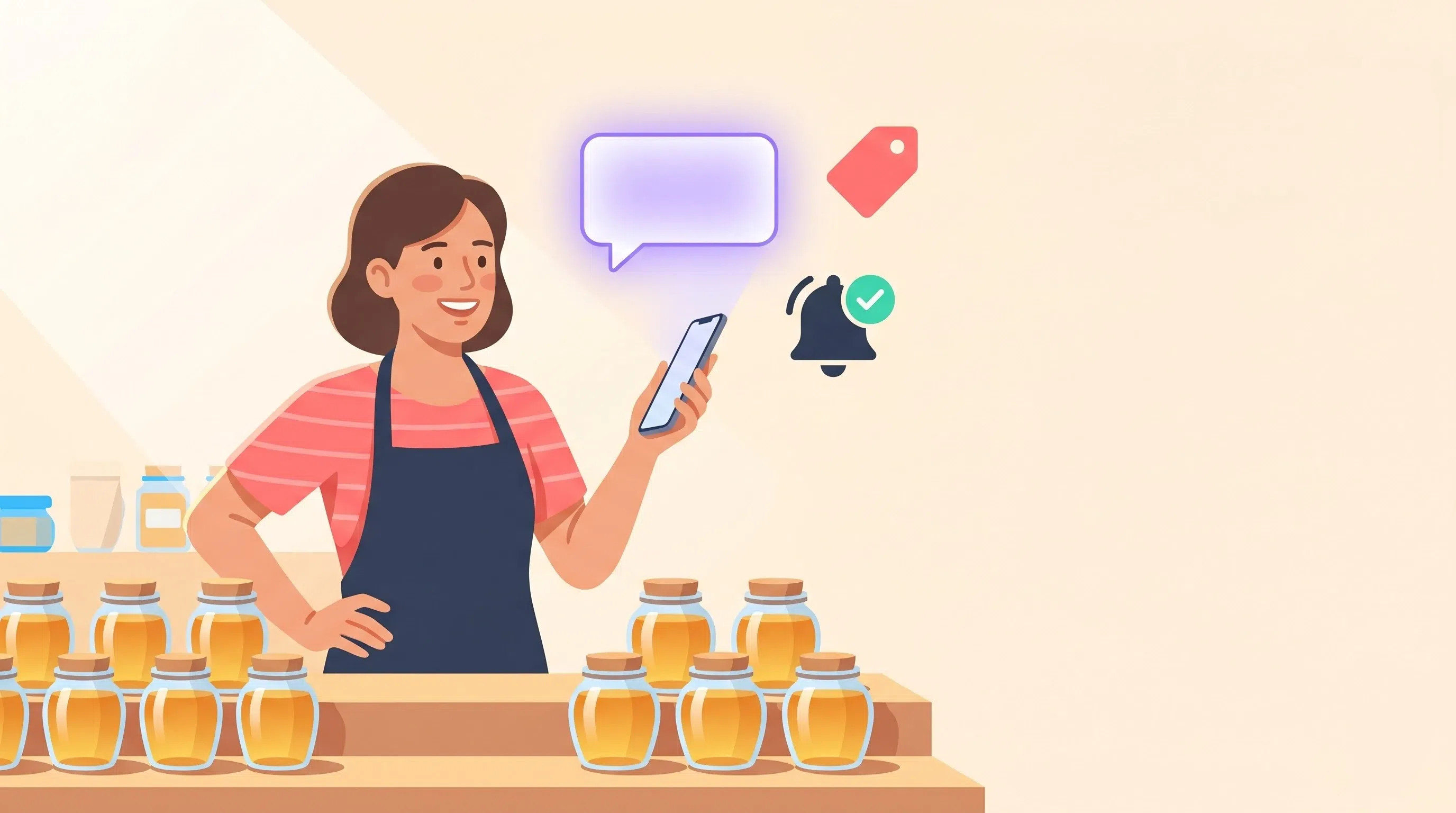
Picture this. You're at a market, and your honey is selling faster than you expected. You pull out your phone, open ChatGPT, and type:
"Increase the price of Corsican honey by 5 euros and send a push to announce it."
ChatGPT finds the product at €18, shows you what it's about to do — bump it to €23 and notify your customers — and waits for your go-ahead. You confirm. Done. You didn't open a computer, dig through a menu, or fill out a single form.
That's the real shift: the small tasks get done the moment you think of them, instead of piling up for the evening, in front of the back office, on a to-do list that never gets shorter. An order to ship, an article to publish, a price to adjust: you say it, it's done.
And because it's your shop, two safeguards stay in place. ChatGPT always asks for confirmation before a sensitive action. And the connection is limited to your app alone — it can't see or touch anything else.
Connect ChatGPT to your app in 5 minutes
You need two things, and you probably already have one of them.
- A GoodBarber account with at least one active app, and admin access to it. Whatever its type: Shop, CMS, Community and Membership features are all supported.
- A ChatGPT account. The free plan is enough. You'll just need to turn on "Developer mode" in the settings — more on that in a second.
A word about that Developer mode. Yes, the name sounds scary. Don't let it: it's a single switch in ChatGPT's settings, flipped once. You won't write a line of code. It's simply where OpenAI currently files connectors like ours — the feature is still in beta.
Then, in ChatGPT:
- Go to Settings → Apps & Connectors → Advanced settings and turn on Developer mode.
- Back in Apps & Connectors, click Create to add a connector.
- Give it a name: GoodBarber.
- Paste the GoodBarber server address: https://mcp.goodbarber.dev/mcp/sse
- Set the authentication to OAuth.
- Confirm, then sign in to GoodBarber and authorize access.
- In any conversation, open the + menu, turn on the GoodBarber connector, and start talking to your app.
A few minutes, once and for all. If you'd rather be walked through it, the full step-by-step with screenshots is on our Connect ChatGPT to your app page.
5 copy-paste prompts to get started
Once connected, talk to ChatGPT like an assistant. Here are five ready-to-use prompts — just replace what's in brackets with your own details.
- "List my latest products with their price and stock." — a glance at your catalog, from your phone, without opening anything else.
- "Increase the price of [product] by 5 euros." — a one-sentence edit, no back-office navigation.
- "Create a published article titled [title] announcing [message]." — publish content in a single request, on the spot.
- "Show me my recent orders and their shipping status." — track your orders without even logging in.
- "Send a push notification to my customers to announce [message]." — reach your audience right when the news is fresh.
For every sensitive action — creating, editing, deleting, sending a push — ChatGPT asks for your confirmation before acting. You propose, you approve, you stay in control.
Want to go further than these examples? Our ready-made recipes, the 44 open-source skills for AI assistants, are on GitHub.
Is it safe?
It's a merchant's first question, and a fair one. Four things to keep in mind.
- Everything is limited to your permissions. The assistant can only do what your own GoodBarber account allows — nothing more, and only on the app you connected.
- No password is shared with ChatGPT. The connection runs on OAuth, a recognized standard: you sign in to GoodBarber and approve access, without ever handing your credentials to the assistant.
- You can revoke access at any time, by disconnecting GoodBarber from ChatGPT. The door you open, you can close.
- Nothing sensitive happens without you. ChatGPT proposes an action, you confirm it. You stay the editor of your app, every step of the way.
Going further
This same connection isn't limited to your shop: it also manages all your app's content — articles, events, galleries — as we cover in Manage your app's content by conversation. Prefer Claude? Here's the guide. And if you're an agency, you can go as far as automating repetitive tasks with n8n — but that's another story, and it can wait until you're comfortable with this one.
What now?
You already have a GoodBarber app. All you're missing is a few minutes. Open ChatGPT, turn on the GoodBarber connector by following the steps above, and talk to your app — for real, starting today.