 eCommerce
 Memberships
 Chatbot
 Online Courses
 Bookings
 Travel guide
 Events
 Content Creators
 Pickup & Delivery
 Newspaper
 Radio
Radio Schools
 Faith
Faith Organizations
 Restaurant
 Grocery
 Custom apps
 Employee Communication

 NO CODE APP BUILDER
 TECHNOLOGY
 WHY GOODBARBER?
 Design
 PRODUCT RESOURCES
 TOPICS
 MOBILE APPS RESELLERS
 DISCOVER
Appointment booking now takes group sessions, with or without Google Calendar
A yoga class for ten, a pottery workshop for six, a guided tour for twenty. Until now, Appointment booking gave each slot to a single person, and it needed a Google Calendar to run at all. Both limits are gone, and your back office gains a tab that shows who is coming.


What changes
Appointment booking now takes several people per time slot, works without a Google Calendar, and lists every attendee in a new Bookings tab of your back office. Here is how it plays out for a studio running a 9:00 class for ten.
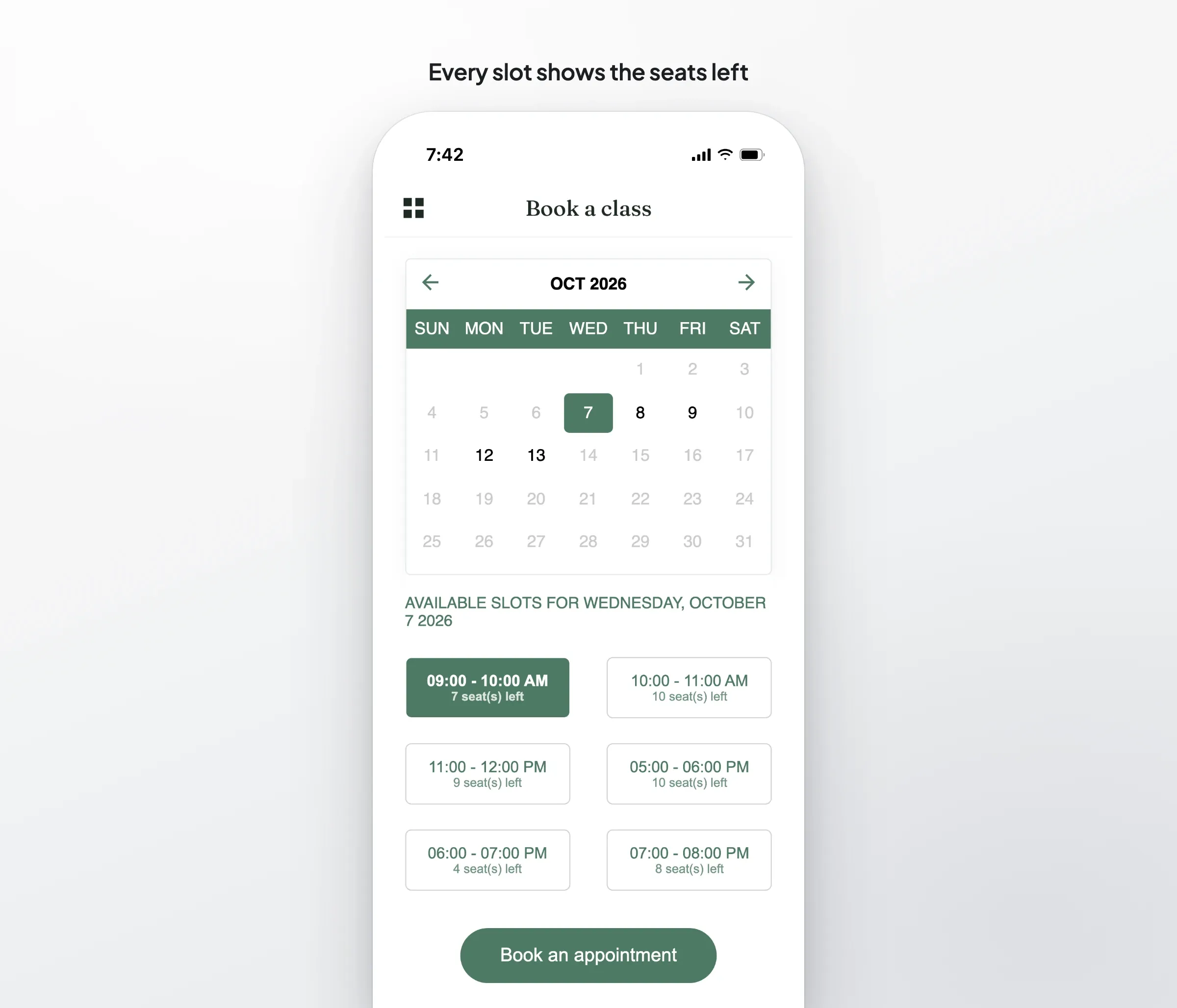
Ten seats on the 9:00 class
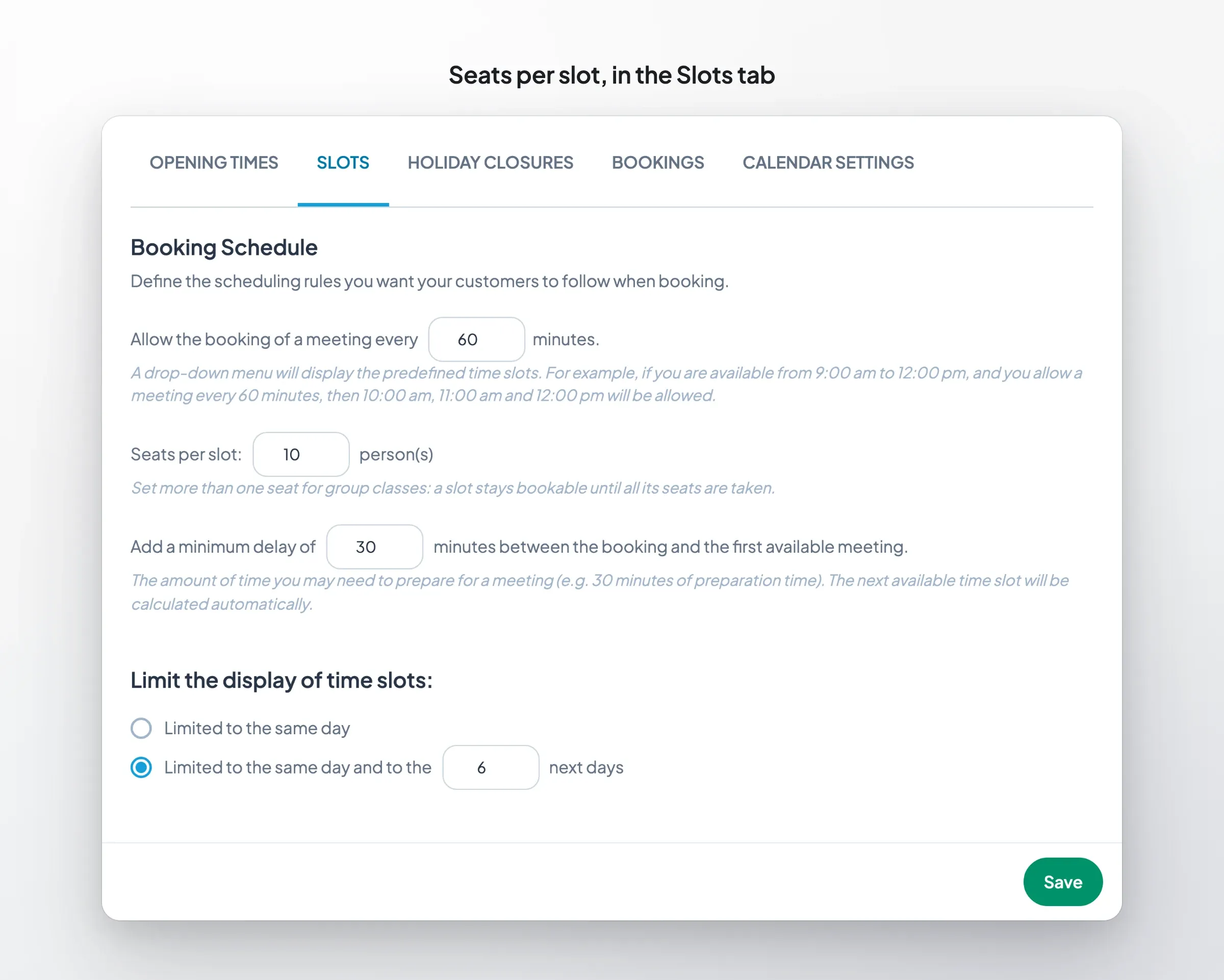
Take a yoga studio with ten mats. In the Slots tab of its calendar, a new field sets the “Seats per slot”. The studio enters 10 and saves the section.
In the app, the 9:00 slot now reads “10 seat(s) left”, and the count drops with every booking. When the last mat is taken, the slot answers “This slot is now full, please choose another one.” If two people tap the last seat in the same second, one gets it and the other gets that message. The seat is taken in a single step on our servers, so a class for ten never ends up with eleven.
A customer who books the same class twice with the same email is stopped too: “You have already booked this slot.”
One-to-one appointments work as before. Leave the field at 1 and your customers see no difference: the seat count only shows when a slot has more than one seat.
Google Calendar, only if you want it
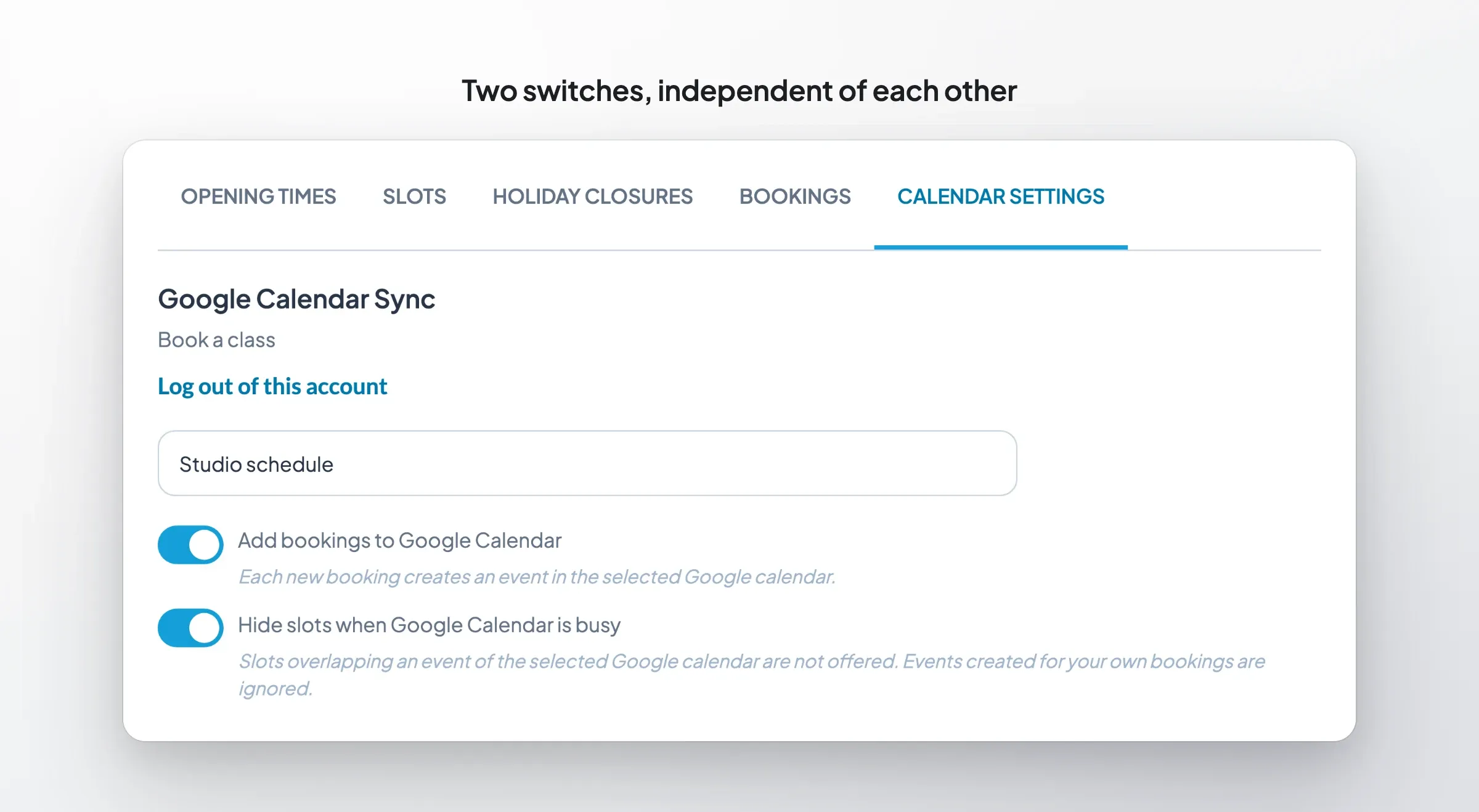
Until now, a calendar without a Google account was a dead end. The Opening times, Slots and Exceptional closures tabs stayed greyed out until you connected one. They now work on their own: the studio sets its hours, its slots and its holidays in the back office, and never opens Google.
If you do connect a Google Calendar, two switches decide what it does, independently of each other:
- Add bookings to Google Calendar: every booking lands in your agenda.
- Hide slots when Google Calendar is busy: an event in your agenda, a day off or a supplier visit, closes the matching hours in the app.
Turn on one, both or neither. In a group session, the bookings we add to your agenda never close the session they belong to: the third person booked on the 9:00 class does not lock out the seven seats left.
A Bookings tab to see who is coming
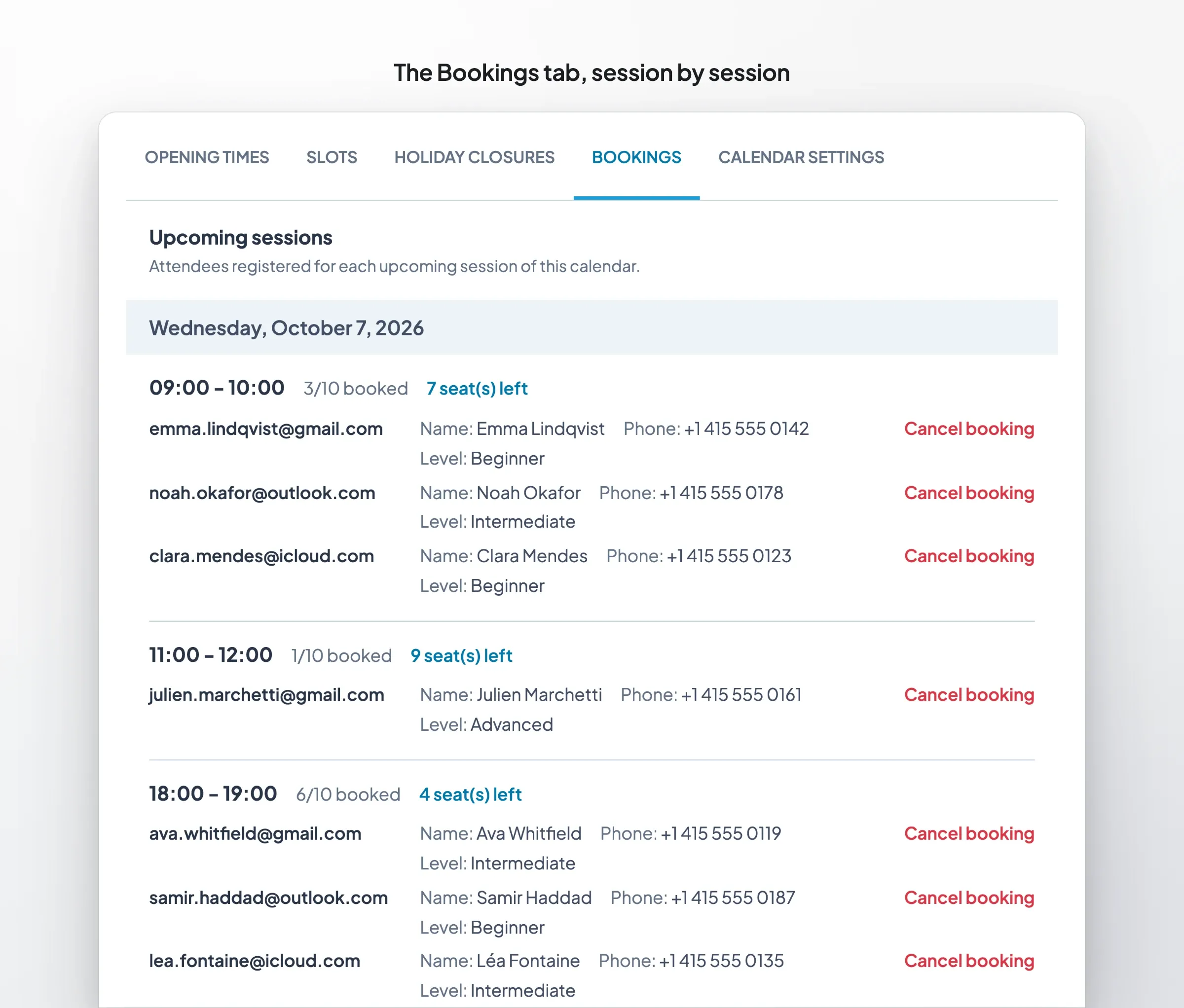
Each calendar gets a fifth tab, Bookings, next to Exceptional closures. It lists the upcoming sessions day by day. For each one: the time, how full it is (“3/10 booked”), the seats left, then every attendee with their email and their answers to your booking form.
Next to each attendee, a “Cancel booking” button asks for confirmation on the same line: “Yes, cancel” or “Keep it”. Confirm, and the seat is offered again in the app, the event leaves your Google Calendar if it was there, and the attendee and you both receive the cancellation email when email notifications are on.
Your customers keep their own way out: the cancellation link in their confirmation email. That link is now signed for their booking only. Change a single character in it and it cancels nothing.
The tab also tells you when the numbers no longer add up. Lower the 9:00 class from ten seats to eight while nine people are booked, and nobody is dropped: the session is flagged “Over capacity”, takes no new booking, and you decide who to call.
Changing your schedule does not wipe a session that has attendees either. Move the studio from 60-minute to 30-minute classes, and the 9:00 session keeps its nine people. When its last attendee cancels, its hours follow the new schedule.
Booking for logged-in users only
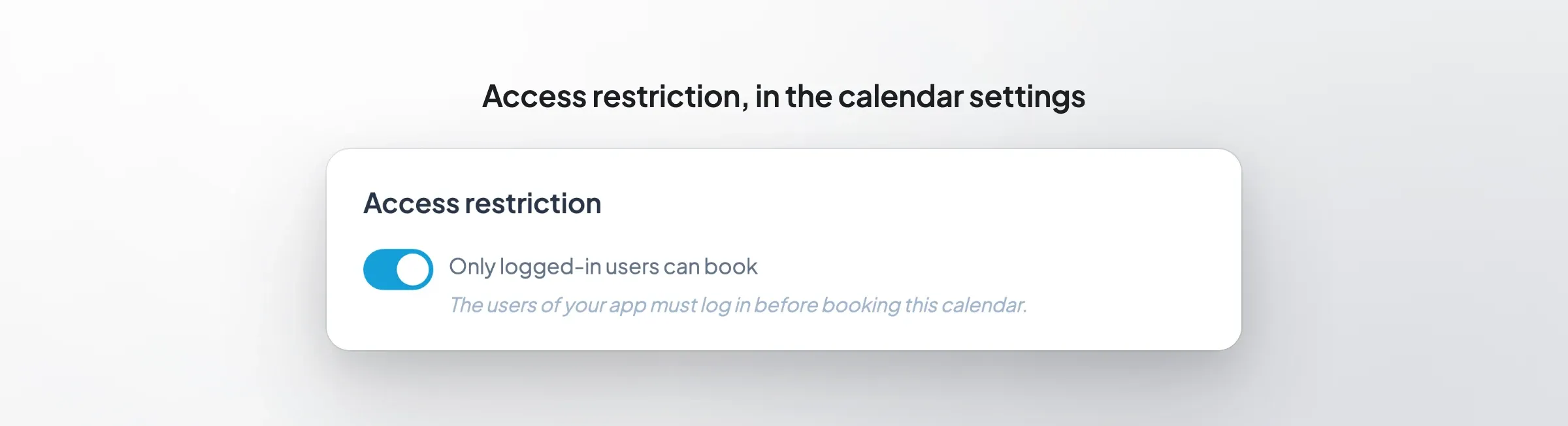
Some sessions are for members only. In the calendar settings, under Access restriction, the switch “Only logged-in users can book” takes care of it. A visitor who is not logged in sees “Log in to book an appointment” and a Log in button. Once logged in, they book with the email of their account.
The login is checked on our servers, not only in the app. The switch shows up when your app has user accounts through the Memberships extension. Before you turn it on, publish an update of your app: an older version asks its users to update before they can book.
Where to start
The extension is available for Content apps from the Premium plan, and included in Pro. To try group sessions, open your calendar in the back office, set the seats in the Slots tab, and save the section. Setting up a calendar for the first time? Our step-by-step guide to an appointment booking app starts from scratch, and the Appointment booking page lists everything the extension includes.
If your sessions need something this version does not do, tell our support team from your back office, with an example of your schedule. That is what the next version will be built on.


