eCommerce
 Memberships
 Chatbot
 Online Courses
 Bookings
 Travel guide
 Events
 Content Creators
 Pickup & Delivery
 Newspaper
 Radio
Radio Schools
 Faith
Faith Organizations
 Restaurant
 Grocery
 Custom apps
 Employee Communication
 NO CODE APP BUILDER
 TECHNOLOGY
 WHY GOODBARBER?
 Design
 PRODUCT RESOURCES
 TOPICS
 MOBILE APPS RESELLERS
 DISCOVER
How to create an app for museums
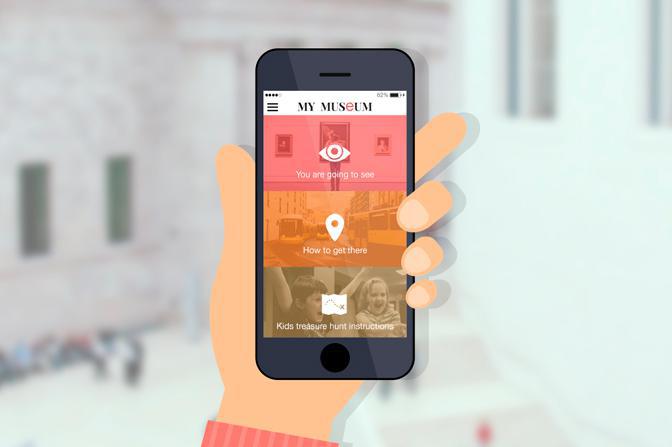
Many people visit a museum only once. Here is how to use a museum app builder to make an app they will open: steps, audio guide, routes and QR codes.
Plan around the visit, then choose how visitors open the app
With limited time, few first-time visitors will download a store app for a single afternoon. Members, local families and regulars are different: they come back and have reasons to keep the app.
So before you open a museum app builder, write down what the app should improve. The list is usually short: audio commentary on the works that deserve it, a route through the collection, practical information (opening hours, directions, facilities) and reasons to return, such as exhibitions and events.
Then decide how visitors will open it. First-time visitors are best served by a QR code at the entrance or next to a work: it opens the web version of the app in their browser, with nothing to install. Members and regulars are the audience for an app from the App Store or Google Play. You can offer both.
Native app, PWA or both
One back office generates both versions: a Progressive Web App (PWA), which runs in the browser and can be added to the home screen, and native iOS and Android apps for the App Store and Google Play. What changes for the visit:
| For the visit | Web app (PWA) | Native iOS and Android apps |
|---|---|---|
| How visitors open it | A link or QR code, nothing to install | Download from the App Store or Google Play |
| Audio with the screen locked | No | Yes, an option you enable |
| Beacon and geofencing notifications | No | Yes, from the Premium plan |
| Push notifications | Yes, in supported browsers (on iPhone, once added to the home screen) | Yes |
| Plan | From the Standard plan, but a full museum app goes past its 5 free extensions | From the Premium plan, web app included |
Publish the web app first, then add the native apps when you need background audio or location-based alerts. One point to check before you subscribe: every section you install counts toward the free extensions of your plan, 5 on Standard and up to 20 on Premium, and the set of sections this guide recommends goes past 5, so a complete museum app lands on Premium. For the wider trade-offs, read our article on whether you need a website, an app or both.
How to create a museum app without coding: the steps
No developers needed: the work is mostly editorial.
- Choose your audiences and goals. Decide which audience the app serves first (first-time visitors, families, members, school groups) and what it must do for them.
- Inventory your content. Gather wall texts, catalog entries, tour scripts, photos and recordings, then pick the stops that deserve audio.
- Start your 30-day free trial and set up the design. Pick a theme, a navigation style and a layout for each section.
- Add your sections. Use Articles for works and rooms, Podcasts for audio stops, a Map for the site and directions, and an Agenda for events.
- Decide how visitors reach each page. Place QR codes next to the works, and add geofencing or beacons in the native apps only where they help.
- Test on site. Check the back-office preview, then walk the rooms with the My GoodBarber app on real phones to test cell reception, sound level and readability. Beacon and geofencing alerts, and locked-screen audio, can only be checked on a test build of the native apps.
- Publish. Put the web app online. Then, on a Premium or Pro plan, submit the native apps under the museum's own developer accounts, yourself or through our paid GoodBarber Takes Care service, which uses those same accounts. New content then appears in the apps without a new store submission.
- Promote and measure. Show the QR code at the ticket desk, on signs and online, then use the built-in statistics to track launches, page views and time spent in the app.
Build the audio guide
In GoodBarber, an audio guide is a Podcasts section: upload each audio file from the back office with a title and a picture, and group the tracks of each route in a category. A few rules for the rooms:
- One track per stop. Give it the same title as the label next to the work, so visitors know which one to play.
- Short and focused. Talk about what the visitor sees; keep the wider history for an article.
- A written version of every track. Put it on the matching article page, for visitors who are deaf or hard of hearing, have no headphones or prefer to read.
- Background playback. In the native apps, an option keeps audio playing with the screen locked; turning it on requires a new build and, if the apps are already live, a store update.
- Offline listening. A visitor downloads a track from its page, or straight from the list with the latest list layouts, and plays it without a network: add a Favorites section, which shows the download status of each track, and suggest downloading a route's tracks before the visit starts.
Design tailored routes through the museum
Visitors rarely want the whole collection. Offer routes built around what they came for: the highlights for a short visit, a family route, a theme across several rooms. Make each route a category inside a section, where you can arrange the stops by hand in visiting order. Separate sections under a Menu section also work, but a section's main list only sorts by date, alphabetical order or most commented.
For grounds, gardens or heritage trails, add a Map section. Place each point by address or GPS coordinates, group points into categories, and let visitors get directions in Google Maps or Apple Maps. To draw a trail, import a KML file, which you can create in Google Maps. On the web app, maps also need your own Google Maps Platform or Mapbox API key, free up to a certain usage and then paid; Google also requires a billing account with a credit card.
Indoors, the app does not locate visitors in the building, so publish a clear floor plan image with room names that match your signage. For trails across a whole town, see our page on travel apps.
Show the right content in the right place: QR codes, geofencing, beacons
QR codes are the simplest option and work with every version of the app: print a code that links to a work's page, place it next to the work, and visitors scan it with their phone's camera or a QR Code reader section you add to the app. With a custom domain, a published web app and the option that opens your links in the native apps (set when you submit or update them), the same code opens the page in the native app when it is installed, or in the web app otherwise.
Geofencing sends a notification when a visitor enters an area drawn on a map, leaves it or stays in it for a set time. Based on GPS, it suits outdoor areas such as gardens. The Geofencing extension works in the native apps from the Premium plan, for visitors who allow location access; on Android, Google must also approve background location access.
Beacons are Bluetooth devices you buy and place in a room. The iBeacons extension, available in the native apps from the Premium plan, notifies visitors near a beacon if they have allowed Bluetooth, location and notifications. Tapping the notification can open a section, such as the audio guide, where the visitor picks the track to play.
Monthly and yearly Premium and Pro plans let you use up to three beacons and three geofences; more come in paid packs, and the beacons themselves are bought separately. For alerts that help rather than interrupt, see our guide to location-based notifications.
Languages, accessibility and offline visits
Languages. Your texts can reach more languages than a wall label allows, but plan the structure first: each GoodBarber app has a single interface language for its buttons and system messages, whatever the language of the visitor's phone. Create a Menu section per language, with your content duplicated in each, or publish one app per language, each with its own subscription; Apple may treat near-identical apps in other languages as spam. Our guide to offering your content in several languages explains both options.
Accessibility. Publish a written version of every audio track, choose colors with enough contrast, and test the app on real phones with VoiceOver on iPhone and TalkBack on Android before launch. Our mobile app accessibility checklist details what to verify.
Offline visits. The first launch needs a connection. After that, pages a visitor has already opened (articles, photos, maps, events) stay available offline, and the audio tracks a visitor has downloaded play without a network; the Favorites section shows which ones are downloaded. Videos, forms and new content need a connection. On iPhone, the web app keeps at most 50 MB offline and clears it after several weeks without use, so keep each route's audio well under that size. Where reception is weak, ask visitors to open the route and download its tracks before the visit, at home or on your Wi-Fi if you offer it. See how the Offline extension works.
Keep visitors coming back
A museum app earns its place on the phone after the visit. Announce an exhibition, an evening event or a talk with a push notification, sent right away or scheduled. In the native apps, you can target visitors by area or by phone language. List tours and events in an Agenda section, each with a button to your existing ticketing site: the app itself does not sell tickets.
A Submission section lets visitors send a photo and a few words about their visit or their favorite work. Submissions are not published automatically: you choose which ones to republish in an Articles section.
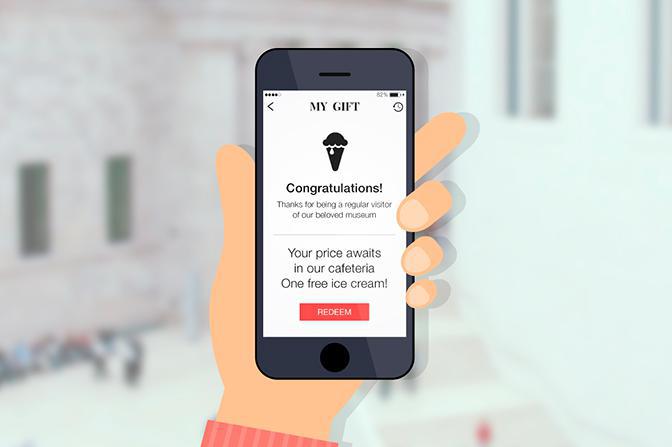
For members and regulars, the Loyalty card extension adds a points card: visitors earn a point for each on-site check-in and get a gift, such as a treat at the café, when the card is full. Automatic rewards can also welcome visitors at their first sign-in and bring them back after a set time without a new point. It is a paid extension from the Premium plan and requires the Authentication extension (paid on Premium, included on Pro), which means visitors sign in with an account. It cannot be combined with the Memberships extension.
Start with one route
Do not put the whole museum in the app at once. Build the web version of one route, print QR codes for its stops and watch how visitors use it over a few weeks before you decide on native apps. Keeping the web app online after the trial takes at least the Standard plan, and a museum app with all the sections of this guide goes past its 5 free extensions, so plan for Premium. Start your 30-day free trial and build that first route.
FAQ
How do I create a museum app without coding?
Use a museum app builder such as GoodBarber and assemble the app from sections: Articles for works and rooms, Podcasts for the audio guide, a Map for the site and an Agenda for events. Add your content, test on site, then publish the web app and, from the Premium plan, the iOS and Android apps.
Should a museum choose a native app or a PWA?
Start with the web app (PWA) if most of your visitors come once: they open it from a QR code, with nothing to install. Add native iOS and Android apps when you need audio that keeps playing with the screen locked, geofencing or beacon alerts, or an app members can download from the stores. The Premium plan includes both.
Will visitors download a museum app?
Some will, but many first-time visitors will not install an app for one visit. Give them the web version through a QR code at the entrance or next to the works. Members and regulars have more reasons to download the native app: exhibitions, events and rewards.
How do I create an audio guide for my museum?
Add a Podcasts section and upload one audio file per stop, with the same title as the label next to the work. Keep tracks short and focused on what the visitor sees, and publish a written version of each one. In the native apps, audio can keep playing with the screen locked. Visitors can download a track to listen without a network, and the Favorites section shows which tracks are downloaded.
Can a museum app offer its content in several languages?
Yes, but each app has a single interface language for its buttons and system messages. You either create a Menu section per language in the same app, with your content duplicated in each, or publish one app per language, each with its own subscription. Budget for the translation and for keeping every version up to date.
Does a museum app work offline?
Partly. The first launch needs a connection. Then the pages a visitor has already opened, such as articles, photos, maps and events, remain available offline, and the audio tracks a visitor has downloaded play without a network. Videos, forms and new content need a connection, so check cell reception in your rooms.
QR codes, geofencing or beacons: which should a museum use?
Start with QR codes: they work in every version of the app and open the page of a work. Add geofencing to greet visitors on your grounds, or beacons to send alerts in a specific room. Both need the native apps (from the Premium plan) and the visitor's permission, and beacons are devices you buy.
How much does a museum app cost with GoodBarber?
It depends on the plan your museum needs and on the store fees you pay directly to Apple and Google: a six-section app with native iOS and Android versions runs on the Premium plan, $70 a month. The detailed prices, the costs that are easy to miss and a first-year budget are in our article on what a museum app costs in 2026.