 eCommerce
 Memberships
 Chatbot
 Online Courses
 Bookings
 Travel guide
 Events
 Content Creators
 Pickup & Delivery
 Newspaper
 Radio
 Schools
 Faith
 Organizations
 Restaurant
 Grocery
 Custom apps
 Employee Communication


 NO CODE APP BUILDER
 TECHNOLOGY
 WHY GOODBARBER?
 Design
 PRODUCT RESOURCES
 TOPICS

 MOBILE APPS RESELLERS
 DISCOVER
Migrate your website to GoodBarber: the 301 redirects guide
Your website has years of pages that Google knows, and links that point to them. Move it carelessly, and each of those addresses will lead to a page that can't be found. Here is how to switch to the web version of your GoodBarber app (PWA) without giving up the addresses that matter: each one leads to the right page of your app, for your visitors and for search engines alike.


The short answer
To migrate a website to GoodBarber without losing its addresses, keep your domain name and rebuild in your app the pages that get visits or links. Publish the app, import a two-column CSV file (old address, new page) in the Redirects tab, publish again, then point your domain to the app. Each old address then answers with a 301 redirect to its new page.
| Step | What you do | Where |
|---|---|---|
| Before you start | Check that your website is a good fit | This guide |
| 1 | List your old addresses | Your website's sitemap, Google Search Console |
| 2 | Keep the ones that matter | Search Console, a spreadsheet |
| 3 | Rebuild your pages, then publish the app | GoodBarber back-office |
| 4 | Import the redirects file | Publish > PWA > SEO, Redirects tab |
| 5 | Publish, test, then connect your domain | Publish > PWA > Update, then Publish > PWA > Domain name and your domain provider |
| 6 | Check, then monitor | Private browsing, the Pages report in Search Console |
Why your old addresses matter
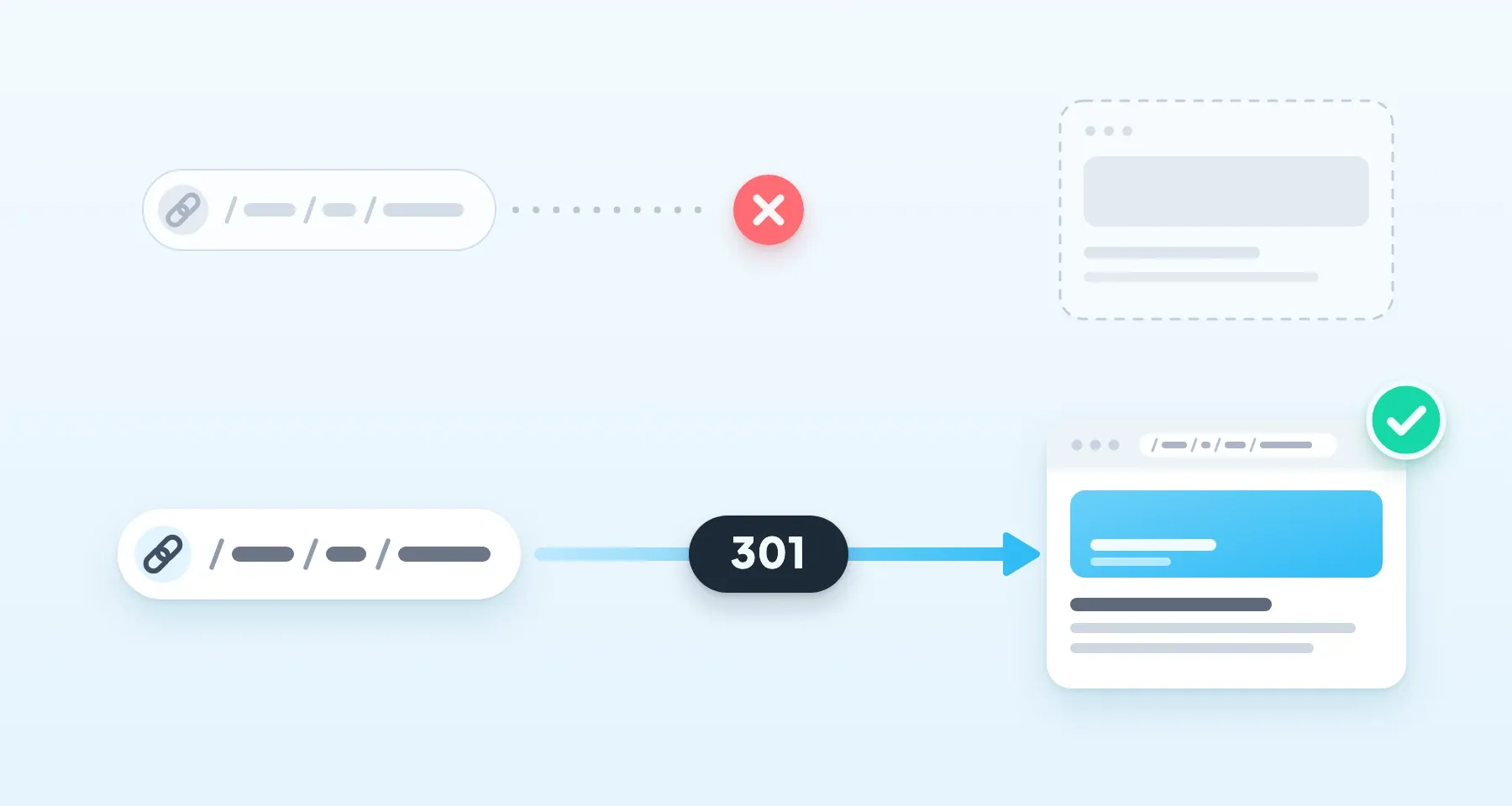
To Google, a page is first of all an address. Every page of your website has its own, with its history: the searches where it shows up, the links other websites give it, your readers' bookmarks. If the article /2019/05/my-article/ reappears in your app under another address, Google sees a new page, and the old address answers with a 404 error.
A 301 redirect makes the connection. It tells Google, and your visitors' browser, that the page has moved for good: the old address leads straight to the new one, and Google gradually replaces one with the other in its results.
It doesn't guarantee your rankings, though. Google itself warns that a site move with address changes can make rankings fluctuate for a while. But without a redirect, every page you move starts from scratch.
Before you start: is your website a good fit?
Still deciding between keeping your website and switching to the app? Read our article on choosing between a website and an app first. This guide is for those who have decided: the web version of their app becomes their website.
Four situations call for a pause before you migrate.
| Your situation | What you need to know |
|---|---|
| You are changing domain names | A redirect only applies on your app's domain. If your old domain doesn't point to it, your old host has to do the redirecting. The simplest path is to keep your domain. |
Your website exists in several languages (/fr/, /en/) | A GoodBarber app has one language. Each language needs its own app, with its own domain or subdomain. |
Your addresses look like /?p=123 | An address with parameters can't be redirected: all these addresses lead to the home page of your app. |
| Your website relies on custom features | Advanced forms, a members' area, WordPress plugins: you rebuild them with GoodBarber sections and extensions, or not at all. Check before you leave. |
Volume matters too: an app accepts up to 10,000 redirects (November 2026). Beyond that, keep the addresses that matter, as step 2 shows.
Step 1: list your old addresses
You need the list of your website's addresses, one per line, in a spreadsheet. Three sources complement each other:
- Your website's sitemap, often at
/sitemap.xml. On WordPress, it is/wp-sitemap.xmlsince version 5.5, or/sitemap_index.xmlwith Yoast SEO. - Google Search Console: the Performance report gives the pages that get clicks, the Links report the pages other websites point to.
- A crawler, which goes through your website the way Google would and picks up the pages the sitemap misses.
Add to this list the addresses your website already redirects: they still have links, and will have to lead directly to their new page. On WordPress, the Redirection plugin exports its own as CSV.
Step 2: keep the addresses that matter
Not all your old addresses deserve a redirect. Keep the ones that get visits, the ones other websites link to, and the entry pages your readers know: your sections, your contact page. For a page you are dropping, a 404 error is the right answer: it says the page no longer exists.
Don't redirect everything to the home page. Google treats these redirects as missing pages ("soft 404s"), and the Redirects tab warns you beyond 20 redirects to the home page of your app. If no page replaces an old address, choose the closest one.
Two kinds of addresses can't be redirected: files (images, PDFs, documents) and addresses with parameters. Pages ending in .html or .php, however, redirect normally. For a page followed by parameters, like /about-us.html?source=newsletter, remove the part that starts with "?": the redirect also applies to these variants.
Step 3: rebuild your pages, then publish the app
A redirect leads to a published page of your app: the page must exist before its redirect.
For your main pages, give your sections the address of your old pages: a section whose address is /contact answers the old addresses /contact and /contact/ directly, with no redirect. A section's address is set in its slug: see Configure URL rewriting and slugs. Your articles, on the other hand, are bound to change address. In your app, a content item has an address like /blog/i/48213/my-article: each article will need its own line in the file.
For a small website, rebuild your content by hand. For an archive of several hundred articles, you can hand this work to the AI assistant you already use (Claude, ChatGPT…), connected to the GoodBarber MCP server: it creates each article in your CMS with its title, its author and its original date. You stay in control: review what it has created before publishing. Either way, create them in a CMS section: content pulled from a feed (RSS or connector) names your old website as the original, and Google would credit that website rather than your app.
Then publish your app: Publish > PWA > Publish the first time, Update afterwards. The published version is the reference: a page created or renamed since the last publication is refused as a destination, with the message "Destination not found. If you just created this page or changed its address, publish your app first."
Step 4: prepare and import your redirects file
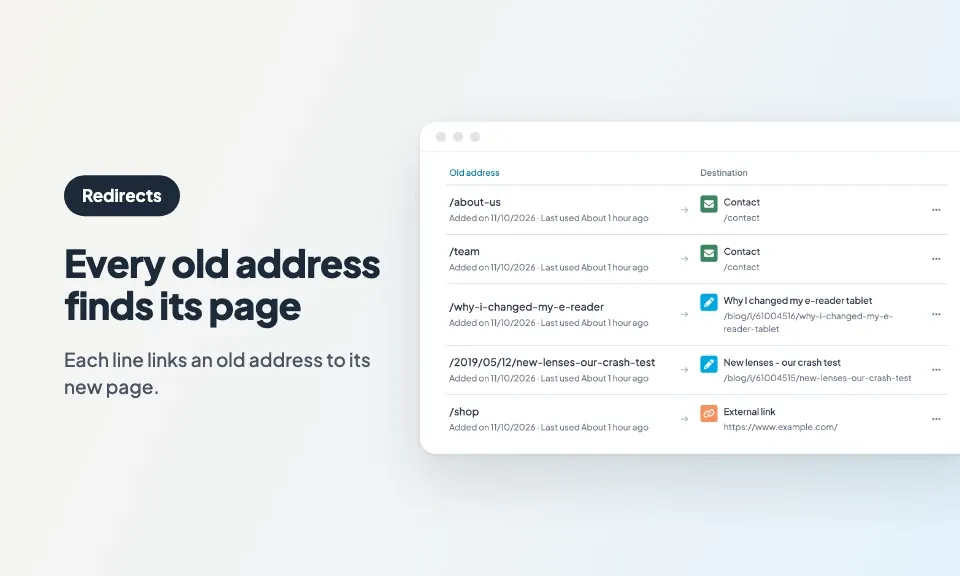
The file has two columns: the old address, then its destination. The old address can be the full address or just its path. The destination is the path of a page of your app, or the full address of a page on another website. To find the path of a page, open it in your PWA and copy its address from the first "/" after the domain name. One line links one address to one page: there is no group rule, such as "everything that starts with /blog/".
Save it in CSV format from Excel or Google Sheets, then import it in Publish > PWA > SEO, Redirects tab, Import button. Before anything is added, the Check before importing summary sorts every line into To add, Refused, Warnings or Already in your list, with the reason for each refusal and a report to download.
If your old addresses are written with your domain name and that domain isn't connected to your app yet, they land in Warnings, with the message "Applies only if mysite.com points to your app." This is expected: they are added. Once published, they already answer on your app's default address, the one step 5 has you test, then on your domain as soon as it is connected.
Nothing is ever overwritten. Fix the refused lines in your file and import it again: the lines already added go to Already in your list, and only the fixed lines are added. Keep this file: it remains the plan of your migration. For a website of a few pages, the Add a redirect button is enough: you paste the old address and choose the page from a list.
The full format and the meaning of each message are in the online help: Configure 301 redirects from your old website to your PWA.
Step 5: publish, test, then connect your domain
Your redirects change nothing online until you publish. Publish from Publish > PWA > Update: they apply within the next few minutes. Wait for an import to finish before publishing, because an import in progress doesn't go online.
Test before you switch. As long as your domain isn't connected, your PWA answers at its default address, which looks like https://projectname.goodbarber.app. Open a private browsing window and add the path of an old page to that address, for example https://projectname.goodbarber.app/2019/05/my-article/: the new page should open.
Then connect your domain from Publish > PWA > Domain name, following Connect your custom domain to your GoodBarber app. Order matters: published before the switch, your redirects answer from the very first visit on your domain. Four precautions:
- Your subscription. Subscribe before you point your domain: at the end of the free trial, an app with no subscription is deactivated, and your domain would no longer show your website.
- Your emails. If they use this domain, choose the CNAME configuration, which leaves them with your current provider.
- The delay. The change can take up to 72 hours to take effect: keep your old website online in the meantime.
- Your old account. If you bought this domain from Wix, Squarespace or Shopify, transfer it or change its configuration before closing your account, and keep a backup of your old website.
Step 6: check, then monitor
Once your domain is connected, run the test again with a full old address, still in private browsing: the right page of your app should open, with its new address in the address bar. Private browsing keeps you from seeing a page your browser kept in memory. To see the 301 code itself, use an online redirect checker.
In the following weeks, keep an eye on the Pages report in Google Search Console: the addresses reported as "Not found (404)" are the ones that don't have a redirect yet. Add the ones that matter. On a large screen, the list of your redirects also shows when each one was Last used: you can see which ones are still in use.
Your Search Console property stays the same, since your domain doesn't change. If you had verified it with a tag or a file placed on your old website, verify it again: the Sitemap tab of Publish > PWA > SEO takes the tag Google gives you. In the same tab, activate your PWA's sitemap, deactivated by default, then submit it to Google to help it discover your new pages. For Bing and the other search engines that use it, IndexNow tells them about your new pages faster. For a large archive, note that the sitemap lists the 100 most recently modified content items of each section (November 2026): Google will find the others through your redirects and your internal links.
Also fix the links you control: the ones from one content item of your app to another, your bio on social networks, your email signature. A direct link always beats a redirected one, and Google recommends updating internal links after a site move.
Keep your redirects for as long as possible, and at least a year: that is what Google recommends, to give it time to carry over to your new addresses what it knew about the old ones.
Depending on your original platform
WordPress. List your addresses with /wp-sitemap.xml, add the ones the Redirection plugin already redirects, and spot the /?p=123 addresses early: they can't be redirected. A regular-expression rule becomes one line per address. A WooCommerce store goes through GoodBarber eCommerce: by default, its /product/product-name/ pages become /products/product-name, with one line each.
Shopify. Your product pages have an address like /products/product-name, as in a GoodBarber eCommerce app. Reuse that name as the product's slug, in the product_url_slug column of the catalog CSV import (Product Import/Export extension) or in the product's SEO tab: the page then answers its old address, with no redirect. Your collections, pages and blog posts, on the other hand, need one line each.
Wix. By default, your blog posts have an address like /post/post-title: each one needs its own line. For a website of twenty or so pages, add your redirects one by one, without a file.
Squarespace. Files hosted under /s/ can't be redirected. Your existing URL mappings (/old -> /new 301) give you old addresses to add to your list. A rule with a variable, like /blog/[name], becomes one line per address.
Other platforms (Webflow, Jimdo, Weebly, Blogger…): the general method is enough, with the sitemap and a spreadsheet.
An address that must never change: QR codes and print
A redirect serves your migration. For an address you print on a flyer or in a QR code, like /promo, create a custom address in the URL rewriting tab instead: it always takes priority over a redirect. The steps are in Configure URL rewriting and slugs.
Frequently asked questions
Will I lose my search rankings?
Redirects keep you from losing what can be kept: each address that matters leads to its new page, and Google replaces the old one with the new one. Google does warn, however, that a site move with address changes can make rankings fluctuate for a while, and that it generally takes a few weeks for most pages of a small to medium-sized website to move.
How many redirects can I create?
Up to 10,000 per app (November 2026), including those not published yet. An import file is limited to 10,000 lines as well.
Do redirects work in the iOS and Android apps?
No. They apply to the web version of your app, the one Google indexes. In your native apps, an old link left in a content item may lead nowhere: fix the links in your content after the migration, as step 6 explains.
Can I redirect an address to another website?
Yes. Choose External link as the destination, or put the full address in the second column of the file.
What happens if I import the same file twice?
Nothing is changed: each address already in your list goes to Already in your list. To replace the whole list, click Delete all, import the new file, then publish.
Do I need hosting for the PWA?
No. PWA hosting is included in your GoodBarber subscription.
Where to start
Create your app with the free trial, rebuild a first section, publish your PWA, then import a file of a few lines: the summary shows you, line by line, what goes through and why. The same project also produces your native iOS and Android apps, from the Premium plan.
Sources
- Google Search Central: site moves with URL changes
- Google Search Central: redirects and Google Search
- GoodBarber Help: Configure 301 redirects from your old website to your PWA
- GoodBarber Help: Configure a CNAME record for your custom domain
- WordPress: native XML sitemaps, since version 5.5
- Redirection (WordPress plugin): import and export redirects
- Wix: blog post web addresses
- Squarespace: URL mappings


