 eCommerce
 Memberships
 Chatbot
 Online Courses
 Bookings
 Travel guide
 Events
 Content Creators
 Pickup & Delivery
 Newspaper
 Radio
Radio Schools
 Faith
Faith Organizations
 Restaurant
 Grocery
 Custom apps
 Employee Communication
 NO CODE APP BUILDER
 TECHNOLOGY
 WHY GOODBARBER?
 Design
 PRODUCT RESOURCES
 TOPICS
 MOBILE APPS RESELLERS
 DISCOVER
Podcast player, the controls your listeners expect
Radio stations, podcast producers, newsrooms publishing their shows: the audio player in your app has been rebuilt for long formats. Your listeners jump 30 seconds into an episode, pick up where they left off, speed the voice up and set playback to stop on its own. Here is what changes for them, control by control.

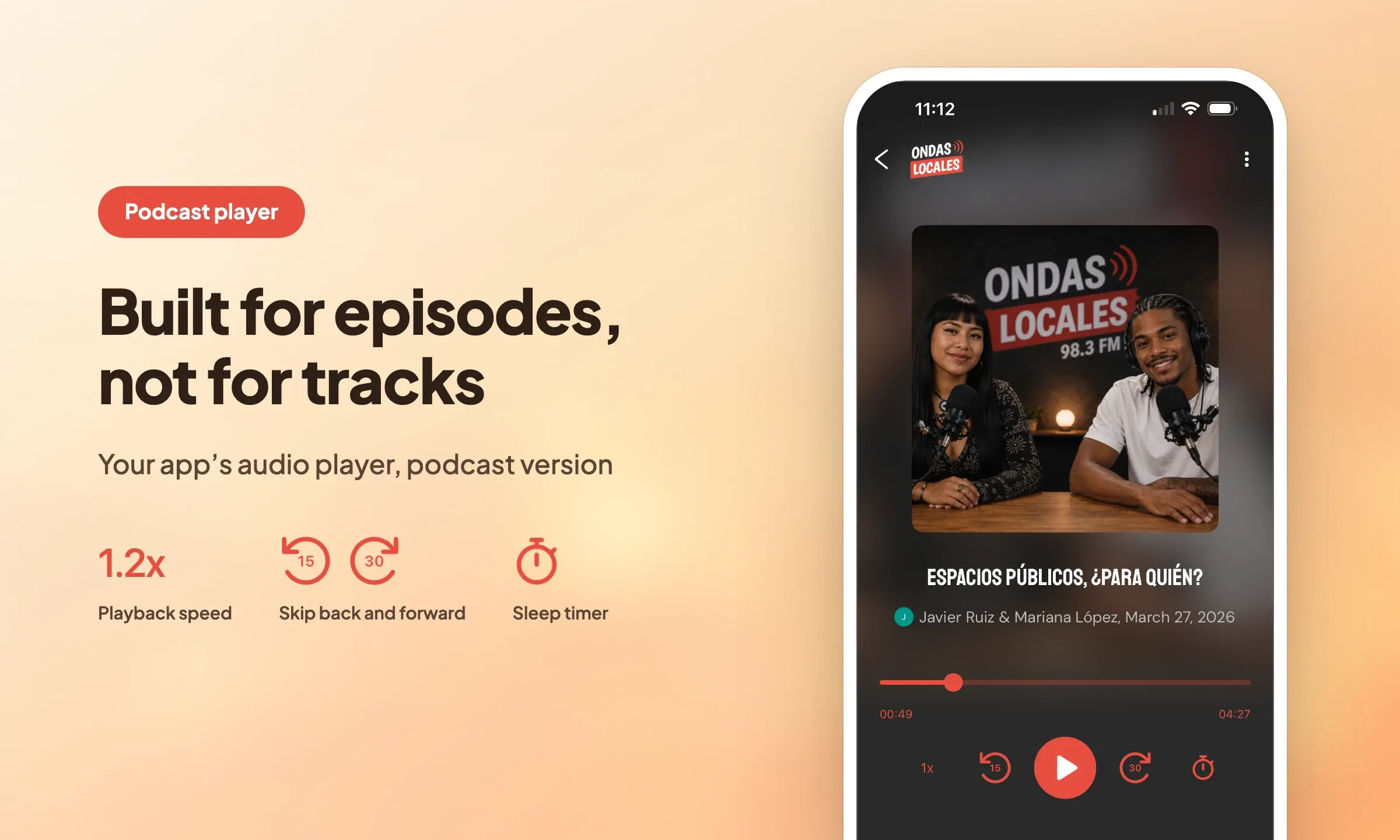
A song runs three minutes and you play it end to end. A podcast episode runs forty, a breakfast show rerun runs twice that, and it gets listened to in three goes: twenty minutes on the train, ten while cooking, the rest in bed.
Two different habits, and until now they shared the same controls. Your app's player offered previous track and next track, inherited from music players. On a forty-minute episode, or on the rerun of a show, those two buttons do nothing useful: nobody wants to jump to the next episode, everybody wants to go back over the sentence they just missed.
The player now comes in two versions, and the choice is made section by section: Music player, the one you already know, which stays the default and changes nothing in your current apps, and Podcast player, which swaps the playlist controls for the ones a podcast listener expects.
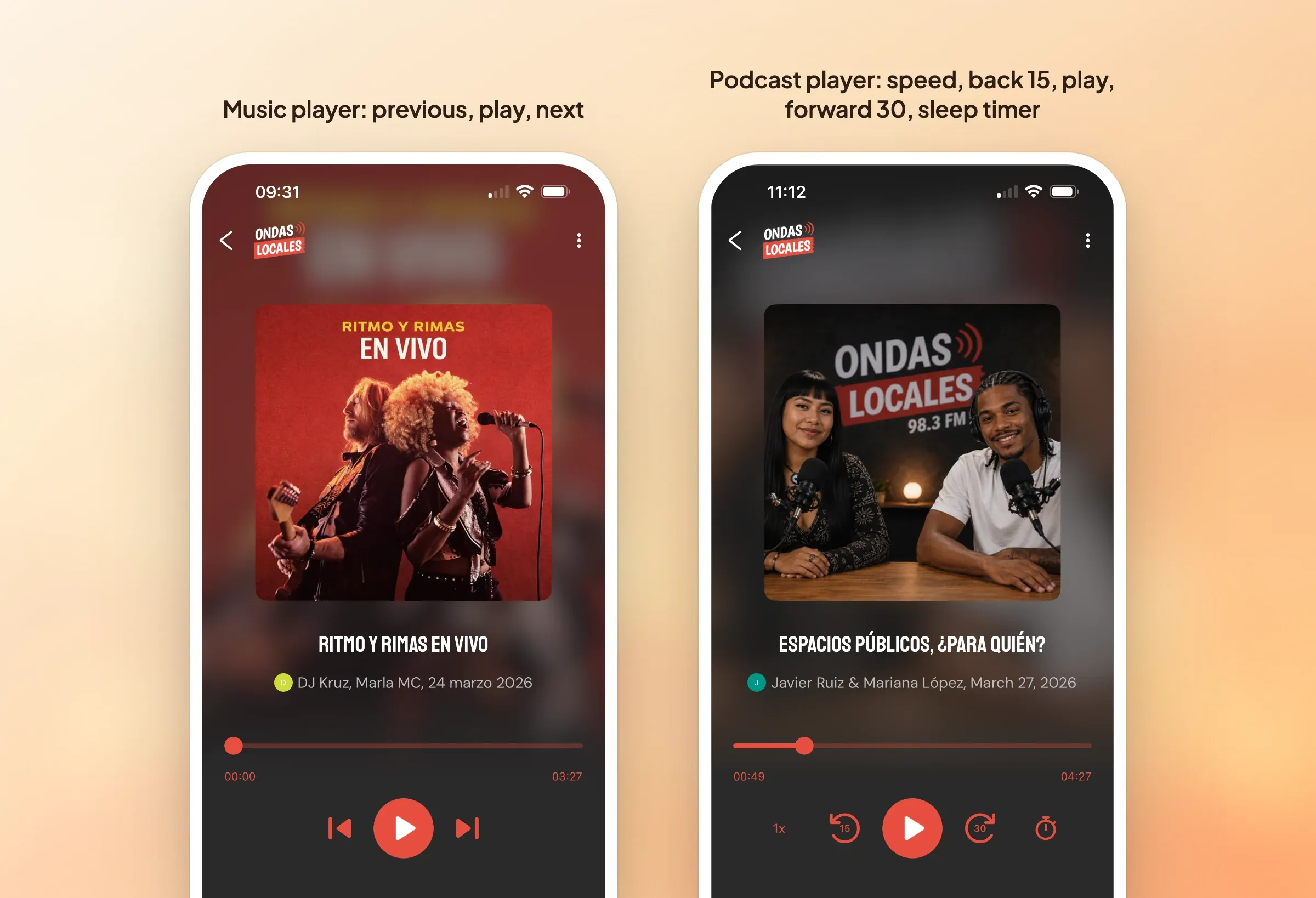
That per-section choice matters as soon as your app mixes genres. A station publishing its reruns in one section and its playlists in another sets each one its own way. The live stream keeps its own player: this setting does not reach it, but it does inherit the icon set covered at the end of this article.
Moving forward and back inside the episode
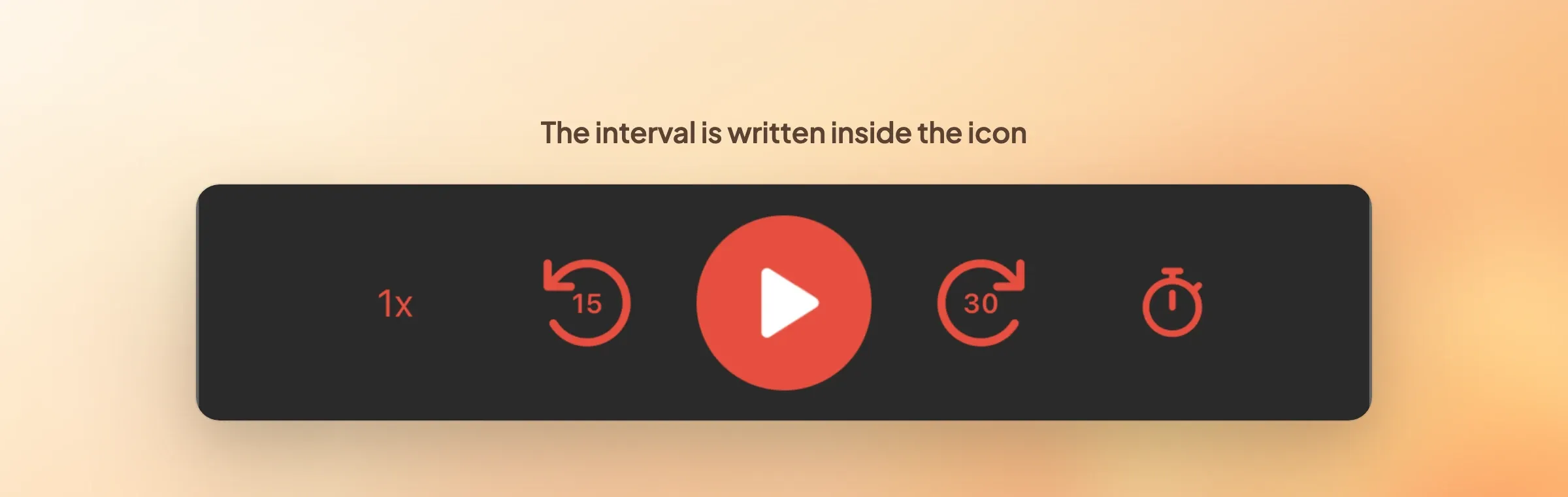
Previous and next give way to two skip buttons: back and forward, inside the same episode.
The defaults are the ones the market has settled on: 15 seconds back, 30 seconds forward. You change them in the Skip intervals block of your section, from 10 to 60 seconds in steps of 5. The number you pick is written inside the icon, so the listener knows how far the jump goes before pressing it.
This is the most used control in a podcast app. It catches a name that went past too fast, clears a jingle or an ad break, goes back over an explanation. Without it all that is left is the progress bar, and aiming for 15 seconds with a fingertip on a forty-minute bar does not work.
The episode picks up where it stopped
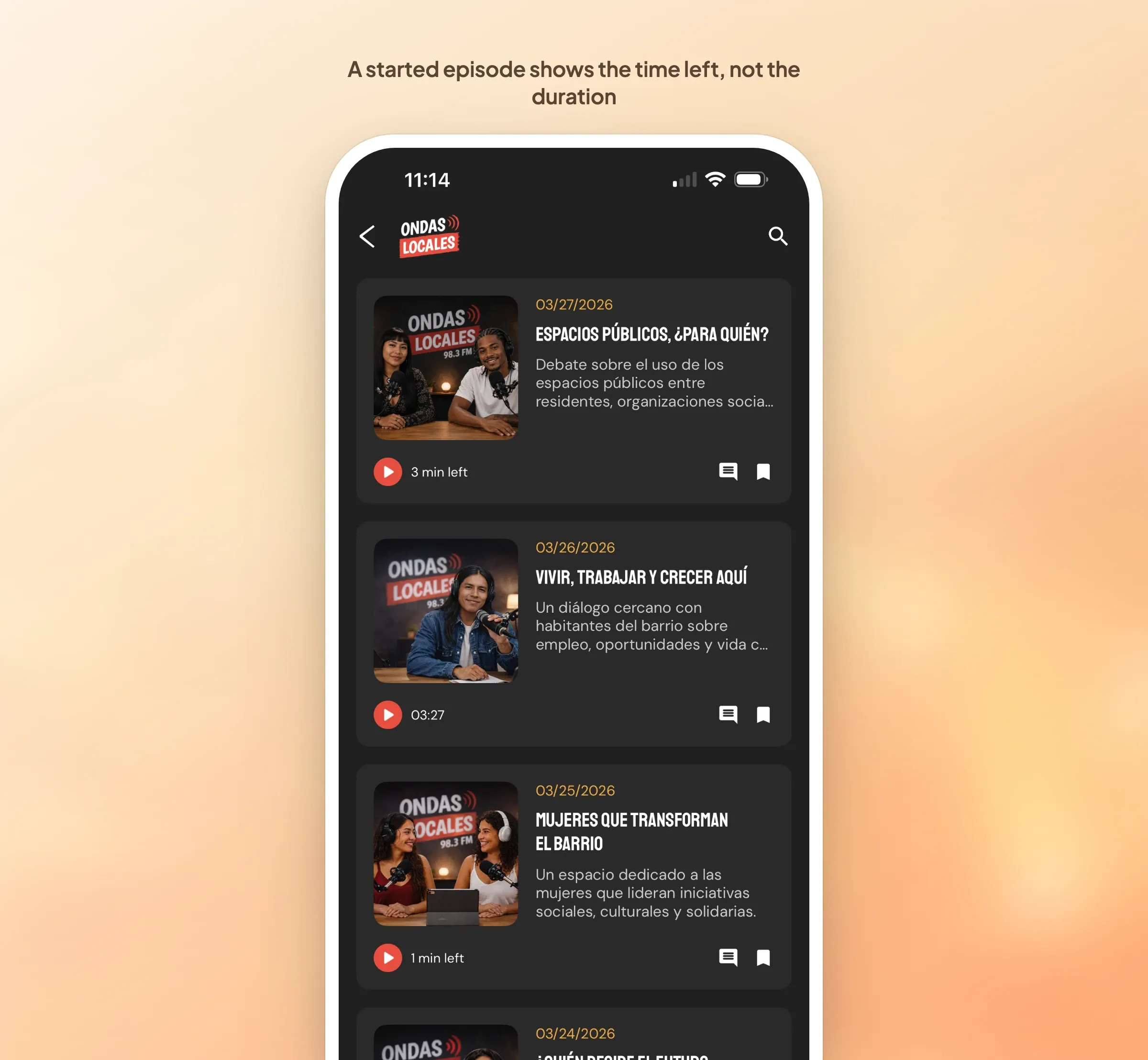
Your listener closes the app halfway through an episode. They open it again the next day, start the same episode, and playback resumes at the position they left. No handling, and no message.
In lists, the duration counter changes meaning once a position is stored: instead of the full length, it shows the time left. A started episode reads "12 min left". One glance down the list and the listener sees what they have started and what they have never opened.
Worth knowing: the position is stored on the device. A listener who listens on their phone and then opens your app on a tablet starts the episode over. Resume follows the device, not the account.
Playback speed, adjustable by a tenth
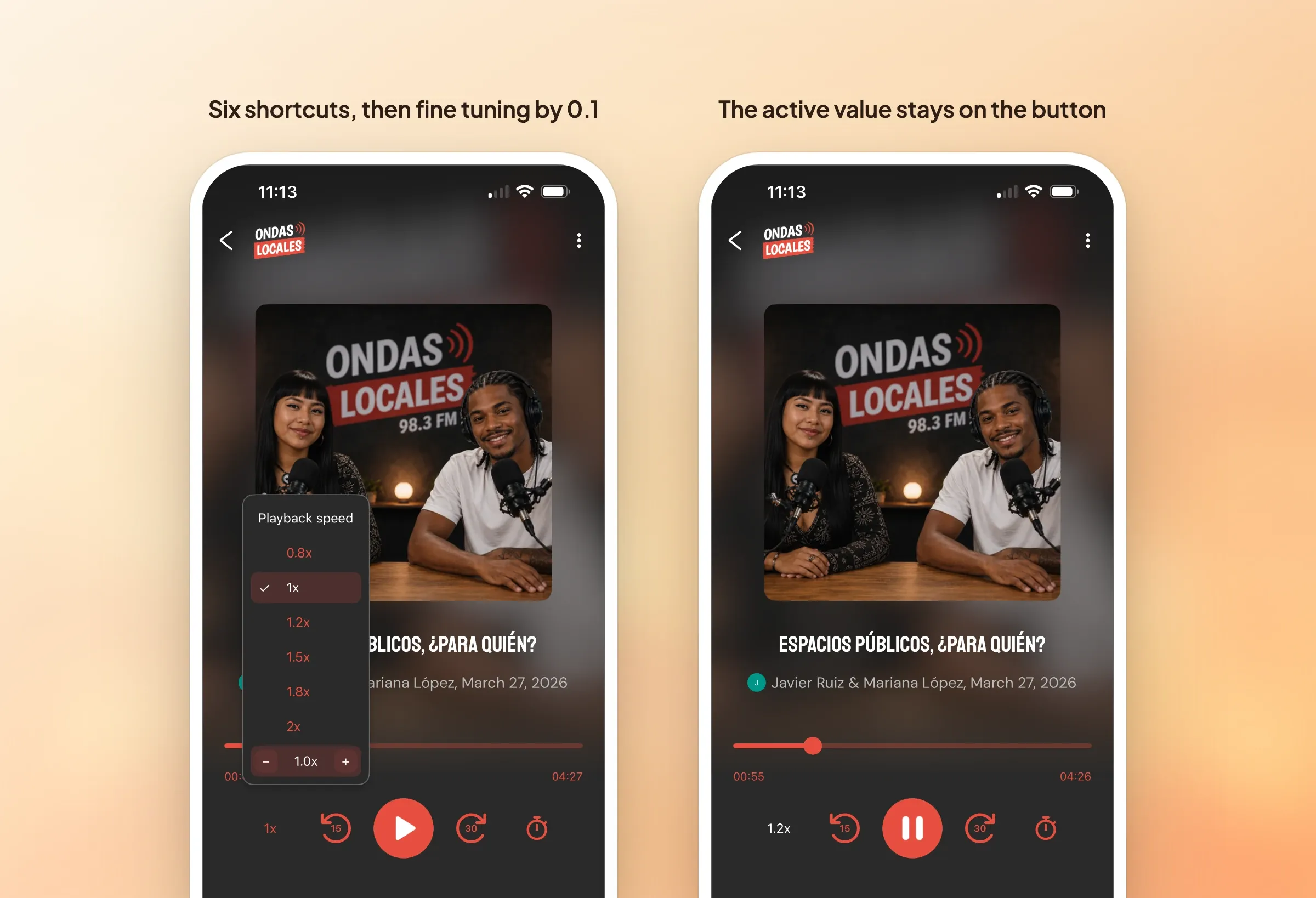
A speed button joins the controls. It opens a menu anchored under it, the same from phone to desktop.
Six speeds sit in it: 0.8x, 1x, 1.2x, 1.5x, 1.8x and 2x. One press applies the speed and closes the menu. Below those shortcuts, a fine tuning row with a minus and a plus moves the value by 0.1 per press while the menu stays open. The full range runs from 0.5x to 3x, twenty-six speeds in reach.
There is no Save button and no Done button: the speed applies the moment it is chosen, and the confirmation is the voice itself. The active value stays written on the button, so the listener always knows how fast they are listening.
Between the listener catching up on two hours of morning radio at 1.5x and the one slowing a dense interview, or a foreign language, down to 0.8x, the same control serves two opposite audiences.
A sleep timer that also stops at the end of the episode
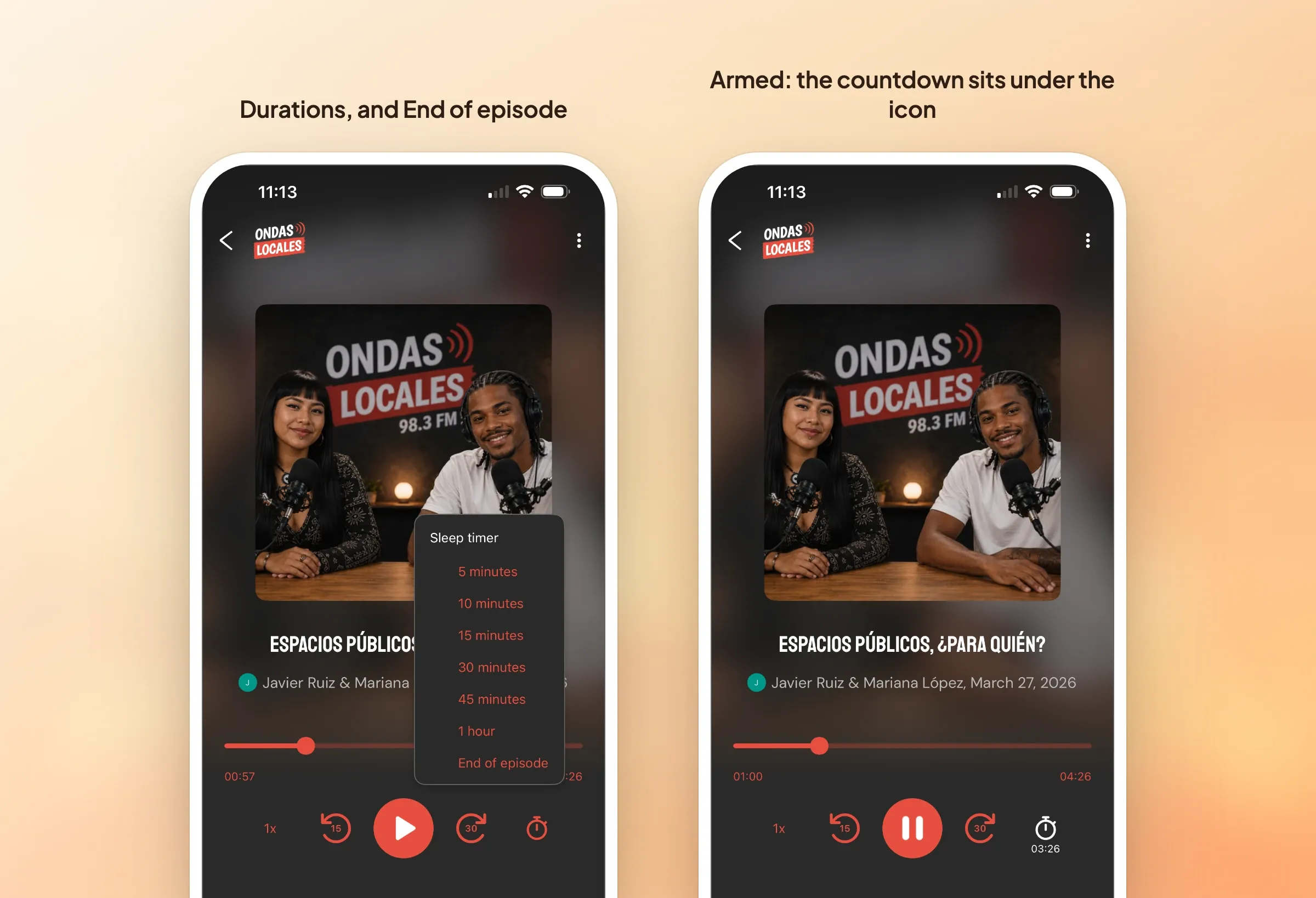
The sleep timer stops playback after a chosen time. The menu offers 5, 10, 15, 30 and 45 minutes, 1 hour, and one entry that changes everything: end of episode.
The difference between the two counts. A duration is a clock: it runs whatever happens, pause included, and cuts whatever is playing when it expires. End of episode is a position condition: it only moves if the episode moves, it freezes on pause, and it follows whichever episode the listener decides to play. Someone falling asleep in the middle of a drama or a documentary does not want to be cut off a minute before the end.
Once the timer is armed, the countdown appears under the icon, in hours minutes seconds. It always shows the time left before the stop, never the name of the setting. Reopening the menu puts a Disable entry at the top of the list.
The timer belongs to the player, not to the screen. Changing episode, going back to the list, moving around the app: none of it disarms the timer. Only choosing to disable it, or closing the player, puts an end to it.
One reservation about outputs: the sleep timer is a native feature, it works on iOS and Android apps. The Sleep mode setting stays available in the back office and the button shows in the preview, but on the PWA the control is not live for the listener. The other two settings, skip intervals and playback speed, hold for all three outputs.
Downloading an episode without opening it
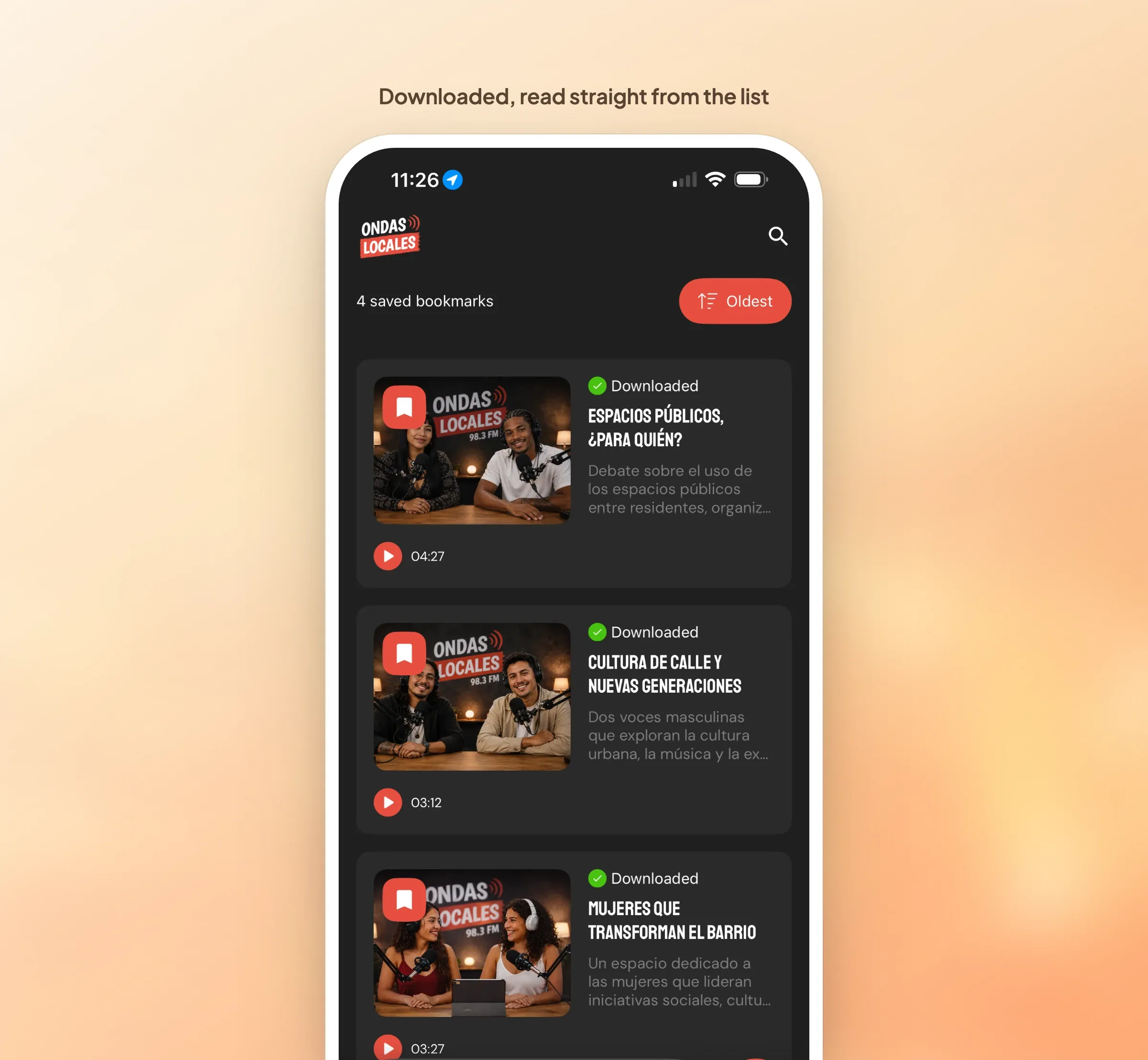
Downloading an episode used to be possible only from its detail page. It is now offered in the list itself, on every latest generation list layout.
That changes the number of taps for anyone getting ready for a commute, a flight, a dead zone. Before, you had to open an episode, download it, go back to the list, open the next one, and start over. Now the listener goes down the list and takes three shows along without ever leaving it.
A bonus: the player takes your icon set
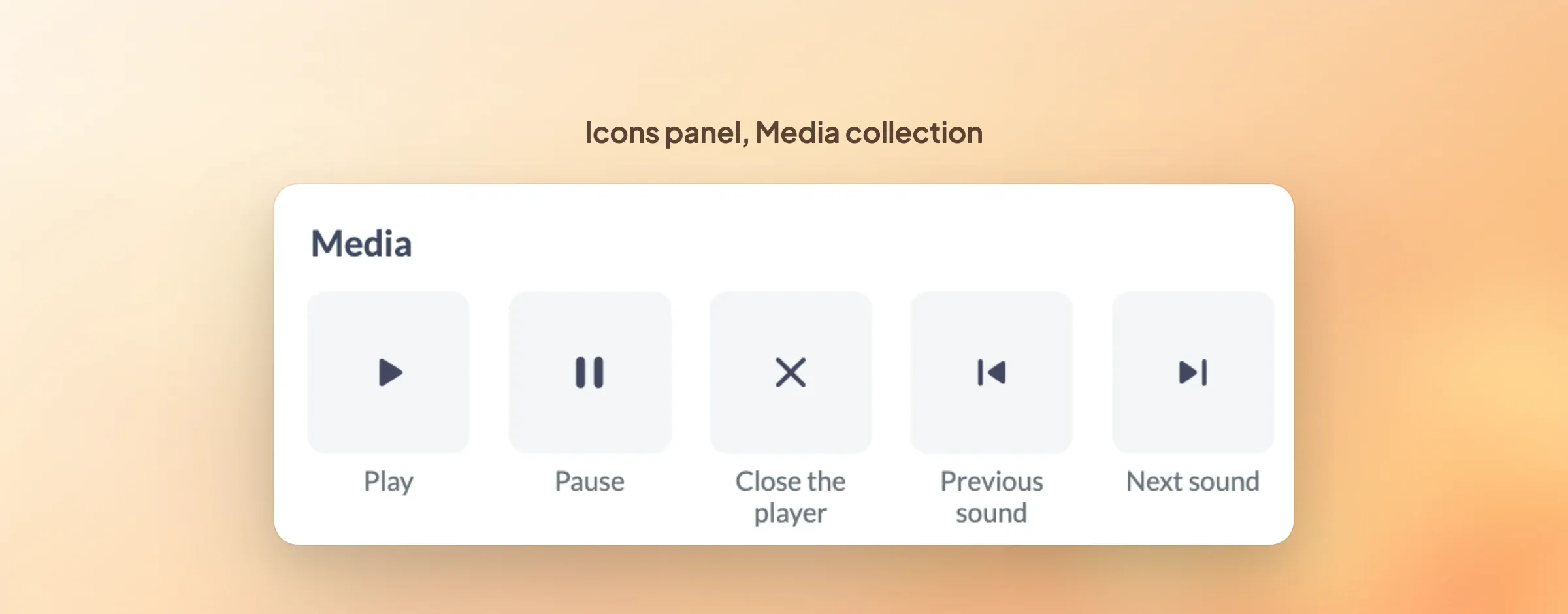
The audio player icons used to be fixed. They can now be replaced from your app's Icons panel, in a new Media collection: Play, Pause, Close the player, Previous sound and Next sound.
The change also covers the players that have no podcast version: Live audio, Live +, the mini player that stays on screen while browsing, the podcast display from earlier generations and the sound cells in search results. This is what lines up the live stream and the reruns in the same app: two different players, one icon set, including on the playback bar that follows the listener from screen to screen.
What is left for you to do
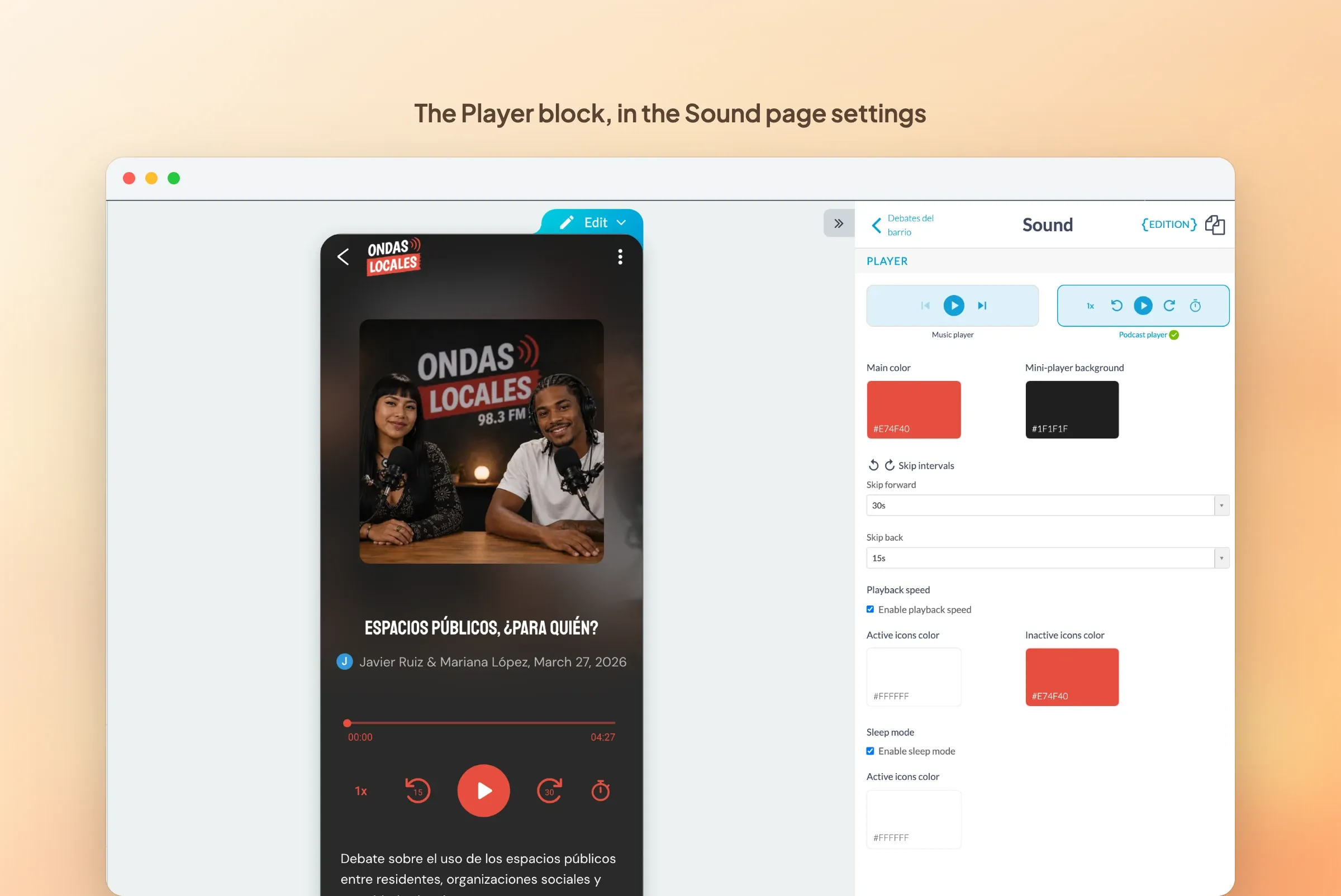
Everything is set in your sound section's design, on the detail screen: Modify the design, then Sound page. The Player block offers Music player or Podcast player. Switch to Podcast player and three settings appear: Skip intervals, with skip forward and skip back, then Playback speed and Sleep mode, each with its switch and its icon colours. Sleep mode is the name on the back office side; your listeners open a menu titled Sleep timer.
The three controls are independent: nothing forces you to offer all of them. A player with skip intervals alone, no speed and no timer, is a valid choice, and it is the right setting for a section of three-minute segments.
One thing worth knowing: as with any new feature, your listeners will only see it after a new generation of your app, on iOS, on Android and on the PWA.


