 eCommerce
 Memberships
 Chatbot
 Online Courses
 Bookings
 Travel guide
 Events
 Content Creators
 Pickup & Delivery
 Newspaper
 Radio
Radio Schools
 Faith
Faith Organizations
 Restaurant
 Grocery
 Custom apps
 Employee Communication

 NO CODE APP BUILDER
 TECHNOLOGY
 WHY GOODBARBER?
 Design
 PRODUCT RESOURCES
 TOPICS
 MOBILE APPS RESELLERS
 DISCOVER

Twitch
 Built by GoodBarber
Your Twitch channel in direct access on your app
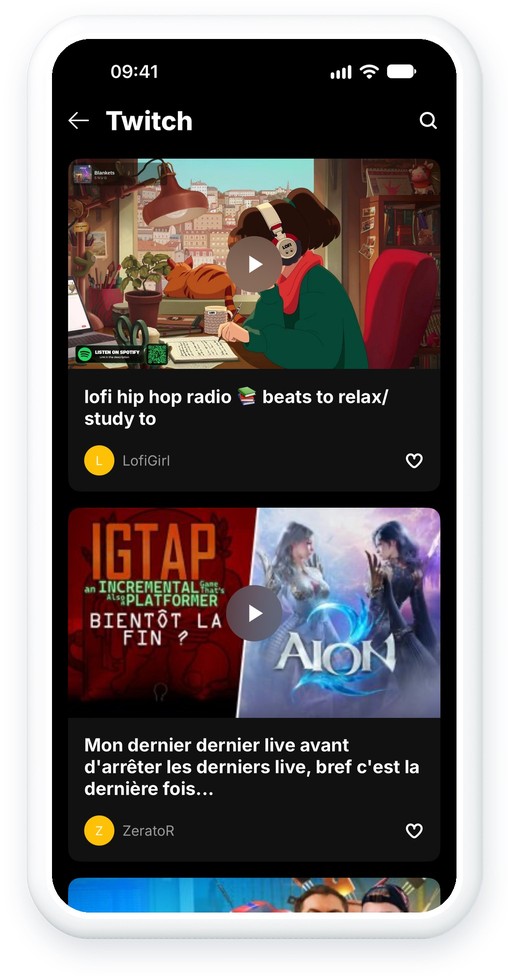
No need to announce every stream by hand. With the Twitch integration, your channel is synchronized with your GoodBarber app: when you are live, your stream appears at the top of the section, followed by your videos (past broadcasts, highlights and uploads).
Videos play in the app with Twitch's official player. Under each video, a link leads to Twitch, so your viewers can follow your channel and join the chat. You choose the text of this link, in your app's language.
 Your stream at the top of the list when you are live
- Past broadcasts, highlights and uploads
- Twitch's official player
- Title, description, duration and view count
- Link to Twitch, with customizable text
- Load more videos...
How to integrate Twitch?
- 1Activate the Twitch extension in your app
- 2Log in to the Twitch developer console (two-factor authentication must be enabled on your account)
- 3Register a new application: OAuth redirect URL http://localhost, category Website Integration, client type Confidential
- 4Copy the Client ID, then click New Secret to get the Client Secret
- 5Enter your channel name, the Client ID and the Client Secret in your GoodBarber back office
- 6To keep your streams as videos, turn on Store past broadcasts in Twitch's stream settings
And that's it!
For a detailed step-by-step guide, please refer to our online help
Twitch is available in your app!
Once the integration is complete, a new Twitch section will appear in the menu of your app. Like all other sections, you can customize it as you wish.
All you have to do is go live on Twitch: your streams will be available directly in your app, along with your videos.


