 eCommerce
 Memberships
 RAG Chatbot
 Online Courses
 Bookings
 Travel guide
 Events
 Content Creators
 Pickup & Delivery
 Newspaper
 Radio
Radio Schools
 Faith
Faith Organizations
 Restaurant
 Grocery
 Custom apps
 Employee Communication

 NO CODE APP BUILDER
 TECHNOLOGY
 WHY GOODBARBER?
 Design
 PRODUCT RESOURCES
 TOPICS
 MOBILE APPS RESELLERS
 DISCOVER
GoodBarber's Online Help
Create new Apple Pay certificate for Stripe
This online help explains how to retrieve the stripe.certSigningRequest file from your Stripe account, as part of activating Apple Pay in your app.
1. Go to https://dashboard.stripe.com/ and connect to your Stripe account
2. Access the settings from the page https://dashboard.stripe.com/settings
3. From "Product Settings" section, under “Payments”, click “Payment Methods ”
4. Click the GoodBarber accountcreated when setting your Stripe account
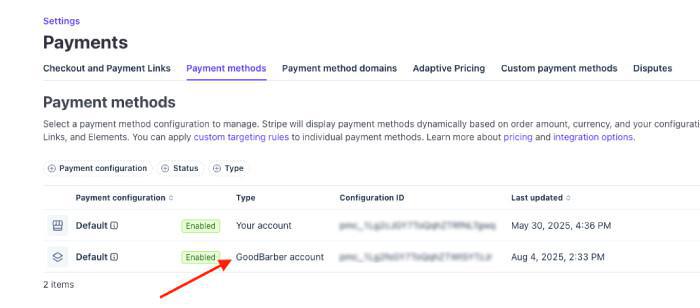
5. Scroll down and click Apple Pay payment method > Enable it
6. Click the button "Configure iOS certificates"
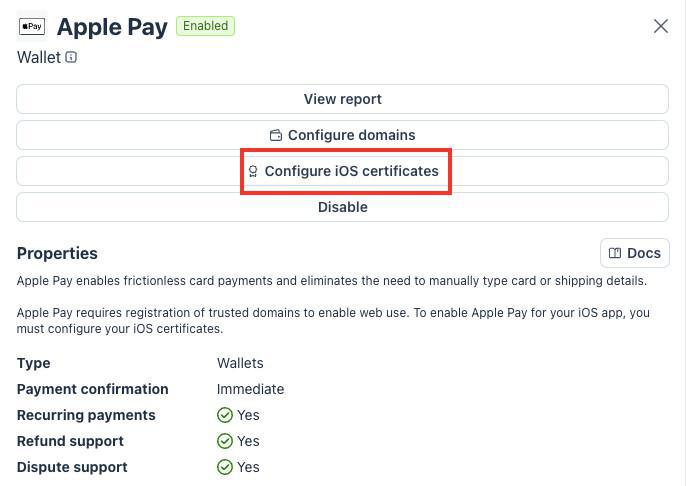
7. Click the button "+ Add new application"
As soon as you click on this button, the download of the stripe.certSiginingRequest (CSR) file starts automatically*.
Locate where the file was saved on your computer's hard drive because you will need it in the next step.
*If the download does not start automatically, follow the instructions on the screen. A link is provided to force the file to be downloaded
8. Upload the CSR file in your GoodBarber back office, where it is requested.
9. Use this CSR to create/sign the certificate in your Apple Developer account
10. Download the signed stripe.csr file from Apple Developer.
11. Return to Stripe, open the Apple Pay iOS certificate configuration again, and upload the signed stripe.csr file*.
12. Submit the configuration.
*If you subscribed to our GBTC service , our team will generate the signed stripe.csr for you and provide it to you in the GBTC support ticket.
- Introduction to payment gateway
- Quick testing gateway
- Stripe settings
- Paypal Settings
- Offline payment
- Test mode / Live mode
- Display of the different payment methods in the checkout process
- Credit Card saved on browser (Payment Request API)
- Credit card saved in your shop (Client account)
- Apple Pay
- Stripe Extended payment methods